7
Charging
1. The MOZA Mini MX has a built-in lithium battery. Before first use, fully charge it to
condition the battery to ensure smooth operation.
2. When the power indicator starts flashing, the battery level is less than 20%. Please
charge it in time.
3. With a universal Type-C port, Mini MX can be charged by both phone charger and
power bank.
4. The battery will automatically stop charging when it gets fully charged. The blue
indicator light will turn off. Please disconnect the charger.
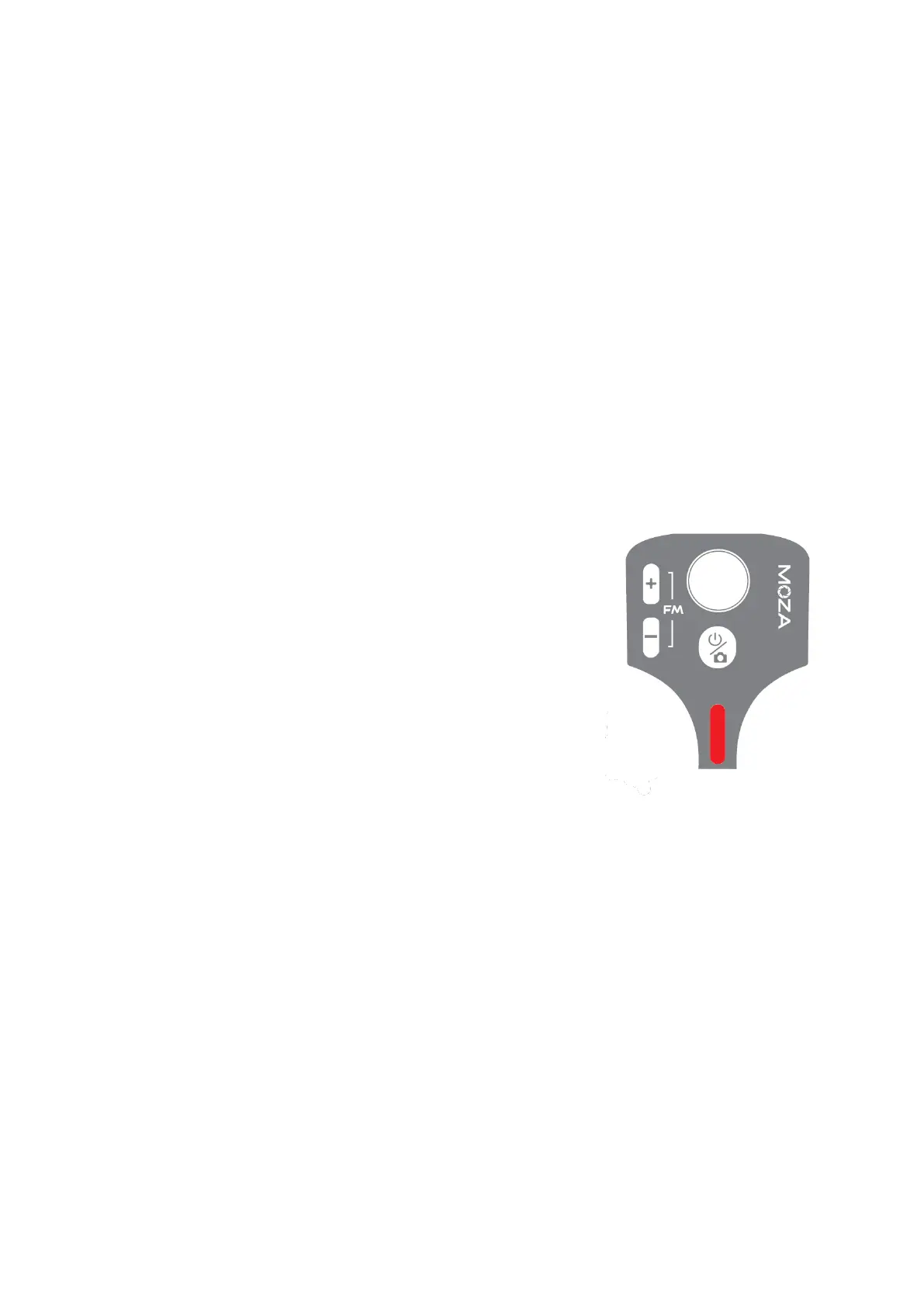
Battery Level Indicators
• The blue indicator light is always on in three bars, and
the power is 70%~100%;
• Two bars of the blue indicator light are always on, the
battery level is 40%~70%,
• The blue indicator light is always on, and the power is
20%~40%
• The blue indicator light flashes once, and the battery
level is 0%~20%
• The blue indicator light flashes from top to bottom, and
the gimbal is in upgrade mode
• The blue indicator lights are on from bottom to top,
charging
Note: The indicator light is off after fully charged when power off, and the indicator light
is always on after fully charged when power on.
Connecting to the MOZA Genie App
Refer to the illustration on page P2, installing the phone and balancing the gimbal. Long
press the function button for 3s to power on the gimbal, turn on the Bluetooth of the
phone, launch the MOZA Genie App. Click the Bluetooth icon in the main interface of
MOZA Genie App to search for connectable devicesselect the device with the
connection prefix as Mini MX. After successful connection, the gimbal will automatically
enter the shooting interface.


 To Next Page