English
14
English
15
Menu Detail Information
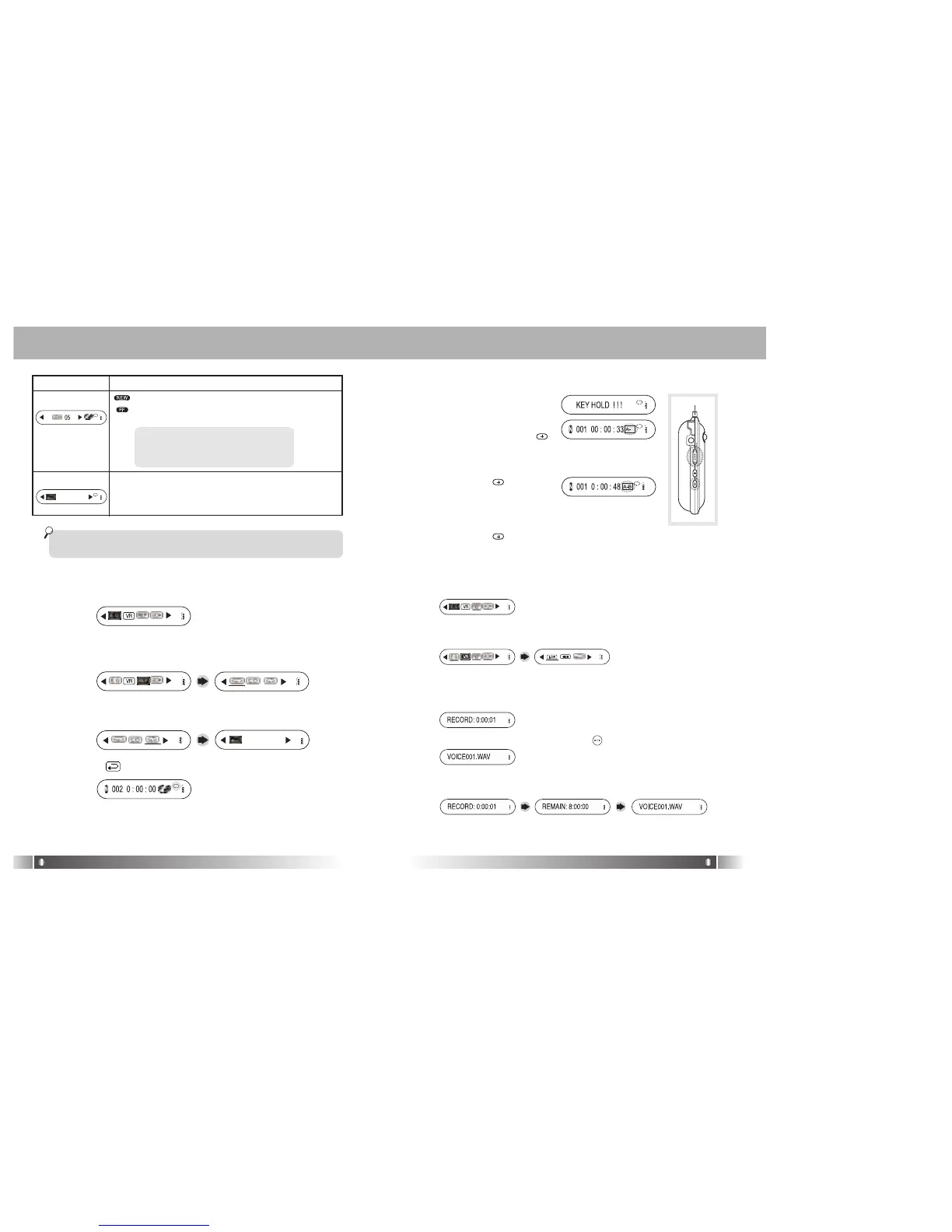
• If any button is not pressed for 3 seconds in menu, it will come
out of menu mode.
[B/L (Backlight)]
: Make the time of Backlight long
• You can adjust the time
: Make the time of Backlight shortly
00 Backlight Off
01-10 : 1~10 seconds
20: 20 seconds
30: 30 seconds
Move to upper level
[Ent (Enter)]
Ex) Change the mode in the Repeat Menu
1. Enter the Menu by press and hold the Jog button vertically.
2. Select the REP Menu by shifting the Jog button in the Menu
and enter the Repeat Menu by pressing the Jog button verti-
cally.
3. Move to the Repeat All mode by shifting the Jog button. And
save the Repeat All mode by pressing the Jog button vertically.
4. Select the (ENT), you can get out of menu..
(7) Repeat Segmentation
1. To listen a specific section.
1) Make the music playing.
2) Set HOLD Slide on.
3) Press Volume button ( )
at the start point.
A-Repeat Segmentation starts.
2. Press Volume ( ) button
again at the end point.
A-B Repeat Segmentation is made.
3. If you want to cancel this function,
Press Volume ( ) button again or set HOLD button off.
(8) Voice Record
1. Enter the Menu by press and hold the Jog button vertically.
2. Select the VR Menu by shifting the Jog button in the Menu and
enter the VR Menu by pressing the Jog button vertically.
3. You can select record quality between Low and High bit rate.
LOW is records file in 33Kbps and HIGH is records file in 89Kbps.
4.
If you want to start the record, press the Jog button vertically shortly.
5. In order to stop the record, press the button.
* If you push the jog button vertically shortly during recording, LCD
will be displayed 3 ways information for record.
* In case the recording time is less than 5 seconds, record file will
not be saved.


 To Next Page