ain.
Turn on and connect the USB cable with a computer and the USB terminal
(earphone terminal) of the player.
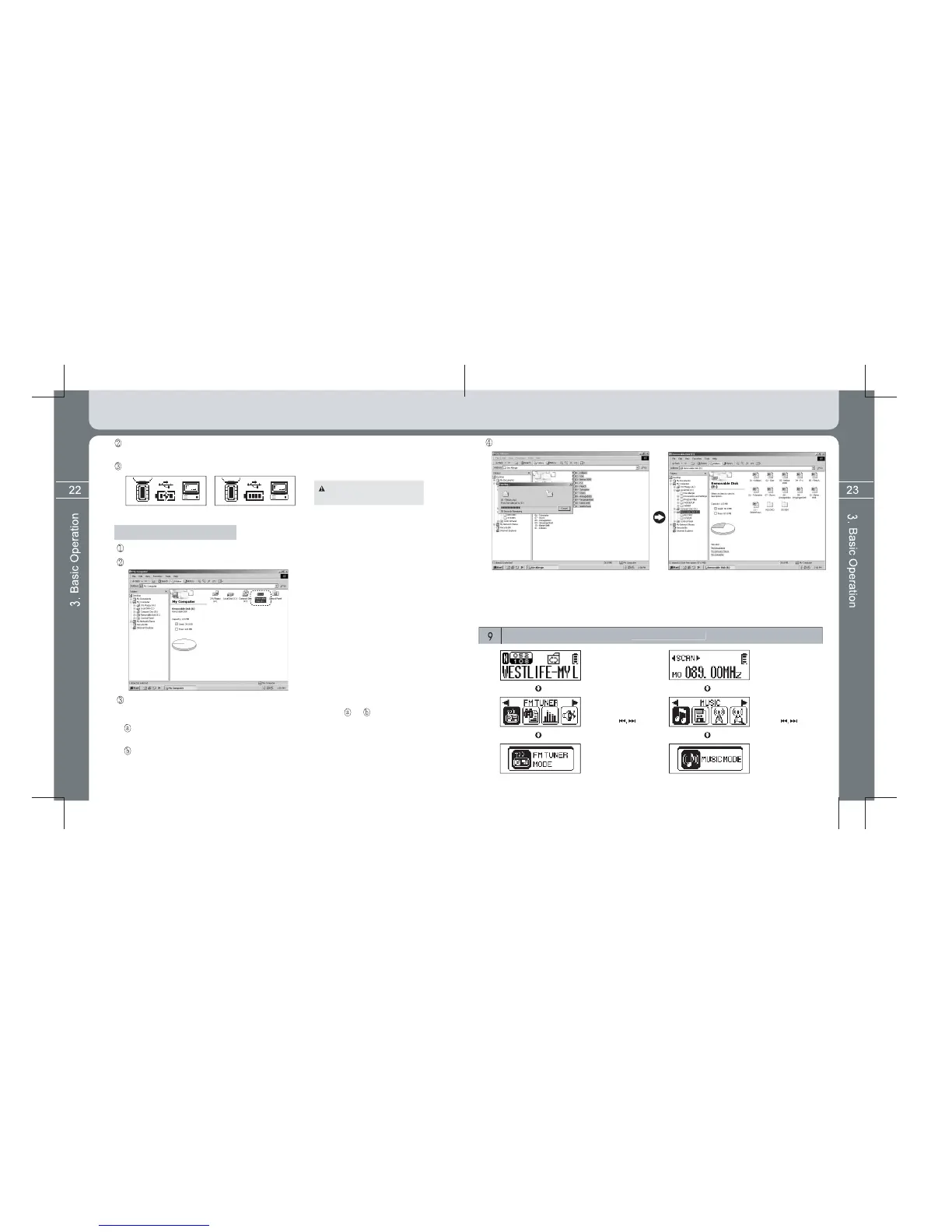
Check a USB link message in the LCD screen of the player as below.
Battery charging is automatically
done in connection of USB.
Converting MUSIC mode ↔ FM T
FM TUNER Mode
Press and hold the MENU
button and move to the
main menu screen.
Select the MUSIC icon by
using the button and
press the MENU button
shortly again.
The Mode Conversion screen
temporarily appears and
moves to the MUSIC MODE.
Music and data file storage
Execute [Window Searcher] of a PC.
The PC recognizes FL350 as movable disk. (The user can check it in the ‘My Computer’.)
Thus, the user can execute command such as Save/Delete of data, To make Folder in
the same method as hard disk of the PC (Save data in the or method as below).
Copy & Paste: After selecting data to save, “copy” them and then “paste” them to
the movable disk.
Drag & Drop: After selecting data to save, drag them with the mouse left button
pressed and then drop the mouse left button at the movable disk
recognized.
Selected data are saved at the movable disk.
(After selecting data to save, [drag and drop] them at the
movable disk)
(Saving completing status at the movable disk)


 To Next Page