This document serves as a user manual for the MID74C tablet, providing essential information on its operation, features, and maintenance to ensure safe and correct usage.
Function Description
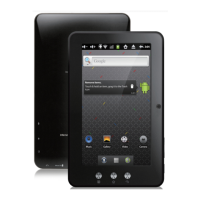
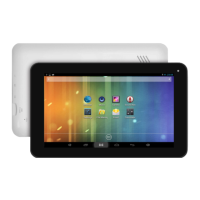
The MID74C is an Internet Mobile Device running on Android 4.0 ICS, designed for a variety of multimedia and internet-related tasks. It features a 7.0-inch TFT LCD capacitive multi-touch screen, allowing for intuitive navigation and interaction with applications. The device is powered by an ARM Cortex A8 processor, enabling smooth performance for browsing, media playback, and applications.
For internet connectivity, the tablet supports Wi-Fi (IEEE802.11 b/g/n), facilitating access to online content, email synchronization, and VoIP phone functions. It includes a Google browser for web surfing and supports e-Book functions, compatible with various e-book formats through dedicated applications.
Multimedia capabilities are a core aspect of the MID74C. It supports 1080p HD file playback for videos, and can handle a range of video formats such as AVI, RM/RMVB, FLV, MPG4-1, and MPEG-2. For audio, it plays MP3, WMA, AAC, and WAV files. Photo viewing is also supported, with compatibility for JPEG, BMP, GIF, PNG, and TIFF formats. The device comes with a built-in speaker and microphone for audio output and input.
The tablet is equipped with a G-sensor, which allows for automatic screen rotation based on the device's orientation. It also features an HDMI port for TV-out, enabling users to display content on a larger screen, and a USB host for OTG (On-The-Go) functionality, allowing connection to external USB devices. A Micro SD card slot is included, supporting cards up to 32GB for expanded storage.
For productivity, the MID74C can view and edit MS Office files through applications. It is compatible with external keyboards and mice, enhancing its utility for tasks requiring more precise input.
Usage Features
Power On/Off and Standby: To power on or off the device, a long press of the power button is required. The device may take a minute to boot up. For standby mode (screen off) or to turn the screen on/off, a short press of the power button is sufficient. To unlock the screen from standby, slide the lock icon.
Desktop Navigation: Upon turning on, the desktop displays shortcut icons and an arrow panel on the right side. Users can create desktop icons by pressing the upper right-side icon, which brings up a pop-up menu. Long pressing a desired APK icon allows it to be placed on the desktop as a shortcut. Widgets can also be added to the desktop by pressing the "Widgets" tab and selecting the desired icon.
System Settings: Accessing system settings is done by pressing the menu button on the desktop and selecting "System settings." This menu provides various configuration options:
- Wireless & Networks: This section allows users to manage Wi-Fi connections. By turning Wi-Fi on and accessing Wi-Fi settings, the device automatically searches for available networks, enabling users to select and connect to their preferred network.
- Sound: Users can adjust volumes and configure notification settings, including default notification sounds, touch sounds, and screen lock sounds.
- Display: This includes settings for brightness, wallpaper selection, auto-rotate screen toggle, sleep duration (after which the screen turns off due to inactivity), and font size.
- Storage: This feature allows users to check the device's internal memory and microSD card status. It also provides an option to "Unmount SD card" for safe removal.
- Battery: Users can monitor battery usage status, including the current charge level and estimated remaining battery life.
- Apps: This section lists all installed applications, categorized into downloaded and running applications. Users can manage applications by long-pressing an app icon, which allows for options like "Force stop" or "Uninstall." Running services can also be viewed and controlled here.
- Accounts & Sync: This feature allows users to create and synchronize accounts, particularly for email, which automatically downloads emails after connecting to a Wi-Fi network.
- Location Services: Users can enable Google's location service, allowing apps to use data from Wi-Fi and mobile networks to determine approximate location.
- Security: This section offers options for screen lock (pattern unlock), making passwords visible, and allowing installation of applications from unknown sources (non-Market apps). It also includes credential storage options and the ability to install certificates from an SD card.
- Language & Input: Users can choose their preferred language for the device. Keyboard and input method settings can be changed here. If additional languages are desired for the keyboard, users can select the relevant keyboard, enter its settings, and choose the desired language.
- Date & Time: This allows setting the device's date, time, and format.
- Developer Options: Provides settings for application development.
- About Tablet: Displays device status, legal information, and other details.
Connecting to a Computer: To connect the device to a PC, plug it in and then touch the right side of the status bar at the bottom of the desktop. Select "USB connected" and then "Turn on USB storage." The device will be recognized as an external storage drive on the computer, allowing for file transfers. After finishing, press "Turn off USB storage" to safely unmount the device.
Installing Applications (.apk files):
- Method 1 (Via Market): Connect to the internet, run the "Market" application, search for desired apps, and follow on-screen instructions for installation.
- Method 2 (Manual Installation): Download the .apk file to a computer. Connect the device to the computer (as described above), copy the .apk file to the device, and then disconnect. Use the "File browser" on the device to locate the .apk file and press it to install, following the on-screen instructions.
Maintenance Features
Safety Precautions:
- Avoid placing the product in hot, wet, or dusty environments, especially inside a car with closed windows during summer.
- Do not drop, impact, or shake the product violently, as this can cause damage or malfunctions.
- Use earphones at a proper volume to prevent ear problems.
- Do not use headphones while crossing the road or driving to avoid traffic accidents.
Charging:
- Always use the provided charger (DC5V) and accessories. Using an incompatible charger may damage the device.
- Charge the product when the battery icon shows low or empty, the system automatically shuts down or turns off shortly after restart, or if operation keys do not respond properly. The device will show a charging icon on the top right corner when connected to power.
- The device may heat up during long periods of use or while charging due to its high-performance processor.
Troubleshooting:
- If the device freezes or gets stuck, press the reset button (a small hole) or long-press the power button for 7 seconds.
- If performance slows down after using multiple applications, it is recommended to close running applications through the settings menu to free up resources.
Application Management:
- Regularly check the "Apps" section in settings to manage downloaded and running applications. Uninstalling unused applications can help maintain device performance and free up storage space.
- Be cautious when installing applications from "Unknown sources." The manual explicitly states that the manufacturer is not responsible for any problems, including legal issues, arising from end-user decisions to breach these guidelines, especially concerning adult applications. Users must be at least 18 years old or of legal majority age in their jurisdiction to download adult applications.
General Care:
- Keep the device clean and free from dust.
- Ensure proper ventilation when using the device for extended periods, especially during charging, to prevent overheating.

 Need help?
 General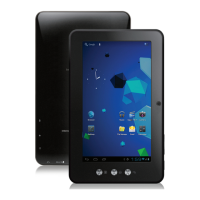

 To Next Page