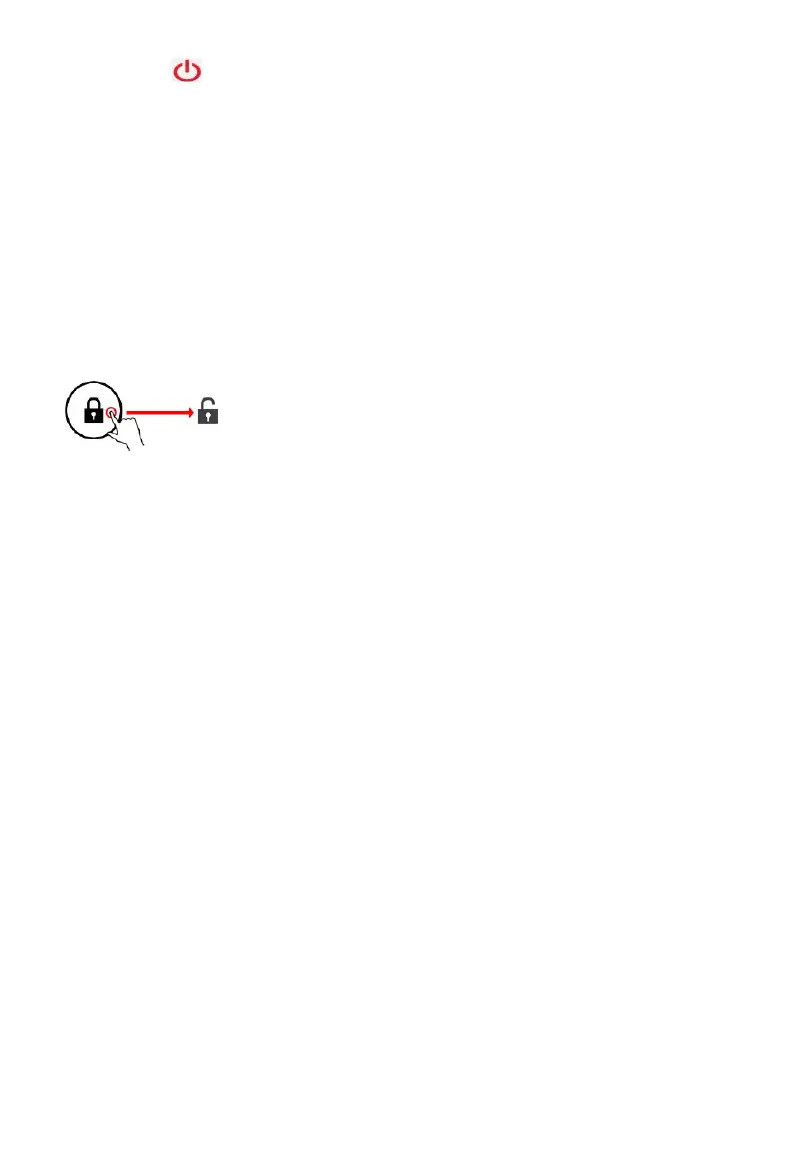
1.Press the button for continuous 5 seconds and it will appear
2.Select OK to power off the tablet
Screen Lock
This feature locks the screen, at the same time turn OFF the screen’s
backlight after a few seconds.
Screen locks when:
1. System is idle.
2. Manually activated by pressing the Power button once.
Screen unlock :
Home screen
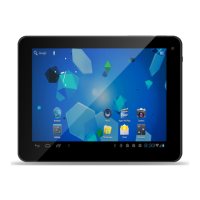
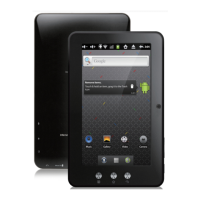
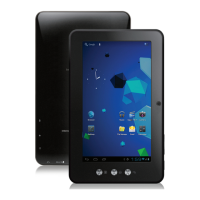
The Home screen will look similar to the picture below. It is actually five
screens, each of which can have a different layout of icons. To switch
between screens, simply slide your finger left or right across the display.
The status bar and navigation buttons are always visible, no matter which
Home screen you can currently viewing.



 To Next Page