Getting Started
2-32-2
USB Type-C
Mini DisplayPort
DVI
HDMI
DisplayPort
Know Your Video Connectors
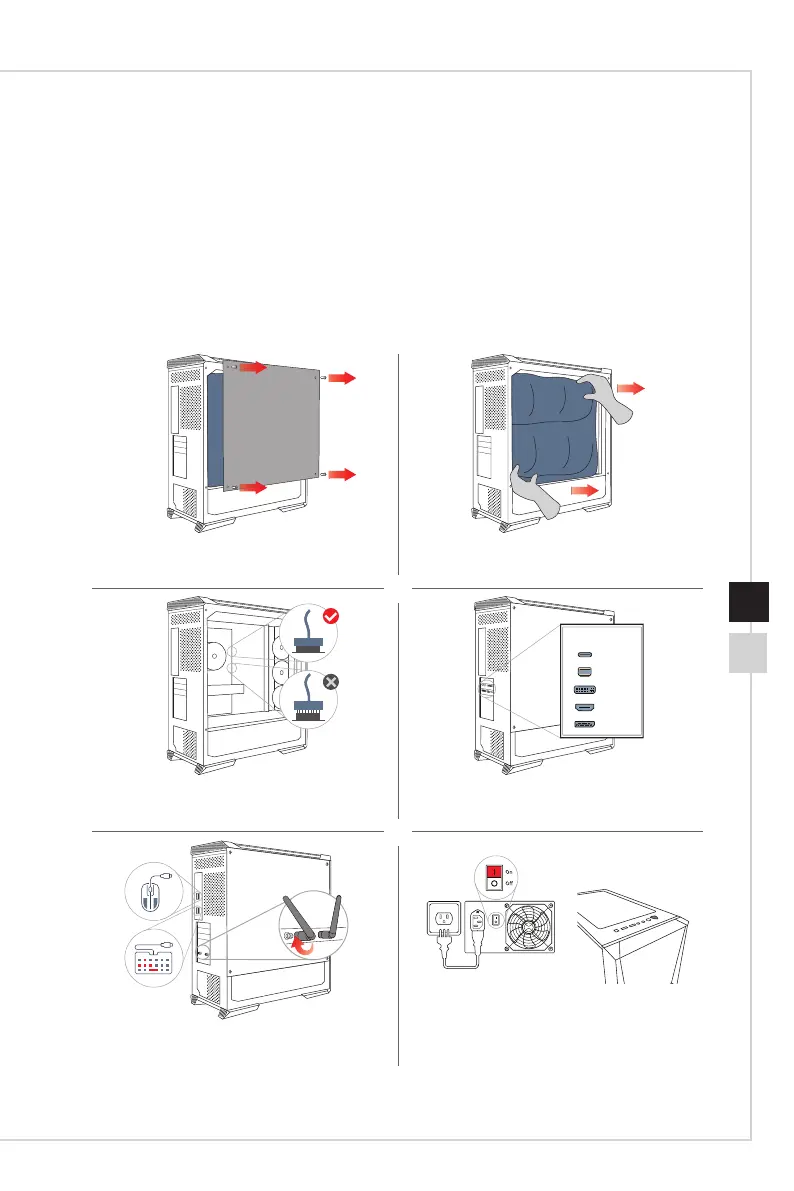
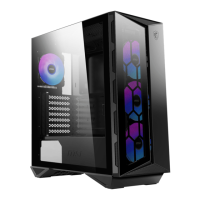
tep 1 REMOVE THE TEMPERED GLASS SIDE PANEL
emove the four thumbscrews on the tempered glass side panel. And gently
emove the tempered glass panel away from the case and place it in a safe area.
Step 2 REMOVE THE FOAM PACKAGING
Carefully pull the foam packaging out the system. It should come out easily
without having to apply any force.
tep 3 INSPECT YOUR PC
ake sure all components and cables are seated firmly. Now, you can replace
e tempered glass side panel and secure with thumbscrews.
Step 4 CONNECT YOUR MONITOR
Connect your monitor to either display ports or HDMI ports on the graphics
cards.
tep 5 CONNECT WIFI ANTENNAE, KEYBOARD & MOUSE
crew the Wi-Fi Antennae to the gold contact points on the rear of the case.
ug the mouse and the keyboard into any of the USB ports.
Step 6 POWER ON YOUR DESKTOP
Plug the power cable into the power cable socket and plug the other end of
the power cable into a power outlet. Turn the power supply switch on by
having the “I” symbol on the switch pressed down. Press the power button.
Hardware Setup
h Placing the System
If you have any further questions regarding your new computer, please do not hesitate
to contact us either through the online customer service site https://us�msi�com/support
or by contacting our customer support at 1-626-271-1004, Monday to Friday from 9:00
a.m. to 6:00 p.m. Pacic Standard Time. You can also contact technical support by
calling 1-888-447-6564, Monday to Friday from 5:00 a.m. to 4:00 a.m. Pacic Standard
Time� We will reply to you as soon as possible�


 To Next Page