5. Main Menu
18 19
5. Main Menu
ENGLISH ENGLISH
5.4 Camera
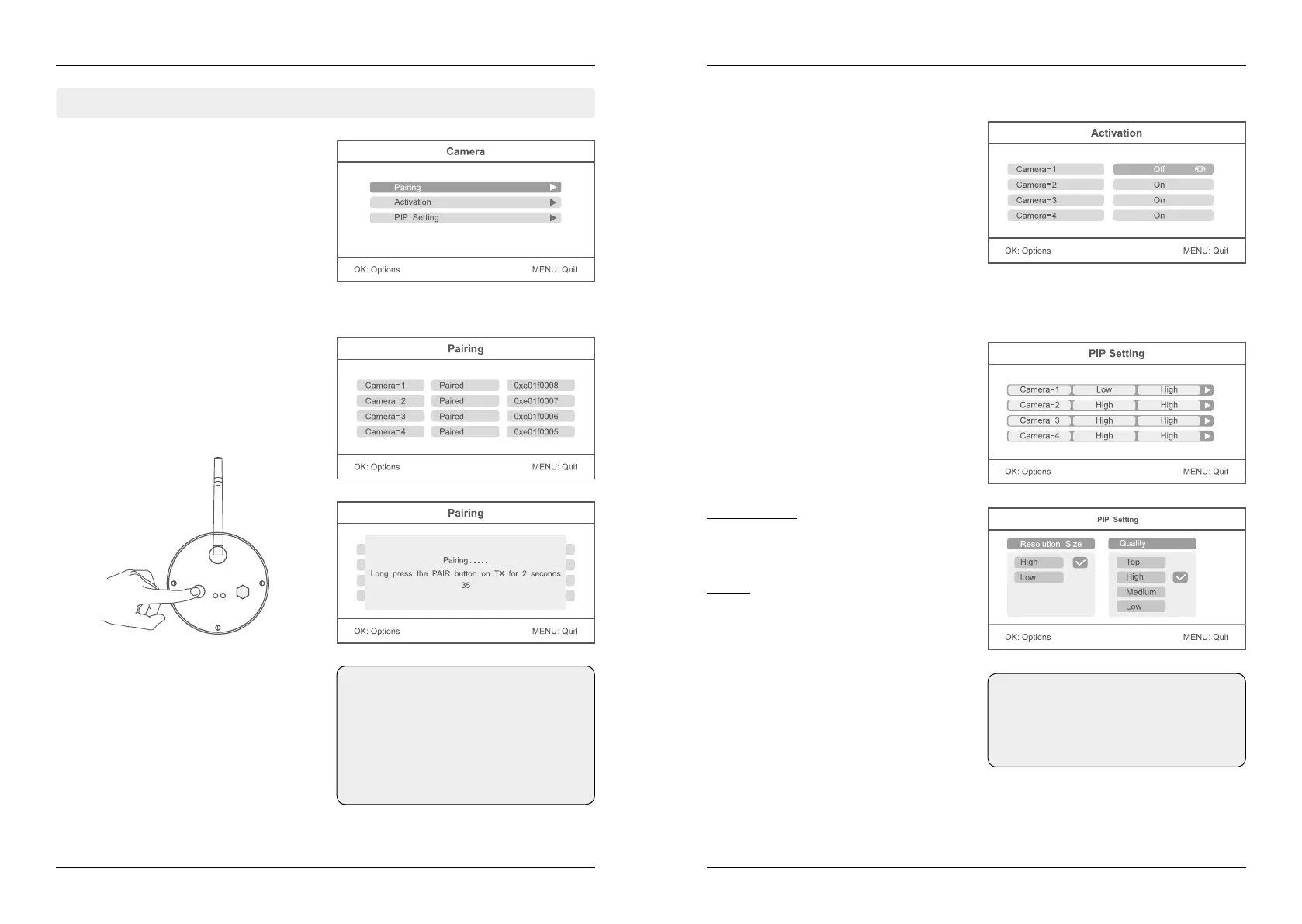
Press in the real-time monitoring the MENU but-
ton to enter the main menu.
Press the t or u button to select the menu
item CAMERA. Confirm with OK.
Press the p or q button to select the menu
item „Pairing“. Now use the p or q button to
select a camera from which you want to pair
and confirm with OK. Then a message box
appears that prompts you to press the pairing
button on a camera.
Press the p or q button to select the menu
item „Activation“. Now use the p or q button
to select a camera which you want to activate.
Press the t or u button to enable or disable a
camera. When a camera is disabled, it has no
function and will not record video or activate
an alarm.
Press the p or q button to select „PIP Setting“
and confirm with OK. Now use the p or q button
to select a camera and confirm again with OK.
Resolution Size:
Press the p or q button to select a video re-
solution. You can choose between „high“ and
„low“. Confirm your selection with OK.
Quality:
Press the p or q button so set the quality of
the videos. You can choose between „Low“,
„Medium“, „High“ or „Top“. Confirm your selec-
tion with OK.
To exit the menu and save the settings, press
the MENU button.
Press within 35 seconds on the back of the ca-
mera the pairing button for about 2 seconds.
Now the camera is connected to the monitor
and there are no other wireless frequencies
disturbed.
If pairing fails, the system prompts “Pairing fai-
led”. Please perform pairing again.
Pairing
Activation
PIP Setting
Note:
The cameras have already been factory
paired with the monitor. You must per-
form this step only if interference to other
wireless frequencies or if you buy more
individual cameras.
Note:
Higher the resolution and the quality is
set, more memory is required for each
video on the SD card or USB device.


 To Next Page