Installation
7
Installation in Windows ME
The MT5634MU driver files for Windows ME are installed in two
groups, as described below. The installation wizard begins by
installing certain driver files. At that point, Windows ME detects the
modem as a new device. Then the installation wizard runs again to
install the remaining driver files.
1. Power up your Windows ME computer.
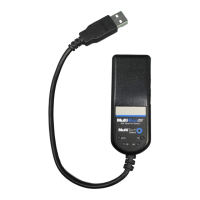
2. Connect the MT5634MU to your computer’s USB port. Then
connect one end of the provided telephone line cord to your
MT5634MU and the other end to a telephone wall jack.
3. Windows ME will detect that the new modem is present and
launch the Add New Hardware Wizard.
Place the MT5634MU CD into the CD drive of your PC. The
first Add New Hardware Wizard screen displays the message
“What would you like to do?” Choose “Specify the location of the
driver (Advanced)” and click Next.
4. At the Add New Hardware Wizard screen “Windows will search
for new drivers ...”, uncheck the “Removable Media” button (if
necessary) and check “Specify a location.”
5. Click the Browse button and navigate to the Windows ME
subfolder of the Drivers folder on the MT5634MU CD. Then
click OK. Click Cancel if it prompts you for a floppy disk.
6. The Add New Hardware Wizard the “Windows driver file
search ...” screen appears. Click Next.
7. Transient progress screens will appear while files are being
copied. After the files have been copied to your PC, an Add
New Hardware Wizard screen will appear indicating that
Windows has finished installing this the first of two drivers.
Click Finish. The wizard will close.
8. Windows ME will now detect an “Unknown Device” and begin
another Add New Hardware Wizard, again asking “What would
you like to do?” Choose “Specify the location of the driver
(Advanced)” and click Next.
9. At the next screen (Add New Hardware Wizard “Windows will
search for new drivers...” screen), uncheck the “Removable
Media” button and check “Specify a location.” Click Next.
10. Transient screens will appear while files are being copied. The
Add New Hardware Wizard “Windows driver file search...”
screen will appear. Click Next.





 To Next Page