MCSI Setup for Connection to a Serial-to-Ethernet Device
Multi-Tech Systems, Inc. MCSI and Serial-to-Ethernet Device Setup Example – A Reference Guide 7
7. The MCSI setup program will now ask you to restart your PC. For the MCSI ports to be
operations, the system must be restarting.
Select Yes, I want to restart my computer now, and click the Finish button.
8. After your PC has restarted, you can open the MCSI software:
• Click the START button.
• Select All Programs
• Select MCSI2000
• Select MCSI2000 Management Console
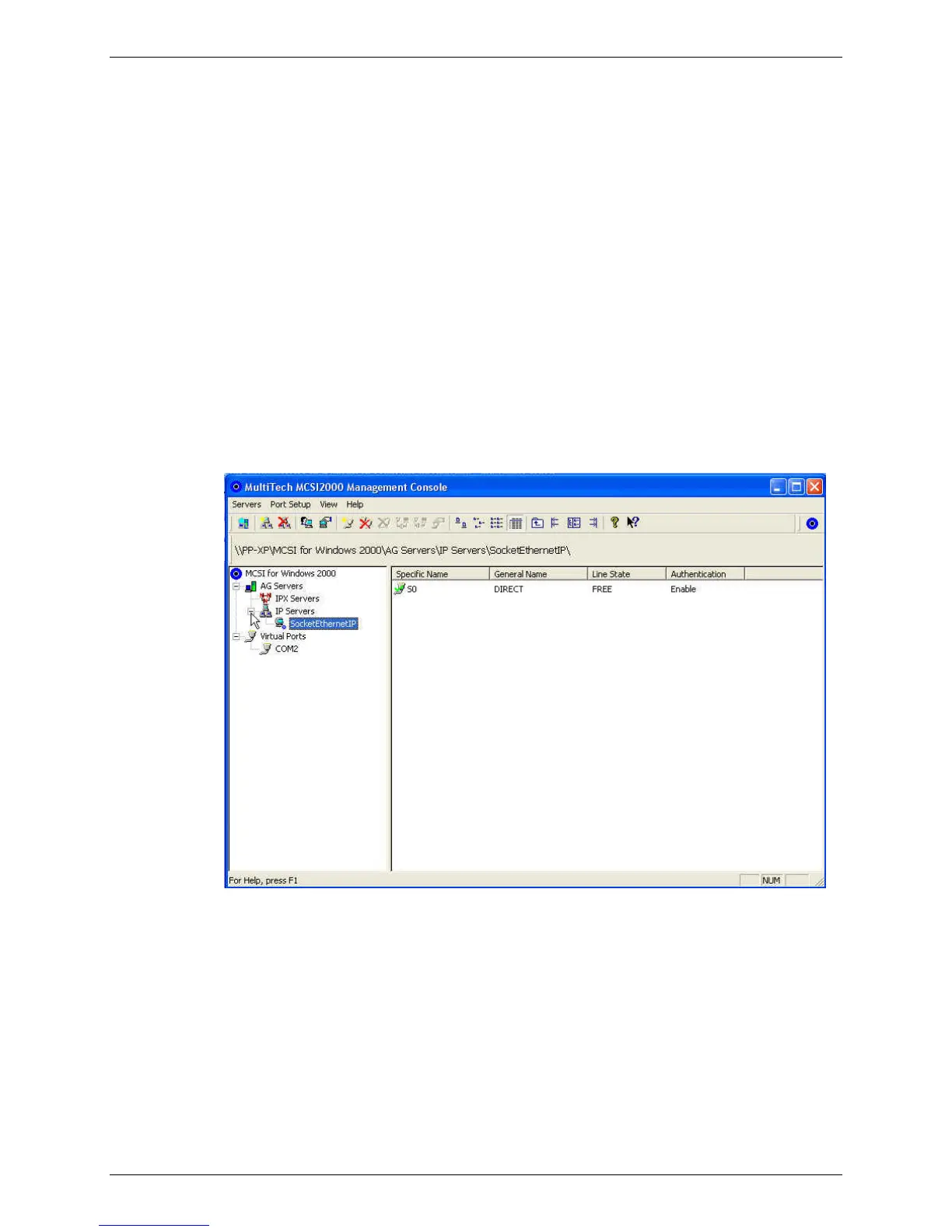
This will start the MCSI software and allow you to see the MTS2EA device. If you cannot
see the listed device, click the + sign in the box to the left of IP servers. If you click on the
SocketEthernet IP name, your device will come up GREEN if it’s working correctly. You will
now be able to open any terminal program selecting COM Port 2 (COM2) to connect to the
serial side of your MTS2EA.
Note: Windows displays only the COM ports that have a physical connection. So, until the
MCSI is connected to your MTS2EA, you will not see the new COM port listed in the Device
Manager.
Testing the Connectivity
Open Windows HyperTerminal.
Select the new MCSI port to test connectivity to the MTS2EA.
Once you have the COM port open in HyperTerminal and have, for example, another computer with
HyperTerminal connected directly to the serial side of the MTS2EA device, you can enter information on
one PC and it will display on the other PC.



 To Previous Page