Relative location displays a new location relative to the last origin you set. This will match the Absolute
Location until you press the origin set button:
Array Setup
1.8.4
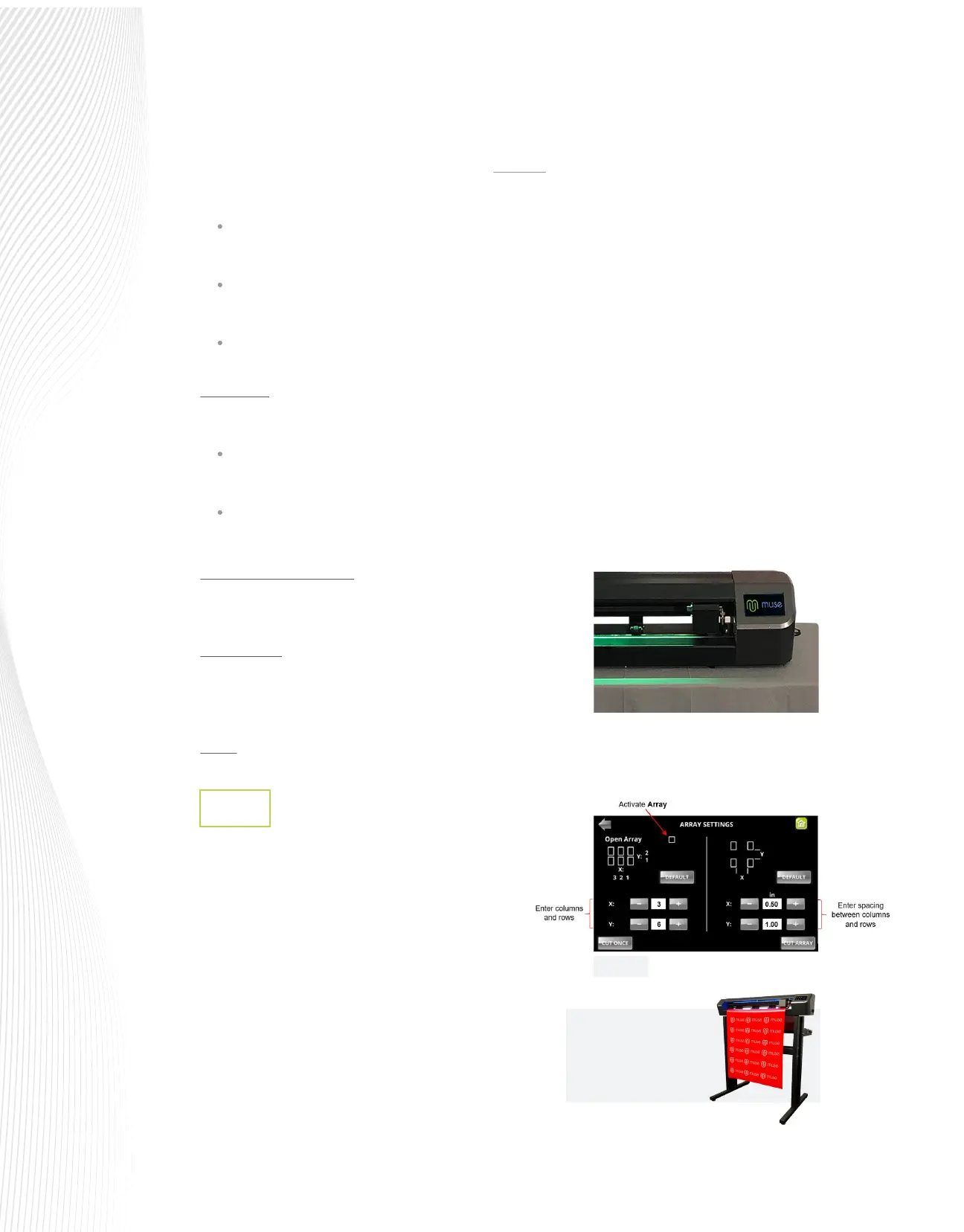
This feature allows you to convert one cut job into multiple
copies and arrange them in rows and columns.
Tap the ARRAY button to open the ARRAY SETTINGS screen:
In FIG 1.8.6, the le sent to the Muse would be cut in a
pattern or array of eighteen copies, arranged in six rows and
three columns. The spacing between each row is set to 1”
and the spacing between each column is set to 0.5”. Note
that the units can be changed to metric, if desired (refer to
Section 1.8.2).
Y KEY MODE: This setting controls how the Muse cutter moves your media forward or backward (along
the Y axis), as you press the up/down arrow keys on the control panel.
GO RIGHT WHEN POWER ON: When this setting is enabled, the tool
carriage will move to the right side of the cutter when the cutter is
powered on. Otherwise, the tool carriage remains in its current position.
SYSTEM MODE: This screen is only needed for the M60 model in which
you can activate both heads to be used. Once the DOUBLE option is
selected, the Main Screen will update so that you can elect to use the
left side, right side, or both:
SCALE: This setting is used to input the sizing calibration. Refer to Section 2.7.
x is the current left-to-right distance moved from the last origin (how far you have moved the tool
carriage across the platen).
y is the current up-&-down distance moved from the last origin (how far you have moved the media
forward or backward in the Muse).
l is the straight-line distance relative to the last origin.
In the DEFAULT setting, pressing the up arrow moves the media forward and pressing the down arrow
moves it backwards.
Setting the Y KEY MODE to INVERSE will ip this so that pressing the up arrow will move the media
backwards.
Use the ARRAY feature to
set up repeats of a design
sent to the Muse
Fig. 1.8.6
Fig. 1.8.7
Blade holder at right
edge of platen


 To Next Page
 Loading...
