EasyManua.ls Logo

Nab QT850 - User Manual

Nab QT850
10 pages
Print Icon
To Next Page IconTo Next Page
Loading...
Page 1 of 10
How to process a Refund
Step 1
Press on “Merchant Menu” on screen, select “Transactions” and
select “REFUNDS”.
Step 2
Enter the refund password and press ENTER key or press
“Continue” on screen.
Step 3
Enter the Refund amount using number keys on PINPAD.
Step 4
Press ENTER key or press “Refund amount” on screen.
Step 5
Ask the card holder to TAP, INSERT or SWIPE.
Step 6
On PIN entry screen, ask the customer to enter PIN and press
ENTER.
Step 7
Once processed, terminal will display response (Approved/
Declined) on screen.
Step 8
Terminal will print Merchant receipt with a prompt to print
customer copy.
How to complete a Sale
Step 1
Enter the sale amount using the number keys on PIN-PAD and
press ENTER key or press “Proceed to pay” on screen to continue.
Note: For correction, press “” key to clear the value or “X” to
cancel.
Step 2
Making sure that the cardholder can read the transaction, ask
the cardholder to TAP, INSERT, or SWIPE their card on Terminal.
Note: Card can be tapped on the screen or inserted into the
reader on the bottom of the terminal or swiped across the reader
on the top of the terminal above the printer.
Step 3
For insert & swipe cards, cardholders will be prompted to select
the account selection if applicable or account type (Cheque,
Savings and Credit).
Step 4
Cardholders would be required to enter PIN & press ENTER.
Note: Contactless cards do not require PIN or signature for
amount below $100. Some cards allow bypass of PIN and ask for
Signature.
Step 5
Once processed, terminal will display response (Approved/
Declined) on screen. Remove the card if inserted.
Step 6
Terminal will print Merchant receipt with a prompt to print
customer copy.
Getting Started
Turn on: Ensure the terminal is charged and keep the “Enter” key pressed until
the screen turns on.
Turn o: Select “Merchant Menu” > “Settings” > Scroll down to “Power o”.
Menu: Select “Merchant Menu” for refunds, settlement and settings.
Schemes supported: Visa, Mastercard, epos, Amex, UnionPay
Network: 4G and WiFi
Quick Reference Guide
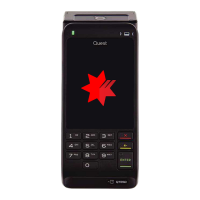
NAB QT850 Terminal
Release 1.3
Question and Answer IconNeed help?

Do you have a question about the Nab QT850 and is the answer not in the manual?

Overview

The NAB QT850 Terminal is a point-of-sale device designed for processing various payment transactions, including sales, refunds, and manual key entries. It supports a range of payment schemes such as Visa, Mastercard, eftpos, Amex, and UnionPay, and operates on both 4G and WiFi networks, ensuring flexible connectivity for merchants.

Function Description:

The primary function of the NAB QT850 is to facilitate secure and efficient payment processing. It allows merchants to:

  • Process Sales: Cardholders can complete transactions by tapping, inserting, or swiping their cards. The terminal guides the cardholder through account selection (Cheque, Savings, Credit) if applicable and prompts for PIN entry. For contactless transactions under $100, PIN or signature may not be required.
  • Process Refunds: Refunds are protected by a password to prevent fraud. The terminal allows merchants to enter a refund amount, and cardholders can complete the refund by tapping, inserting, or swiping their card and entering their PIN.
  • Perform MOTO Transactions: This feature supports Mail Order/Telephone Order transactions for Visa and Mastercard. Merchants manually enter card number, expiry date, and CVV, with options to specify reasons if the CVV is not entered.
  • Perform Manual Purchase Key Entry: For Visa, Mastercard, and Amex, merchants can manually key in card details, expiry date, and CVV. The terminal provides options for cases where the CVV is not entered and requires the cardholder's signature for verification.
  • Perform Manual Settlement: Merchants can manually settle transactions for a given day and view settlement details. The terminal also supports auto-settlement, which can be configured to occur daily at a specified time.
  • View Last Settlement: The device allows viewing settlement details for the last 30 days, including purchases, refunds, and cashouts.
  • View Pre-Settlement Transactions: Merchants can view and print totals for transactions processed since the last settlement without actually performing a settlement.
  • View/Print Previous Transaction Receipts: The terminal stores the last 10 transactions (both approved and declined), allowing merchants to view details and reprint receipts.
  • Refresh Terminal Configuration: This function updates the terminal with the latest configuration from the Terminal Management System (TMS), enabling or disabling features like MOTO.
  • Perform Manual Software Update: Merchants can manually check for and download the latest software updates for the terminal, ensuring the device operates with the most current features and security enhancements.
  • Automatic Software Update: The terminal supports scheduled automatic software updates, which are initiated after a countdown, provided the device is charging and has sufficient battery.

Important Technical Specifications:

While specific hardware details like processor speed or memory are not explicitly listed, the manual highlights key operational aspects:

  • Connectivity: The terminal supports both 4G and WiFi networks, offering robust communication options for transaction processing. Bluetooth is also indicated as an available feature.
  • Power: The device is charged via a USB Type-C connector. For automatic software updates, the terminal must be charging, and the battery level must be above 20%.
  • Display: The terminal features a screen that displays transaction details, menu options, and prompts for cardholders and merchants.
  • Input: It includes a PIN-PAD for numerical input, a touchscreen for navigation, and card readers for TAP (contactless), INSERT (chip), and SWIPE (magnetic stripe) transactions.
  • Output: The terminal has an integrated printer for merchant and customer receipts.

Usage Features:

The NAB QT850 is designed for user-friendliness with several intuitive features:

  • Easy Turn On/Off: The terminal is turned on by pressing and holding the "Enter" key and powered off via the "Merchant Menu" settings.
  • Merchant Menu: A central menu provides access to key functions such as transactions (sales, refunds, MOTO, key entry), settlements, and settings.
  • Clear Prompts: The screen displays clear instructions and prompts for both merchants and cardholders throughout the transaction process.
  • Error Correction: During amount entry, the "←" key clears the value, and "X" cancels the transaction.
  • Receipt Management: Merchants can choose to print or skip customer copies of receipts. The terminal also provides options to reprint past transaction receipts.
  • Password Protection: Refund transactions are secured with a password, which can be reset on the terminal or by contacting the Merchant Service Centre. Regular password changes are recommended.
  • Auto Settlement Configuration: Merchants can enable or disable auto-settlement and set a specific time for it to occur. All terminals under the same Merchant ID will share the same auto-settlement time.
  • Merchant Choice Routing (MCR): For Visa/Mastercard (debit) transactions, MCR can be enabled, allowing thresholds to be set in the TMS. When active, "Merchant Choice Routing Enabled" is displayed on the terminal.
  • WiFi Connectivity: The terminal can connect to WiFi networks through its Android settings, allowing for network selection and password entry.

Maintenance Features:

The manual outlines several maintenance procedures to ensure the terminal's smooth operation:

  • Charging: Instructions are provided for connecting the USB Type-C power adaptor to the terminal and the supply mains. The battery charging icon on the status bar indicates charging status.
  • Paper Roll Replacement: Detailed steps are given for opening the printer compartment, inserting a new paper roll, and closing the lid. The terminal displays an "Alert - out of paper" message when the roll is empty during printing.
  • Software Updates: Both manual and automatic software update processes are described, ensuring the terminal's software remains current. The manual emphasizes that the terminal must be charging and have sufficient battery for automatic updates.
  • Troubleshooting: A dedicated section addresses common issues:
    • Printing Issues: Advices include checking for paper jams, replacing damaged paper rolls, and contacting support if the problem persists.
    • Frozen Terminal: Solutions involve swiping up from the bottom of the screen, accessing the Launcher, reopening the DMGNAB App, or force-stopping and restarting the app. If the issue continues, contacting support is recommended.
  • Support Details: Contact information for the Merchant Service Centre (Phone: 1300 369 852, Option 1) is provided for further assistance.

The NAB QT850 Terminal is a comprehensive and reliable payment solution, designed to meet the diverse needs of merchants with its robust features, flexible connectivity, and user-friendly interface.

Nab QT850 Specifications

General IconGeneral
BrandNab
ModelQT850
CategoryTouch terminals
LanguageEnglish