8
NDX Operation
3.7 Handset Text Entry
Some NDX menu screens require text entry - naming inputs
for example. Text entry is carried out using the handset
numerical buttons in a manner similar to mobile phone SMS
text entry.
When text entry is required, multiple presses of a key will
scroll through the characters associated with that key. In
addition to characters, the preset key provides a delete
function, the zero key provides a space and the store key
provides letter case change. The up (
5) and down (6)
keys will also scroll through all the available letters.
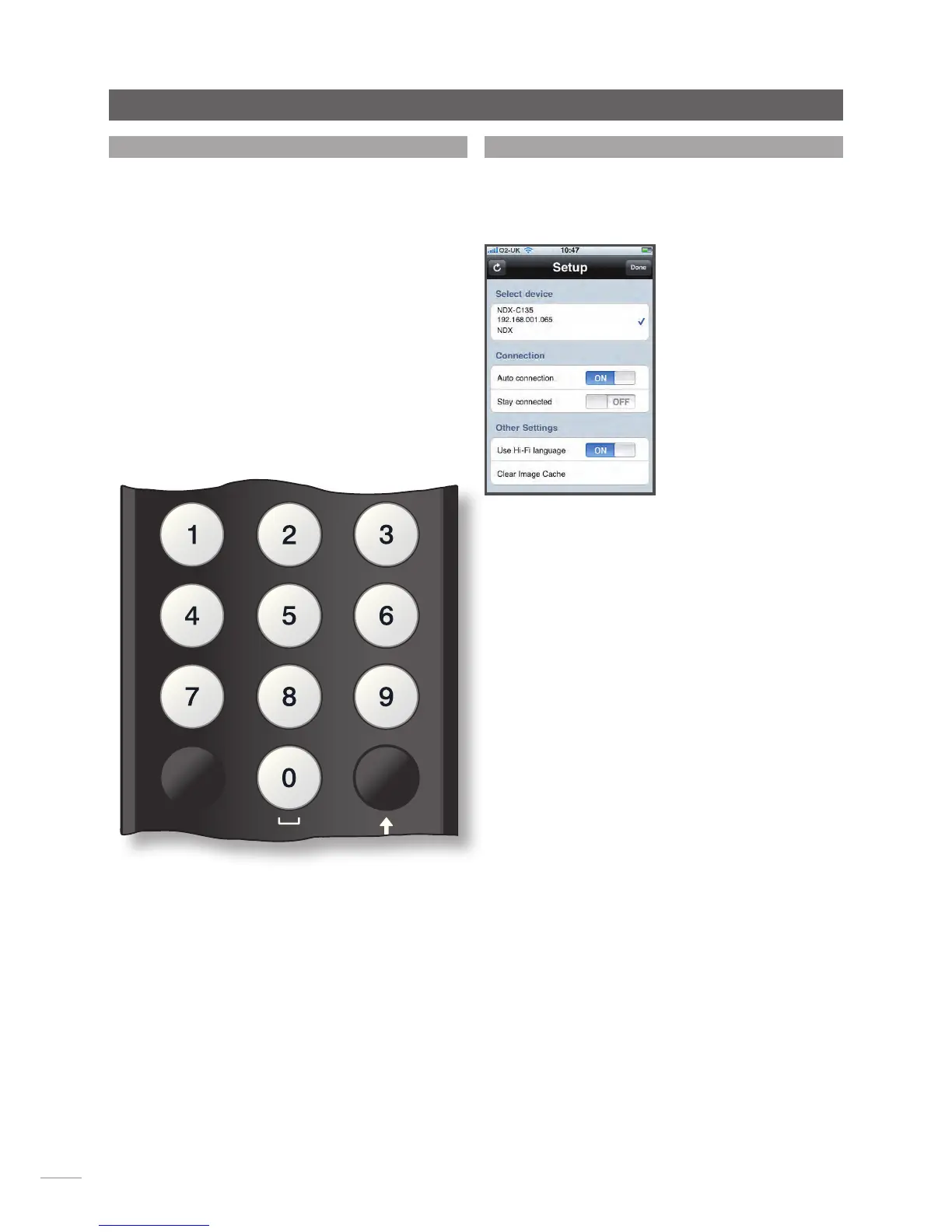
The enlarged handset image illustrates the number keys
and the characters associated with each.
When prompted on a NDX screen to enter text, select
characters in turn by pressing each appropriate key
the required number of times. Confirm the text entry by
pressing the ok/list key.
3.8 The n-Stream Control App
The n-Stream NDX control application is available from the
iTunes App Store. n-Stream is compatible with iPad, iPhone
and iPod touch models running iOS software Version 3.1.3
or later.
3.8.1 n-Stream Setup
To begin using n-Stream to
control your NDX you must
first install the app on your
iPad, iPhone or iPod touch.
With the app installed and
the iPad, iPhone or iPod
wirelessly connected to the
same network as your NDX,
start the app by touching its
screen icon.
Selecting setup opens a
menu that enables the NDX
to be selected for control.
Touch the appropriate NDX
as identified by its network address or device name; NDX-
C135 and 192.168.001.065 respectively in the illustration
above.
Note: Your NDX network address and device name can be
found in its Factory Settings setup menu.
Note: The NDX name can be changed from its setup
menu. Doing so can enable individual units in a multiple
installation to be identified more easily.
The setup menu enables the following options to be
selected:
Auto connection:
Select ON for automatic
connection to the NDX whenever
the n-Stream app is running.
Stay connected:
If OFF is selected, the n-Stream
app will “sleep” following a preset
period of inactivity. Selecting
ON will force n-Stream to remain
continuously active.
Note: Continuous connection of n-Stream may result in
your iPad, iPhone or iPod battery draining.
Use Hi-Fi Language:
Select ON for the n-Stream app to
reflect the selected NDX display
language. If NO is selected the
n-Stream app will display in the
default iPad, iPhone or iPod
language.
Clear Image Cache:
Deletes album artwork images
stored by the n-Stream app.


 To Next Page