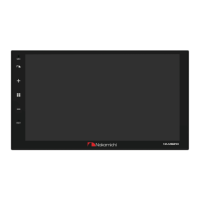
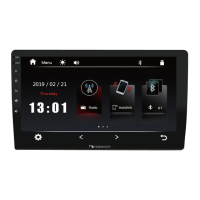
This document serves as a user manual for the Nakamichi NAM5630, a 9"/10.1" touch LCD screen mobile system product designed for car audio systems. It provides comprehensive instructions for installation, operation, and troubleshooting, ensuring users can maximize their audio enjoyment and safely utilize the device's features.
Function Description
The Nakamichi NAM5630 is an advanced in-car infotainment system running on Android 11.0. It features a Cortex-A53 architecture for fast performance and a high-definition 1280x720P LCD display with a 2.5D G+G capacitive screen, offering a clear and responsive touch experience. The system boasts a 6/8G running speed and 128/256G storage space, providing ample capacity for applications and media.
Core Functions:
- Audio Playback: Supports various audio formats including MP3, APE, AAC, and FLAC, ensuring high-quality, lossless music playback. It has a maximum power output of 4x50W and features a built-in 14-band DSP EQ for sound adjustment, allowing users to customize their audio experience.
- Video Playback: Supports 720P/1080P video playback and a video picture-in-picture function. It can handle video formats such as H264, MP4, AVI, MKV, and FLV.
- Radio: Includes FM and AM radio functionality with broad frequency ranges for North America, Europe, and Latin America. Users can search for stations automatically or manually, select local or remote stations, and fine-tune frequencies. The system also supports RDS (Radio Data System) for enhanced radio information.
- Bluetooth Connectivity: Equipped with Bluetooth HS/V5.0 and BT5.0+EDR, it supports Bluetooth music playback, shared networks, and hands-free calling. Users can pair their mobile phones to make calls and stream music, with a maximum communication range of about 5 meters.
- Zlink (MirrorLink): Supports both iOS Phone MirrorLink and Android Phone MirrorLink, allowing users to connect their smartphones to the unit. This feature enables the display and control of phone applications on the car's screen, facilitating navigation and media access. Wireless Zlink is also available for iPhone users via Bluetooth and Wi-Fi hotspot connection.
- Navigation: Features built-in GPS positioning and supports Google Maps, providing reliable navigation capabilities.
- USB Connectivity: Includes standard 2-channel USB ports for readability and charging (5±0.25V/1A). It supports USB DVR (Digital Video Recorder) for driving record video preview and recording.
- Camera Support: Supports HD 720P/1080P AHD cameras, including forward-looking cameras, and offers a 360 panoramic view function. This feature provides a bird's-eye view of the vehicle's surroundings, with options for front, rear, left, and right camera views, as well as a 3D panoramic mode for enhanced situational awareness.
- 4G LTE Network: Allows for the installation of a 4G antenna and SIM card, enabling mobile data access for browsing web pages and using related apps.
- System Settings: Provides extensive customization options, including network and internet settings (Wi-Fi, mobile data), app management, storage management, security and location services, user accounts, accessibility settings, Google services, and car-specific settings (steering wheel control learning, reverse auxiliary line switch). It also allows for date and time customization, factory resets, and viewing system information (software versions, model).
Usage Features
Touch Key Functions:
The unit features several touch keys for easy operation:
- Power Key: A short press mutes the unit, while a long press turns it off.
- Home Menu: Press to access the main menu.
- Return Key: Press to go back to the previous page.
- Volume +: Short press to increase volume, long press for continuous increase.
- Volume -: Short press to decrease volume, long press for continuous decrease.
Home Menu Navigation:
Upon booting, the unit displays a home menu with icons for various functions:
- Radio: Access the radio interface.
- Zlink: Enter the Zlink interface for smartphone mirroring.
- Bluetooth: Access Bluetooth settings and functions.
- Music: Enter the music playback interface.
- Settings: Access system settings.
- Video: Enter the video playback interface.
- Maps: Open Google Maps.
- Application: View all installed applications.
- Car Settings: Access car-specific settings.
- Off Screen: Turn off the display.
Radio Operation:
- Switch between FM/AM bands.
- Search for stations automatically or input specific frequencies.
- Select local or remote stations.
- Open RDS for additional information.
- Adjust audio effects.
- Long press search icons to scan for stations upward or downward, with automatic stopping upon finding a station.
Zlink Connection:
- For iOS phones, turn on Bluetooth on the mobile phone and connect to the head unit's Bluetooth (NAM5630). The ZLink connection interface will automatically pop up. Confirm using CarPlay on the mobile phone. If connection issues persist, connect the mobile phone's Wi-Fi hotspot to the unit.
Bluetooth Operation:
- Search for Bluetooth devices.
- Connect to currently selected devices.
- Disconnect from connected devices.
- Delete paired devices.
360 Panoramic View:
- Press the "360 panoramic view" icon or the front camera icon to enter the interface.
- The display shows a bird's-eye view on the left and the current camera view on the right.
- Shortcut and setting switches are at the bottom.
- Automatically activates when the head unit is turned on.
- Allows selection of front, rear, left, and right views.
- Features a "road edge mode" to view surroundings near the tires.
- Includes a "streaming media mode" for full-screen views of front, rear, left, and right images.
- "Limited width mode" displays a bird's-eye view in the middle with left and right camera images on the sides.
- "Panoramic 3D mode" provides a full-screen 3D picture.
- A "+" icon allows access to brightness, recording video list, and panorama settings, including the duration of panorama display. Users can choose the camera setup (single rear view, front and rear view, or 360 panoramic view) based on their needs.
4G LTE Network:
- Install the 4G antenna and a mobile SIM card.
- Enable the mobile data function in settings.
- The system will automatically search for a 4G signal, display the 4GLTE icon, and allow access to web pages and apps.
Car Settings:
- Radio Region: Select the desired radio region (e.g., Europe).
- SWC Type: Configure steering wheel control learning.
- Shortcut Touch: Enable or disable shortcut touch functions.
- Illumine Detect: Turn on or off illumination detection.
- Can watch video while drive: Enable or disable video playback while driving (note safety warnings).
- Media Volume: Adjust media volume when navigation is active or when reversing.
- Navi Gain: Adjust navigation audio gain.
- Bluetooth Volume: Adjust Bluetooth audio volume.
- Ring Volume: Adjust ringtone volume.
- Default Volume: Set default volume levels.
- ScreenSaver: Configure screensaver settings (never, digital clock, theme).
- WallPaper: Customize wallpaper.
- Brightness: Adjust screen brightness.
- Illumination Color: Set illumination color.
- Screen Parameter Setting: Access advanced screen display parameters.
Maintenance Features
General Safety Instructions:
- Safe Driving: Do not watch videos or operate the unit while driving to ensure safety and comply with traffic regulations.
- Environmental Protection: Avoid exposing the unit to rain, water, or bare metal during installation to prevent short-circuiting.
- Professional Service: Do not attempt to dismantle the unit for maintenance. All servicing should be performed by an authorized service center or technician.
- Battery Preservation: Avoid using the unit for extended periods when the engine is off to prevent draining the car's battery.
- Screen Care: Wipe the screen carefully and avoid using sharp objects to press against it.
Installation Safety Warnings:
- Cleanliness: Clean the product only with a dry cloth or similar materials.
- Ventilation: Install the product in a dry, well-ventilated location that does not interfere with the vehicle's safety equipment. Do not block any ventilation openings.
- Heat Avoidance: Do not mount the product in the engine compartment or areas of extreme heat (e.g., mufflers, exhaust pipes).
- Secure Mounting: Securely mount the product to prevent it from coming loose during collisions or vibrations.
- Wiring Precautions: Exercise great care when installing to prevent damage to fuel lines, power, electrical wiring, hydraulic brake lines, and other systems. It is recommended to visit a Nakamichi dealer for installation. Do not run wiring outside or underneath the vehicle; keep all wires inside.
- Battery Connections: Take necessary precautions when connecting to the vehicle's battery to avoid electric shock.
- Wire Protection: Protect all system wires from sharp edges by carefully routing them and using rubber grommets through metal openings. Secure all wiring with cable ties or clamps to prevent movement and sharp edges.
- Liquid Exposure: The apparatus should not be exposed to dripping or splashing liquids, and no liquid-filled objects should be placed on it.
- Damage Handling: If the apparatus is damaged (e.g., power input terminals, liquid spills, objects falling into it, exposure to rain/moisture, abnormal operation, or dropping), refer all servicing to qualified personnel.
- Fuse Replacement: Replace fuses only with the correct type and value, and only when the apparatus is powered off.
- Hearing Protection: Take every precaution to protect your hearing from high sound pressure levels, which can cause permanent loss.
- Power System Compatibility: This product is designed for 12-volt, negative-ground electrical systems only. Using it with positive-ground or voltages other than 12V may damage the product and system.
Warranty Considerations:
- Nakamichi warrants the product to be free of defects in materials and workmanship for a period specified by the authorized distributor.
- The warranty is non-transferable and applies only to the original owner who purchased from an authorized Nakamichi dealer.
- Nakamichi will repair or replace defective products at no charge.
- Damage caused by accident, misuse, abuse, product modification, neglect, failure to follow installation instructions, unauthorized repair attempts, or misrepresentations by the seller is not covered.
- The warranty does not cover incidental or consequential damages, removal/reinstallation costs, or cosmetic damage due to accident or normal wear and tear.
- The warranty is void if the product's serial number has been removed or defaced.
Troubleshooting Guidelines:
- Unable to boot: Check if the power supply fuse is burned out (replace with the same type). If other factors cause microprocessors to work abnormally, reboot by pressing the reset hole with a pointed object.
- Settings lost after ignition off: Replace batteries or fuses and re-enter settings.
- Radio ineffective: Try moving the car to another location if the signal is weak. If radio antennas are not connected or lead to weak signals, connect the antenna and try again.
- No image: If other factors cause microprocessors to work abnormally, reboot by pressing the reset hole with a pointed object.
- Silent output: Increase the volume. If the output line is incorrectly connected, check the output line connection.
- Speaker Wiring: Do not connect speaker leads of the power cord directly to the car battery to avoid serious damage. Before connecting speaker leads to speakers, verify the car's speaker wiring.

 Need help?
 General

 To Next Page