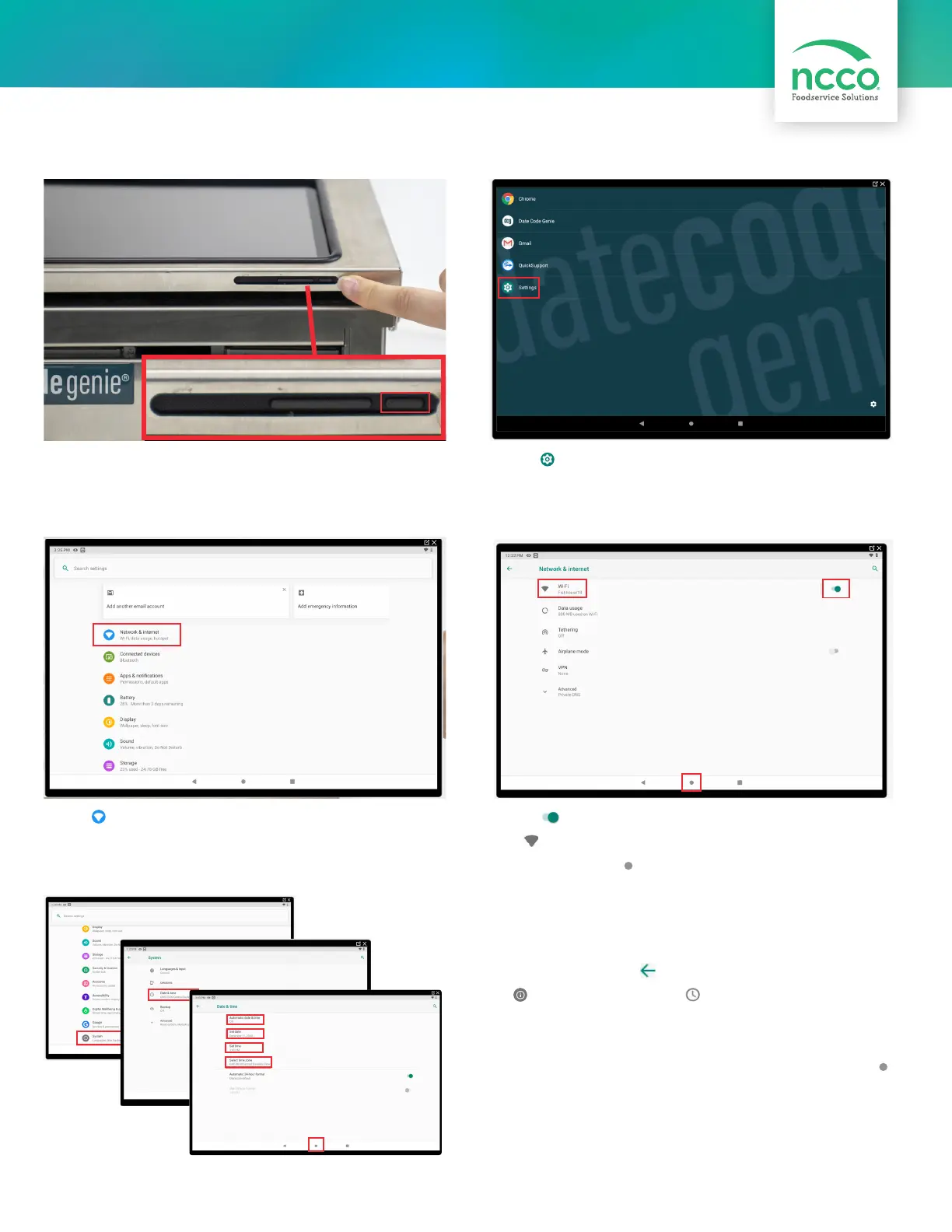
7. Tap to turn on Wi-Fi and turn toggle green.
Tap Wi-Fi and then the network to connect to
from the list. Tap to return to home screen after
connected.
5. Tap Settings to begin device setup.
Tablet Setup
4. Press and hold tablet power button releasing when
DateCodeGenie
®
displays.
6. Tap Network & Internet to connect to network.
8. For Wi-Fi connection issues, confirm date and time
settings by tapping in upper left corner, then scroll
to System and tap. Tap Date & time and then tap
Automatic date & time Off. Configure Set date, Set
time and Select time zone. Tap Automatic date & time
again and now tap Use network-provided time. Tap
to return to home screen.


 To Next Page
 Loading...