DVD
Operation
DVD
Operation
2.
DVD
Setup
Menu's
Language
Setup (Fig 39)
OSD
Language
To
select
the
OSD
Language
press
the
button,
this
will
then
show the languages available,
use
the
•/•
buttons
to
select the required language and
press
OK.
Audio
Language.
To
select the
Audio
Language
press
the button, this will
then
show
the languages available,
use
the
•/•buttons
to
select the
required
language
and
press
OK.
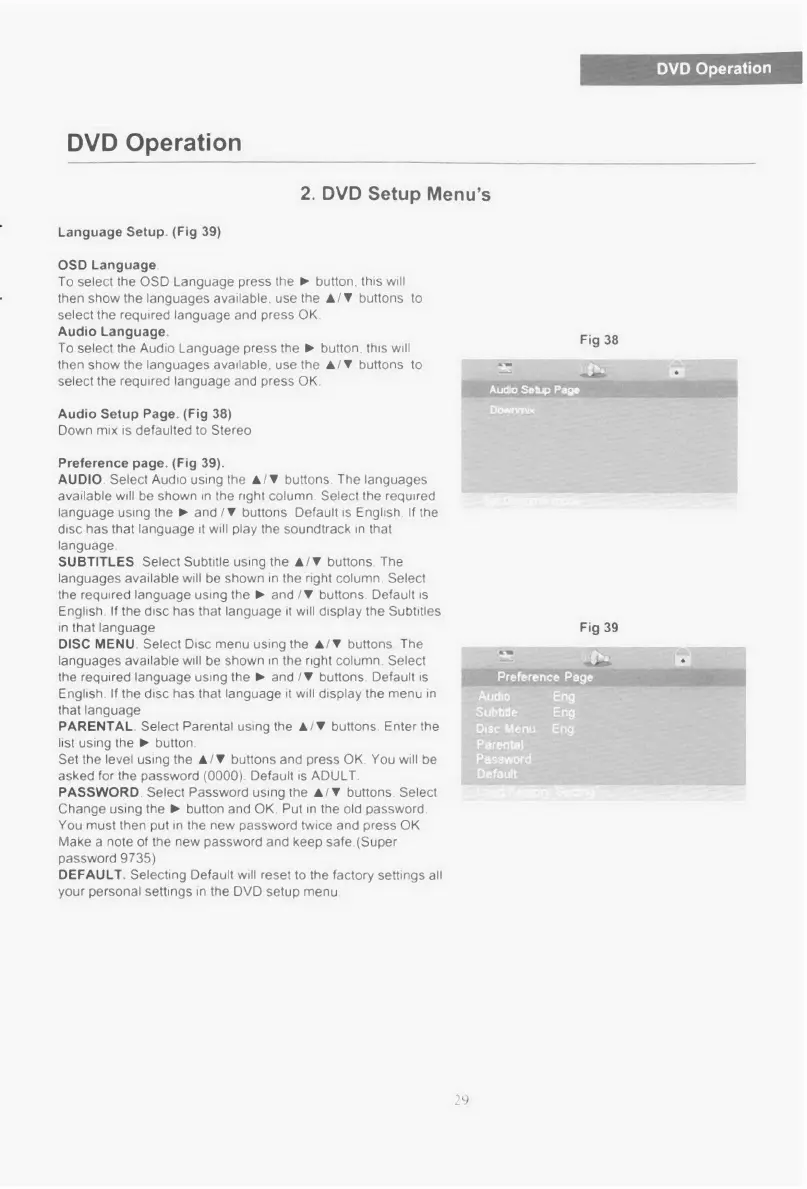
Audio Setup Page. (Fig 38)
Down
mix is
defaulted
to
Stereo
Preference
page.
(Fig 39).
AUDIO.
Select Audio using
the •/•buttons.
The
languages
available
will be shown
in
the right column.
Select
the required
language using the
10.
and /•buttons.
Default
is
English If
the
disc
has
that language it will
play the
soundtrack in
that
language.
SUBTITLES. Select Subtitle
using the •/•buttons.
The
languages available will be shown in the right column.
Select
the
required language
using
the
IP.
and /•
buttons.
Default
is
English. If
the disc has that language
it will
display
the
Subtitles
in that language
DISC MENU. Select Disc
menu
using the •/•buttons.
The
languages
available
will
be
shown
in
the right column.
Select
the required language
using
the and /•buttons.
Default
is
English.
If
the
disc has that language it will display the
menu
in
that
language
PARENTAL. Select Parental using
the
•/•
buttons.
Enter
the
list using the 110. button.
Set
the
level
using
the •/•buttons and
press
OK.
You will
be
asked
for
the password
(0000).
Default
is
ADULT.
PASSWORD. Select Password
using the •/•buttons.
Select
Change
using the
O.
button and
OK. Put
in
the
old password.
You
must
then
put
in
the
new
password
twice
and
press
OK.
Make
a
note
of
the
new
password and keep
safe.(Super
password
9735)
DEFAULT.
Selecting
Default
will
reset
to
the
factory
settings
all
your
personal settings in the
DVD
setup
menu.
Fig 38
AutoSetup Pegs
Doargrbt
Fig 39
Preference Page
Audio
Eng
Subtitle Eng
Disc Menu Eng
Parental:
.•
Pibsisiniord
Dere&
29



 To Next Page