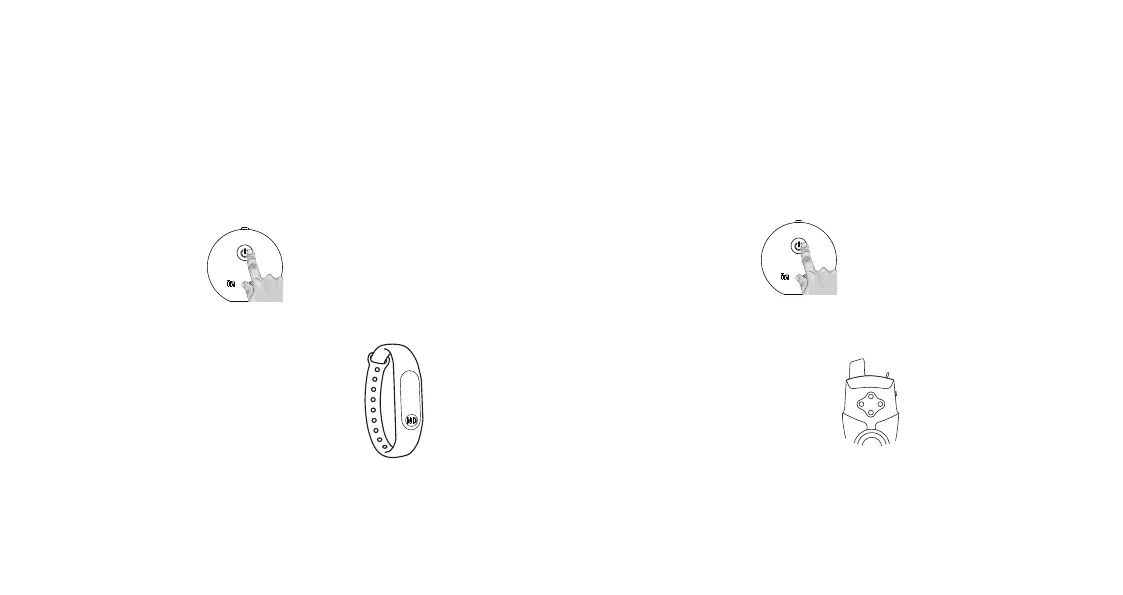
• Double click on the button on the bivvy light. The colours will loop and flash
•One click to switch between the colour channels. You must choose super
white channel
•Once you have found the super white channel,
please press the button on the smart band
•The light will shortly flash if the process was sucessfull
Note: You you must register the Smart Band on the super white channel
Register your your bivvy light pro with Smart Band:
•Double click on the button on the bivvy light. The colours will loop and flash
•One click to switch between the colour channels
You must choose the purple channel
•Once you have found the purple channel,
please press the button on the TH9s
•The light will shortly flash if the process was sucessfull
Note: You you must register the TH9s on the purple channe
Register your your bivvy light pro with TH9s:


 To Next Page