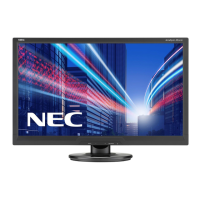
The NEC AccuSync AS242W is an LCD color monitor designed for use in office or domestic environments, offering a range of features for optimal display performance, user comfort, and energy efficiency. This user's manual provides essential information for setting up, operating, and maintaining the monitor, ensuring a safe and ergonomic user experience.
Function Description
The AccuSync AS242W serves as a primary display device, connecting to a computer to render visual information. It supports both DVI digital and 15-pin mini D-SUB analog input signals, making it compatible with a variety of systems, including PCs and Macs. The monitor is designed to automatically adjust to optimal settings upon initial setup for most timings, simplifying the user experience. Its core function is to provide a clear and stable visual output for various applications, from general computing to more demanding tasks.
Usage Features
The monitor incorporates several features aimed at enhancing usability and user comfort:
- OSD (On-Screen Display) Controls: The monitor features an intuitive OSD menu that allows users to quickly and easily adjust all elements of the screen image. Basic functions are accessible via front-panel keys, including shortcuts for brightness and contrast, input signal selection, and navigation through the menu icons. Users can adjust settings such as Brightness, Contrast, Auto Contrast (for analog input), Auto Adjust (for image position, H. Size, and Fine setting), Left/Right and Down/Up for image positioning, H. Size and Fine (for analog input), and Color Control Systems.
- Color Control Systems: Five color presets (9300/7500/sRGB/USER/NATIVE) are available, allowing users to select their desired color setting or customize red, green, and blue levels for specific needs.
- Factory Preset: A Factory Preset option allows users to reset all OSD control settings back to their default factory settings, which can be useful for troubleshooting or starting fresh with adjustments.
- OSD Lock Out: This function provides a security measure, locking out access to all OSD control functions except Brightness and Contrast, preventing unauthorized changes to display settings.
- Signal Information and Expansion: The monitor can display signal information, indicating the current video input menu. An Expansion feature allows users to select zoom modes (FULL or ASPECT) when the input signal timing is under native resolution, enabling the image to be expanded to full screen or maintaining the aspect ratio.
- DDC/CI: This feature enables two-way communication and control of the monitor, facilitating advanced management through compatible software.
- Input Resolution (Analog Input Only): For analog inputs, users can select the resolution priority from several options (e.g., 1280x768, 1360x768, 1366x768, 1400x1050, 1680x1050) to optimize display for specific signal timings.
- ErgoDesign Features: The monitor is designed with enhanced human ergonomics in mind. This includes OSD controls for quick adjustments, a tilt base for preferred viewing angles, and compliance with MPRII and TCO guidelines for lower emissions, all contributing to a more comfortable and healthier working environment.
- Plug and Play: The monitor supports Plug and Play functionality with Microsoft Windows operating systems, simplifying setup and installation by automatically communicating its capabilities (screen size, supported resolutions) to the computer, thereby optimizing display performance.
- Multiple Frequency Technology: It automatically adjusts to the display card's scanning frequency, ensuring the correct resolution is displayed.
- FullScan Capability: This allows the monitor to utilize the entire screen area in most resolutions, significantly expanding the image size.
- VESA Standard Mounting Interface: The monitor is compatible with VESA standard third-party mounting arms or brackets, offering flexibility in placement and setup.
- HDCP (High-bandwidth Digital Content Protection): The monitor supports HDCP, a system designed to prevent illegal copying of video data transmitted over a Digital Visual Interface (DVI).
Maintenance Features
Proper maintenance is crucial for the longevity and optimal performance of the AccuSync AS242W. The manual outlines several key aspects:
- Safety Precautions: Users are advised against opening the monitor cabinet due to high voltage components inside. It is important to prevent liquids from spilling into the cabinet, avoid inserting objects into slots, and ensure the power cord is not damaged or obstructed. The monitor should be placed on a stable surface, away from high-temperature, humid, dusty, or oily areas, and its vents should not be covered.
- Handling and Transport: When transporting the monitor, users should handle it with care and save the original packaging. The LCD panel surface should not be touched or subjected to pressure, as this can cause serious damage.
- Cleaning the LCD Panel: For dusting, a soft, lint-free, non-abrasive cloth should be used. Users are warned against rubbing the panel with hard or coarse materials, applying pressure, or using OA cleaners, which can cause deterioration or discoloration.
- Cleaning the Cabinet: The cabinet should be gently wiped with a soft cloth after unplugging the power supply. For a more thorough clean, the cloth can be dampened with a neutral detergent and water, followed by a dry cloth. Specific cleaning agents like benzene, thinner, alkaline detergents, alcoholic system detergents, glass cleaner, wax, polish cleaner, soap powder, or insecticide should be avoided, as they can damage the cabinet's paint and material.
- Image Persistence Prevention: To prevent "ghost" images, users should avoid displaying constant images for long periods. If image persistence occurs, the monitor should be turned off for a duration equal to the time the previous image was displayed. NEC DISPLAY SOLUTIONS recommends using a moving screen saver or turning off the monitor when idle.
- Troubleshooting Guidance: The manual provides a comprehensive troubleshooting section for common issues such as "No picture," "Power Button does not respond," "Image persistence," "OUT OF RANGE" messages, "Image is unstable, unfocused or swimming is apparent," "LED on monitor is not lit," "Picture is not as bright," "Display image is not sized properly," and "No Video." These sections offer step-by-step solutions, including checking cable connections, adjusting OSD settings, and ensuring proper power supply.
- Energy Saving: The monitor features an Intelligent Power Manager System with advanced energy-saving capabilities. It can shift to lower power consumption levels when not in use, reducing energy costs and emissions. The manual details different power consumption modes (Maximum Operation, Normal Operation, Energy Saving Mode, Off Mode) and their corresponding LED colors, allowing users to monitor energy usage.
- Recycling and Environmental Information: NEC DISPLAY SOLUTIONS is committed to environmental protection and provides information on disposing of old NEC products in an environmentally sensitive way. Users are directed to specific websites for details on recycling procedures and country-specific facilities. The monitor also carries the WEEE Mark, indicating that waste electrical and electronic products should be disposed of separately from normal household waste within the European Union.
- TCO Certified Displays 6: The product is TCO Certified, an international third-party sustainability certification for IT products. This certification ensures that the monitor's manufacture, use, and recycling reflect environmental, social, and economic responsibility. It covers aspects such as corporate social responsibility, energy efficiency, environmental management systems, minimization of hazardous substances, design for recycling, product lifetime, packaging, ergonomic design, electrical safety, and third-party testing.

 Need help?
 General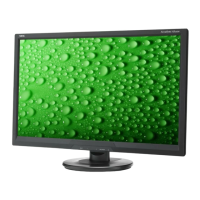



 To Next Page