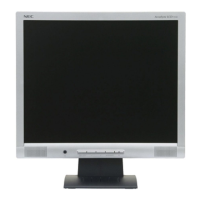
This document is the User's Manual for the NEC MultiSync E245WMi Desktop Monitor, model L245AR. It provides comprehensive information on the monitor's setup, operation, and maintenance.
Function Description
The NEC MultiSync E245WMi is a desktop monitor designed for various display purposes. It supports multiple input signals, including DisplayPort, DVI, and VGA, allowing for flexible connectivity with different computer systems. The monitor features an On-Screen Display (OSD) menu for adjusting various display settings, ensuring optimal image quality and user experience. It also incorporates an advanced energy-saving capability, automatically entering an Energy Saving mode when a Display Power Management signal is received, which helps reduce power consumption. The monitor is designed to be used with a flexible arm for alternative mounting purposes and can also accommodate a thin client computer using a VESA plate.
Usage Features
The MultiSync E245WMi offers a range of features to enhance user comfort and display performance:
- Ergonomic Design: The monitor is equipped with an articulating stand that allows for height adjustment, tilt, and swivel. Users can raise or lower the screen to their desired height, tilt it to minimize glare, and swivel it for optimal viewing angles. The screen can also be rotated from landscape to portrait mode, providing flexibility for different tasks. These ergonomic adjustments are crucial for reducing eye, shoulder, and neck fatigue during prolonged use.
- Image Quality Controls: The OSD menu provides extensive controls for adjusting image parameters. Users can modify brightness, contrast, and color settings (Red, Green, Blue) to achieve their preferred visual output. The monitor includes preset color control systems (9300, 7500, sRGB, USER, NATIVE, L/B) to select desired color settings. For analog inputs, "AUTO CONTRAST" and "AUTO ADJUST" functions automatically optimize image position, horizontal size, and fine settings. The "DV MODE" setting adjusts brightness by detecting black areas on the screen, optimizing the display.
- Display Modes: The monitor supports various display modes, including "EXPANSION" for zoom control. Users can choose between "FULL" to expand the image to full screen regardless of resolution, or "ASPECT" to expand the image without changing its aspect ratio.
- Response Improve: This function can be turned ON or OFF to reduce blurring that may occur in moving images, enhancing clarity for dynamic content.
- Low Blue Light Mode: The monitor features a blue light reducing function, which significantly reduces hazardous blue light emissions. This helps alleviate eyestrain, especially during extended viewing periods.
- Flicker Free: A special backlight system is implemented to reduce flicker, further contributing to reduced eyestrain.
- Sound Input: For DisplayPort input, users can select between "AUDIO IN" or "DP" for sound input, providing flexibility for audio sources.
- NaViSet Administrator 2 Software: This software offers an expanded and intuitive graphical interface, enabling adjustments of OSD display settings from a networked PC, which is convenient for managing multiple monitors.
- Plug and Play: The monitor supports Plug and Play functionality with Windows operating systems, simplifying setup and installation by automatically optimizing display performance.
- Multiple Frequency Technology: The monitor automatically adjusts to the display card's scanning frequency, ensuring the required resolution is displayed.
- FullScan Capability: This feature allows the use of the entire screen area in most resolutions, effectively expanding image size.
- VESA Standard Mounting Interface: The monitor is compatible with VESA standard third-party mounting arms or brackets, offering versatile installation options.
Maintenance Features
Proper maintenance ensures the longevity and optimal performance of the monitor:
- Cleaning the LCD Panel: When the LCD panel is dusty, it should be gently wiped with a soft, lint-free cloth. Users are advised not to rub the panel with coarse or hard material, apply pressure to the surface, or use OA cleaner, as these actions can cause deterioration or discoloration.
- Cleaning the Cabinet: The monitor cabinet should be cleaned by unplugging the power supply and gently wiping it with a soft cloth. For a more thorough cleaning, the cloth can be dampened with a neutral detergent and water, followed by a dry cloth. It is crucial to avoid cleaning with benzene, thinner, alkaline detergent, alcoholic system detergent, glass cleaner, wax, polish cleaner, soap powder, or insecticide, as these can damage the plastic surfaces. Contact with rubber or vinyl should also be avoided for prolonged periods to prevent paint deterioration, cracking, or peeling.
- Image Persistence Prevention: To prevent image persistence (residual or "ghost" images), users should avoid displaying constant images for long periods. If image persistence occurs, turning off the monitor for a duration equal to the time the image was displayed can help erase it. NEC DISPLAY SOLUTIONS recommends using a moving screen saver or turning off the monitor when not in use.
- Cable Management: The monitor stand incorporates a cable management system to keep cables neatly organized. Cables should be placed firmly and evenly into the hooks provided.
- Troubleshooting Guide: The manual includes a comprehensive troubleshooting section to address common issues such as no picture, unresponsive power key, image persistence, "OUT OF RANGE" warnings, unstable or unfocused images, dim picture, unlit LED, improper image sizing, and no sound. This guide helps users identify and resolve problems efficiently.
- Recycling and Energy Information: NEC DISPLAY SOLUTIONS is committed to environmental protection and provides information on disposing of old NEC products through dedicated recycling sites. The manual also details the monitor's energy-saving capabilities and power consumption in different modes, aligning with environmental standards like Energy Star and ErP requirements.

 Need help?

 To Next Page

 General