EasyManua.ls Logo

NEC MultiSync EA274WMi - User Manual

NEC MultiSync EA274WMi
29 pages
Print Icon
To Next Page IconTo Next Page
Loading...
Desktop Monitor
MultiSync EA274WMi
MultiSync EA304WMi
Users Manual
Please fi nd your model name in the label on the backside of monitor.
Question and Answer IconNeed help?

Do you have a question about the NEC MultiSync EA274WMi and is the answer not in the manual?

Summary

Safety and Warnings

WARNING

Safety precautions regarding fire and shock hazards.

CAUTION

Safety precautions to reduce the risk of electric shock.

Registration and Compliance

FCC Information

Details about FCC compliance and regulations for the device.

Usage and Maintenance

Safety Precautions

Essential safety advice and maintenance tips for the monitor.

Monitor Setup and Ergonomics

Placement and Adjustment

How to position the monitor for optimal viewing and comfort.

Ergonomic Guidelines

Recommendations for maximizing ergonomic benefits and reducing eye fatigue.

Quick Start Guide

Controls and OSD Navigation

OSD Control Key Functions

Explanation of OSD control keys on the monitor front.

Eco Tools and Settings

Brightness and Contrast Settings

Adjusting screen brightness and contrast levels.

Auto Brightness Configuration

Setting up automatic brightness adjustment based on ambient light.

Human Sensor and Display Modes

Screen Adjustment Controls

Adjusting image position, size, and fine tuning.

Color and Advanced Tools

Color Control System

Adjusting color presets and accuracy.

Specifications - EA274 WMi

Specifications - EA304 WMi

Key Features

Troubleshooting Common Issues

No Picture or Power Issues

Solutions for problems with no display or unresponsive power.

Image Persistence and Out of Range

Addressing ghost images and out-of-range signals.

Unstable or Unfocused Images

Troubleshooting unstable picture quality and focus.

Brightness and Sizing Problems

Solutions for brightness issues and improper image sizing.

Troubleshooting Continued

No Video or Sound Issues

Diagnosing and resolving no video or no sound problems.

Brightness Variations and USB Hub

Troubleshooting brightness fluctuations and USB hub operation.

Human Sensor and ControlSync Issues

Resolving problems with human sensor and ControlSync.

PBP Limitation Message

Understanding and resolving the PBP LIMITATION message.

Using the Auto Brightness Function

Manufacturers Recycling and Energy Information

Overview

This document is the User's Manual for the NEC MultiSync EA274WMi and MultiSync EA304WMi Desktop Monitors. It provides comprehensive information on the monitor's functions, usage, and maintenance.

Function Description

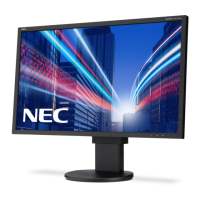
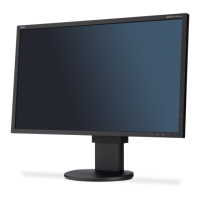
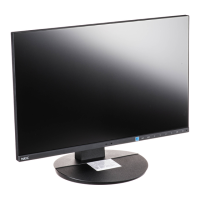
The NEC MultiSync EA274WMi and EA304WMi are desktop monitors designed for optimal visual performance and user comfort. They feature an LCD panel with tilt, swivel, pivot, and height adjustment capabilities, allowing users to customize their viewing experience. The monitors support multiple video inputs, including DisplayPort, DVI-D, HDMI, and D-SUB, ensuring compatibility with various computer systems.

A key feature of these monitors is the OSD (On-Screen Display) control keys located on the front bezel. These keys provide access to a wide range of settings for image adjustment, power management, and other functions. The monitors also incorporate ECO Tools to help reduce power consumption and promote environmental sustainability.

The AUTO BRIGHTNESS function automatically adjusts the screen brightness based on ambient light levels and white content displayed, aiming for optimal viewing comfort and energy efficiency. The HUMAN SENSING feature further enhances energy saving by detecting the presence of a user and automatically shifting to a low brightness or power saving mode when no one is detected.

For advanced users, the monitors offer a PBP (Picture By Picture) MODE that allows for split-screen viewing of two different input sources simultaneously. The ControlSync function enables the synchronization of settings across multiple connected monitors, simplifying management in multi-display setups.

Usage Features

The monitors are designed for ease of use and flexibility.

  • Quick Start: The manual provides clear instructions for connecting the monitor to various PC and Mac systems using different cable types (DisplayPort, DVI, HDMI, D-SUB).
  • Ergonomics: Users are advised on correct monitor placement and adjustment to reduce eye, shoulder, and neck fatigue. This includes adjusting height, distance, tilt, and positioning relative to light sources. The adjustable stand allows for raising, lowering, tilting, and swiveling the screen. The screen can also be rotated from landscape to portrait mode, offering flexibility for different tasks.
  • Flexible Arm Installation: The monitors are compatible with flexible arms, allowing for alternative mounting options. Instructions are provided for removing the stand to facilitate this.
  • OSD Controls: The front bezel control keys provide intuitive access to the OSD menu. Users can navigate through settings for brightness, contrast, ECO mode, auto brightness, black level, off mode settings, human sensing, DV mode, screen adjustments (auto adjust, auto contrast, left/right, down/up, H.Size, Fine, input resolution, video level, over scan, expansion, H.Resolution, V.Resolution), color settings (color control system, R, G, B color gain), and various tools (volume, sound input, video detect, PBP mode, PBP type, response improve, off timer, power save timer, LED brightness, DDC/CI, USB power, factory preset, language, OSD turn off, OSD lock out, hot key, signal information, sensor information, key guide, data copy, customize setting).
  • Hot Key Function: When activated, the hot key function allows direct adjustment of PBP, brightness, and volume without entering the OSD menu.
  • Multi-Monitor Setup: The ControlSync feature simplifies managing multiple monitors. By connecting a master monitor to sub-monitors via a ControlSync cable, settings from the master can be automatically copied to the sub-monitors, ensuring consistent display settings across the setup.
  • USB Hub: The integrated USB hub allows for easy connection of USB devices like digital cameras and scanners.
  • Power Management: The Intelligent Power Manager System allows the monitor to enter power saving modes after periods of inactivity, reducing energy consumption. The OFF MODE SETTING and START TIME functions allow customization of when the monitor enters power saving or low brightness modes based on ambient light or human presence detection.

Maintenance Features

The manual provides guidance on maintaining the monitor for optimal performance and longevity.

  • Cleaning: Instructions are given for cleaning both the LCD panel and the cabinet. For the LCD panel, a soft cloth is recommended, avoiding hard or coarse materials, pressure, or OA cleaners. For the cabinet, a soft cloth dampened with a neutral detergent and water is suggested, with a warning against using harsh chemicals or allowing rubber/vinyl to touch the cabinet for extended periods.
  • Image Persistence: The manual addresses image persistence (ghosting) on LCD screens, advising users to avoid displaying constant images for long periods and to turn off the monitor for a duration equal to the display time to alleviate persistence. Using a moving screen saver or turning off the monitor when idle is also recommended.
  • Troubleshooting: A dedicated section helps users diagnose and resolve common issues such as no picture, unresponsive power key, image persistence, "OUT OF RANGE" messages, unstable/unfocused images, unlit LED, dim picture, improperly sized images, no video, no sound, brightness variations, USB hub malfunction, human sensor malfunction, and ControlSync issues.
  • Registration Information: Details are provided for FCC compliance and Declaration of Conformity, including contact information for NEC Display Solutions of America, Inc.
  • Environmental Information: The manual highlights NEC's commitment to environmental protection, including information on carbon savings, carbon usage, and cost savings. It also provides links to websites for recycling information and energy saving details.
  • WEEE Mark: Information regarding the WEEE Mark (European Directive 2012/19/EU) is included, outlining proper disposal procedures for electrical and electronic products within and outside the European Union.
  • TCO Certified Edge Displays 2.0: The monitor is TCO Certified, indicating its adherence to sustainability criteria covering corporate social responsibility, energy efficiency, environmental management, minimization of hazardous substances, design for recycling, product lifetime, packaging, ergonomic design, electrical safety, and third-party testing.

NEC MultiSync EA274WMi Specifications

General IconGeneral
Screen Size27 inches
Resolution2560 x 1440
Panel TypeIPS
Aspect Ratio16:9
Brightness350 cd/m²
Contrast Ratio1000:1
Refresh Rate60 Hz
Viewing Angles (H/V)178°/178°
Color Support16.7 million colors
Color Gamut72% NTSC
Height Adjustment130 mm
SwivelYes
PivotYes
VESA Mount100 x 100 mm
Dynamic Contrast Ratio5000000:1
ConnectivityDisplayPort, HDMI, DVI-D, VGA
USB HubYes
TiltYes
Response Time6 ms (GtG)

Related product manuals