This document serves as the User's Manual for the NEC MultiSync EA275UHD Desktop Monitor, providing comprehensive information on its setup, operation, and maintenance.
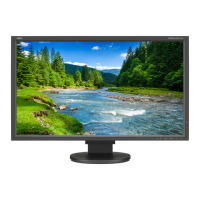
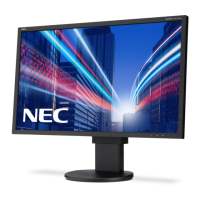
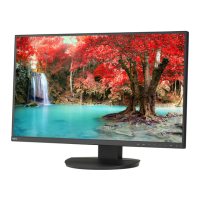
The MultiSync EA275UHD monitor is designed for optimal performance in office or domestic environments, primarily for connection to a computer rather than for displaying television broadcast signals. It features a 27-inch LCD panel with a native resolution of 3840 x 2160 pixels, offering a clear and detailed visual experience. The monitor is equipped with various input options including DisplayPort, DVI, and HDMI, ensuring compatibility with a wide range of devices.
Function Description:
The monitor's core function is to display visual information from a connected computer or other video sources. It supports high resolutions and refresh rates, making it suitable for tasks requiring detailed imagery. The MultiSync EA275UHD incorporates several advanced features to enhance user experience and promote energy efficiency.
Usage Features:
- OSD (On-Screen Display) Controls: The monitor features intuitive OSD controls on the front bezel, allowing users to easily adjust various settings. These controls include dedicated keys for input selection, menu navigation, and direct adjustments for brightness and volume when the OSD menu is off.
- Multi Picture (Split Screen) Function: This feature enables the display of multiple screens simultaneously, offering flexibility for multitasking. Users can select a priority screen for adjustments and choose different picture patterns for the sub-pictures.
- ECO Tools: The monitor includes a suite of ECO Tools designed to reduce power consumption and promote environmental sustainability.
- Brightness and Contrast: These controls allow users to adjust the overall image and background screen brightness and contrast.
- ECO MODE: This mode decreases power consumption by reducing the brightness level, with options for 15% or 40% power savings. A CARBON FOOTPRINT bar appears when this function is active.
- Auto Brightness: This function automatically adjusts the screen brightness based on ambient light levels or the white content of the display, providing optimal viewing comfort and further reducing energy consumption.
- OFF MODE SETTING: The Intelligent Power Manager allows the monitor to enter a power-saving mode after inactivity, with options for "STANDARD" (signal loss) or "SENSOR" (surrounding light level).
- Human Sensing: A sensor on the front of the monitor detects human movement. If no person is detected after a period, the monitor can automatically shift to a low brightness mode or a power-saving mode, resuming normal operation when a person returns.
- DV MODE (Dynamic Visual Mode): This mode offers various presets optimized for different content types, such as "STANDARD," "TEXT," "MOVIE," "GAMING," and "PHOTO," as well as a "DYNAMIC" setting that adjusts brightness based on screen content.
- Screen Adjustments: Users can precisely adjust the horizontal and vertical image positions (LEFT/RIGHT, DOWN/UP), horizontal and vertical resolution (H.RESOLUTION, V.RESOLUTION), and expansion methods (FULL, ASPECT, OFF) to fit the display area.
- Color Control System: This system provides color presets like sRGB and NATIVE, along with options to adjust Red, Green, and Blue color levels, and a DICOM SIM. setting for medical imaging simulation.
- UHD Upscaling: For lower resolution input signals, this function complements missing pixels to display a nicer, higher-resolution image.
- USB Hub: The integrated USB hub allows for easy connection of peripheral devices like digital cameras and scanners, enhancing the monitor's versatility.
- ControlSync: This innovative feature allows users to connect a master monitor to multiple sub-monitors via a ControlSync cable. Settings adjusted on the master monitor are automatically copied to the connected sub-monitors, simplifying multi-monitor setups.
- Customize Setting: Users can store current monitor settings for easy recovery, allowing for personalized configurations.
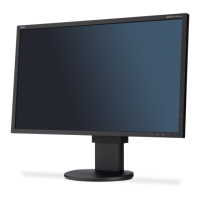
- Adjustable Stand with Pivot Capability: The monitor's stand offers tilt, swivel, pivot, and height adjustment, providing ergonomic flexibility for various viewing preferences and allowing for both landscape and portrait orientations.
- Flexible Arm Installation: The monitor is designed to be compatible with flexible arms, offering alternative mounting options. The stand can be removed, and the monitor can be attached to a VESA-compliant arm using the provided screws. Additional VESA holes are available for users needing a lower monitor head position.
- Hot Key Function: When activated, specific front keys can be used to directly adjust Multi Picture settings, brightness, and volume without navigating through the OSD menu.
- Signal and Sensor Information: The monitor can display information about the current video input, resolution, and refresh rate, as well as messages related to the Human Sensor.
- OSD Lock Out: This function allows users to lock out access to most OSD control functions, preventing accidental changes.
Maintenance Features:
- Cleaning the LCD Panel: The LCD panel should be gently wiped with a soft, lint-free, non-abrasive cloth when dusty. Users are advised against rubbing the panel hard, applying pressure, or using OA cleaners, as these can cause damage or discoloration.
- Cleaning the Cabinet: The monitor cabinet can be gently wiped with a soft cloth. For a more thorough clean, a cloth dampened with a neutral detergent and water can be used, followed by a dry cloth. Specific cleaning agents like benzene, thinner, alkaline detergent, or alcohol-based cleaners should be avoided, as they can damage the plastic surfaces.
- Image Persistence Prevention: To prevent "ghost" images from remaining visible on the screen after displaying constant images for long periods, users are recommended to turn off the monitor for a duration equal to the time the previous image was displayed. Using a moving screen saver or turning off the monitor when not in use is also advised.
- Troubleshooting Guide: The manual includes a comprehensive troubleshooting section to help users address common issues such as no picture, unresponsive power keys, image instability, or color irregularities. It provides step-by-step solutions and recommendations for checking cable connections, display settings, and input signals.
- Manufacturer's Recycling and Energy Information: NEC DISPLAY SOLUTIONS is committed to environmental protection and provides information on recycling procedures and energy-saving capabilities of the monitor, including power consumption details and an estimated carbon footprint.

 Need help?
 General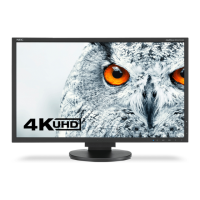


 To Next Page