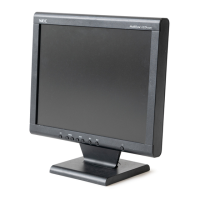
The MultiSync LCD1550V is a color monitor designed for professional use, offering a blend of superior image quality, ergonomic features, and environmental considerations. This user-friendly monitor is equipped with On-Screen Manager (OSM) controls for easy adjustments and supports various resolutions, making it a versatile display solution.
Function Description
The MultiSync LCD1550V serves as a visual display unit for computers, presenting graphical and textual information. It utilizes an active matrix, thin-film transistor (TFT) liquid crystal display (LCD) module, which provides a clear and vibrant image. The monitor is designed to automatically adjust to the display card's scanning frequency, ensuring optimal resolution display. Its Plug and Play capability, in conjunction with Windows 95/98/2000 operating systems, simplifies setup by automatically optimizing display performance based on the monitor's capabilities.
A key feature is the Intelligent Power Manager (IPM) System, which implements power-saving methods. This allows the monitor to shift to a lower power consumption level when not in use, significantly reducing energy costs, emissions, and air conditioning expenses in the workplace. The monitor also boasts FullScan Capability, enabling the use of the entire screen area for most resolutions, thereby expanding the image size.
Usage Features
The MultiSync LCD1550V is designed for ease of use and ergonomic comfort.
- Quick Start and Setup: To set up the monitor, users connect the appropriate signal cable to their computer's display card and then to the monitor. For PC users, a 15-pin mini D-SUB cable is used, while Mac users connect via a Macintosh cable adapter. The power cord connects the monitor to an outlet. A "Vacation Switch" on the side of the monitor acts as a true on/off switch, and the front Power Button turns the monitor on.
- No-touch Auto Adjust: Upon initial setup, the monitor automatically adjusts to optimal settings for most timings, simplifying the configuration process.
- On-Screen Manager (OSM) Controls: These controls, located on the front of the monitor, provide quick and easy access to various image adjustments through on-screen menus.
- Brightness/Contrast Controls: Users can adjust the overall image and background screen brightness (BRIGHTNESS) and the image brightness relative to the background (CONTRAST). An AUTO ADJUST function is available for non-standard video inputs.
- Position Controls: These allow for precise adjustment of the horizontal (LEFT/RIGHT) and vertical (DOWN/UP) image positions within the display area. Users can also adjust the horizontal size (H. SIZE) and fine-tune focus, clarity, and image stability (FINE).
- Colour Control Systems: Five factory-preset color settings are available. Users can also manually increase or decrease Red, Green, or Blue color levels (R,G,B) to customize the display.
- Tools: This menu includes several useful functions:
- OSM POSITION: Allows users to manually adjust the position of the OSM control menu on the screen.
- OSM TURN OFF: Configures how long the OSM control menu remains on screen after the last button press, with options ranging from 10 to 120 seconds.
- OSM LOCK OUT: This feature completely locks out access to all OSM control functions, preventing unauthorized changes. It can be activated and deactivated by simultaneously holding down specific control buttons.
- RESOLUTION NOTIFIER: If enabled, this function displays a message after 30 seconds if the monitor is not operating at its optimal resolution of 1024 x 768.
- FACTORY PRESET: Allows users to reset all OSM control settings back to their factory defaults. Individual settings can also be reset by highlighting them and pressing the RESET button.
- Information: The OSM provides information about the monitor, including the current display resolution and frequency setting (DISPLAY MODE) and the model and serial numbers (MONITOR INFO.).
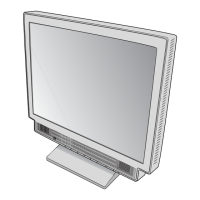
- Tilt Base: The monitor comes with a tilt base, allowing users to adjust the screen angle for optimal viewing comfort.
- VESA Standard Mounting Interface: The monitor can be detached from its stand and mounted on a wall or an arm using any VESA-compatible (75 mm pitch) third-party mounting device. This offers flexibility in placement and space-saving options.
- Ergonomics: The MultiSync LCD1550V incorporates ErgoDesign features to enhance human ergonomics. This includes OSM controls for easy adjustments, the tilt base for preferred viewing angles, and a small footprint. For maximum ergonomic benefits, it is recommended to use preset size and position controls with standard signals, preset color settings, and non-interlaced signals with a vertical refresh rate between 60-75 Hz. Users should avoid using primary blue on a dark background due to potential eye fatigue.
Maintenance Features
Proper maintenance ensures the longevity and optimal performance of the MultiSync LCD1550V.
- Safety Precautions:
- The monitor should not be opened by unauthorized personnel due to high voltage components. All servicing should be referred to qualified service personnel.
- Avoid spilling liquids into the cabinet or using the monitor near water.
- Do not insert objects into cabinet slots to prevent electric shock or equipment failure.
- Do not place heavy objects on the power cord.
- Ensure the monitor is placed on a stable surface to prevent falls.
- Do not place objects on the monitor or use it outdoors.
- The fluorescent tube inside the LCD contains mercury, and proper disposal according to local bylaws is required.
- In case of power cord damage, liquid spills, exposure to rain, or physical damage, immediately unplug the monitor and seek professional servicing.
- Do not bend the power cord.
- Avoid using the monitor in high-temperature, humid, dusty, or oily environments.
- Do not cover the monitor's vents to ensure proper ventilation.
- If the monitor is broken, avoid contact with the liquid crystal. Handle broken glass with care.
- Ventilation: Adequate ventilation around the monitor is crucial for heat dissipation. Do not block openings or place the monitor near heat sources.
- Power Cable Accessibility: The power cable connector is the primary means of detaching the system from the power supply, so the monitor should be installed near an easily accessible power outlet.
- Cleaning: Clean the LCD monitor surface with a lint-free, non-abrasive cloth. Avoid using cleaning solutions or glass cleaner.
- Image Persistence Prevention: To prevent image persistence (after-image effects), avoid displaying fixed patterns on the monitor for long periods. If image persistence occurs, turn off the monitor for a duration equal to the time the image was displayed. NEC-Mitsubishi Electronic Displays recommends using a screen saver at regular intervals when the screen is idle.
- Regular Eye Checkups: For user health, regular eye checkups are recommended.

 Need help?
 General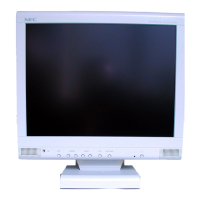


 To Next Page
