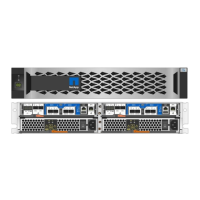
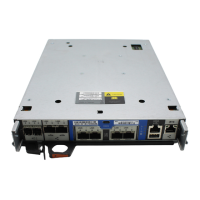
Replace a DIMM - AFF A800
You must replace a DIMM in the controller module when your system registers an
increasing number of correctable error correction codes (ECC); failure to do so causes a
system panic.
All other components in the system must be functioning properly; if not, you must contact technical support.
You must replace the failed component with a replacement FRU component you received from your provider.
Step 1: Shut down the impaired controller
Shut down or take over the impaired controller using the appropriate procedure for your configuration.
Option 1: Most configurations
After running diagnostics, you must recable the controller module’s storage and network connections.
Steps
1. Recable the system.
2. Verify that the cabling is correct by using
Active IQ Config Advisor.
a. Download and install Config Advisor.
b. Enter the information for the target system, and then click Collect Data.
c. Click the Cabling tab, and then examine the output. Make sure that all disk shelves are displayed and
all disks appear in the output, correcting any cabling issues you find.
d. Check other cabling by clicking the appropriate tab, and then examining the output from Config Advisor.
Option 2: Controller is in a MetroCluster
Do not use this procedure if your system is in a two-node MetroCluster configuration.
To shut down the impaired controller, you must determine the status of the controller and, if necessary, take
over the controller so that the healthy controller continues to serve data from the impaired controller storage.
• If you have a cluster with more than two nodes, it must be in quorum. If the cluster is not in quorum or a
healthy controller shows false for eligibility and health, you must correct the issue before shutting down the
impaired controller; see the
Administration overview with the CLI.
• If you have a MetroCluster configuration, you must have confirmed that the MetroCluster Configuration
State is configured and that the nodes are in an enabled and normal state (
metrocluster node show).
Steps
1. If AutoSupport is enabled, suppress automatic case creation by invoking an AutoSupport message:
system node autosupport invoke -node * -type all -message
MAINT=number_of_hours_downh
The following AutoSupport message suppresses automatic case creation for two hours: cluster1:*>
system node autosupport invoke -node * -type all -message MAINT=2h
2.
Disable automatic giveback from the console of the healthy controller:
storage failover modify
–node local -auto-giveback false
993


 To Next Page
 Loading...