EasyManua.ls Logo

NETGEAR Nighthawk MK63 - User Manual

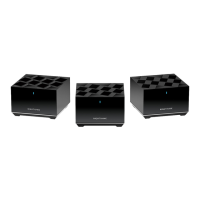
NETGEAR Nighthawk MK63
2 pages
Print Icon
To Next Page IconTo Next Page
Loading...
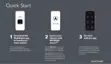
Quick Start
1
On your mobile phone, download the
Nighthawk app, available on Google
Play and the Apple App Store.
Open the Nighthawk app and follow
the step-by-step instructions to set up
your router and satellites.
Check out everything you can do
on the Nighthawk app! Run a speed
test, pause the Internet, see all the
connected devices, and more.
2
Download Install
3
Explore
Internet Speed
Network Map
Guest WiFi
WiFi Settings
Traffic Meter
Device Manager
Nodes (4)
Devices (11)
“Rick’s WiFi”
“Rick’s Guest WiFi” Data Used: 35G

Other manuals for NETGEAR Nighthawk MK63

Question and Answer IconNeed help?

Do you have a question about the NETGEAR Nighthawk MK63 and is the answer not in the manual?

Summary

Quick Start Guide

Download Nighthawk App

Download the Nighthawk app from Google Play or the Apple App Store.

Install Nighthawk App

Open the Nighthawk app and follow step-by-step instructions to set up your router and satellites.

Explore Nighthawk App Features

Check out app features like speed test, pausing internet, and managing connected devices.

Hardware Overview and Components

Included Hardware Components

List of items included in the package: router, satellites, Ethernet cable, and power adapters.

Router;Satellite Ports and Indicators

Identify the LED, Ethernet Port, and power connector on the router or satellite unit.

Router Port Identification

Details of router ports: Ethernet, Internet, Power Connector, Reset Button, and Sync Button.

Satellite Port Identification

Details of satellite ports: Ethernet, Power Connector, Reset Button, and Sync Button.

Support and Community Resources

Netgear Support Website

Access support, FAQs, and latest downloads on the Netgear website.

Netgear Community Forum

Find helpful advice and engage with the NETGEAR community online.

Regulatory Compliance Information

Find regulatory compliance details, including EU Declaration of Conformity.

Overview

This document outlines the quick start guide and contents for a NETGEAR Nighthawk router and satellite system, designed to provide robust and expansive Wi-Fi coverage. The system is managed primarily through a dedicated mobile application, offering a user-friendly interface for setup, monitoring, and control.

Function Description

The NETGEAR Nighthawk system functions as a comprehensive home networking solution, providing high-speed internet access and extended Wi-Fi coverage through a combination of a main router and one or more satellites. This mesh-like system is designed to eliminate dead zones and ensure consistent, strong Wi-Fi signals throughout a home or office environment. The core function is to connect multiple devices to the internet, manage network traffic, and offer advanced controls for network optimization and security.

Usage Features

The Nighthawk system is designed for ease of use, from initial setup to daily management.

Quick Start and Setup

The quick start process is streamlined into three main steps:

  1. Download: Users begin by downloading the Nighthawk app on their mobile phone, available on Google Play and the Apple App Store. This app serves as the central hub for all system interactions.
  2. Install: Once the app is installed, users open it and follow the step-by-step instructions provided within the app to set up their router and any accompanying satellites. This guided process simplifies the often complex task of network configuration, making it accessible even for users with limited technical expertise.
  3. Explore: After the initial setup, the app allows users to explore a wide range of features. This includes running internet speed tests to monitor performance, pausing internet access for specific devices or the entire network, viewing all connected devices, and accessing various other settings and controls.

App-Based Management

The Nighthawk app is a cornerstone of the system's usability, offering a comprehensive suite of management tools:

  • Device Manager: This feature allows users to see all devices currently connected to their network. It provides an overview of the network's current load and helps identify any unauthorized connections.
  • Network Map: The network map visualizes the router and satellite nodes, providing a clear understanding of the network's topology and coverage. This can be particularly useful for troubleshooting or optimizing satellite placement.
  • Internet Speed Test: Users can perform on-demand speed tests directly from the app to monitor their internet service provider's performance and ensure they are getting the speeds they expect. This helps in diagnosing potential internet service issues.
  • WiFi Settings: This section allows users to customize their Wi-Fi network, including changing network names (SSIDs), passwords, and other security settings.
  • Guest WiFi: The system supports the creation of a separate guest Wi-Fi network. This feature enhances security by isolating guest devices from the main network, preventing them from accessing sensitive files or devices.
  • Traffic Meter: A traffic meter helps users monitor their data usage. This is particularly useful for those with data caps from their internet service provider, allowing them to track consumption and avoid overage charges.
  • Parental Controls: Although not explicitly detailed in the provided images, similar NETGEAR systems often include parental control features that allow users to manage internet access times, block specific websites, and filter content for children's devices. The ability to "pause the Internet" mentioned in the "Explore" section hints at such capabilities.

Physical Components and Connectivity

The system includes several physical components designed for robust connectivity:

  • Router: The central unit that connects to the internet service provider's modem. It typically features an LED indicator for status, an Ethernet port for wired connections (e.g., to a computer or network-attached storage), an Internet port for the modem connection, a power connector, and a reset button.
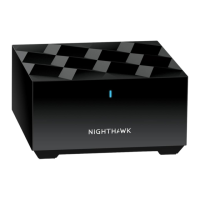
  • Satellites: These extend the Wi-Fi coverage from the main router. They also feature LED indicators, Ethernet ports for wired connections in areas with weaker Wi-Fi, and a power connector. A sync button is included to easily pair them with the main router.
  • Ethernet Cable: Provided for initial setup and wired connections.
  • Power Adapters: Multiple power adapters are included, varying by region, to power the router and satellites.

The physical design of the router and satellites includes clearly labeled ports and buttons, simplifying the connection process. The LED indicators provide quick visual feedback on the device's status, such as power, internet connectivity, and Wi-Fi signal strength.

Maintenance Features

The Nighthawk system incorporates features that contribute to its ongoing maintenance and reliability:

  • Reset Button: Both the router and satellites include a reset button. This is a crucial maintenance feature, allowing users to restore the device to its factory default settings in case of configuration issues or for troubleshooting. A hard reset can often resolve persistent network problems.
  • Firmware Updates: While not explicitly shown, NETGEAR devices typically support firmware updates, which are essential for security patches, performance improvements, and new feature additions. These updates are often managed through the Nighthawk app, ensuring the system remains up-to-date and secure.
  • Self-Diagnosis and Troubleshooting: The app's ability to display connected devices, network topology, and internet speed can assist users in self-diagnosing common network issues. For instance, if a device isn't connecting, the device manager can confirm if it's visible on the network. If internet speeds are low, the speed test can help determine if the issue is with the internet service provider or the local network.
  • Community and Support: NETGEAR provides extensive support resources:
    • Online Support: Users can visit netgear.com/support for answers to questions and access to the latest downloads, including firmware and documentation.
    • Community Forum: The NETGEAR Community (community.netgear.com) offers a platform for users to seek advice from other users and NETGEAR experts, sharing solutions and tips.
    • Regulatory Compliance Information: Access to regulatory compliance documents, including the EU Declaration of Conformity, is available at https://www.netgear.com/about/regulatory/. This ensures users have access to important safety and compliance information.

These maintenance features, combined with the intuitive app interface, empower users to keep their network running smoothly and securely with minimal effort. The system is designed to be largely self-sufficient, with user-friendly tools for intervention when necessary.

NETGEAR Nighthawk MK63 Specifications

General IconGeneral
Package typeBox
Package depth195 mm
Package width316 mm
Package height139 mm
Package weight2050 g
Master (outer) case width292 mm
Master (outer) case height317 mm
Master (outer) case length329 mm
Master (outer) case weight4940 g
Harmonized System (HS) code85176990
Quantity per master (outer) case2 pc(s)
ManualYes
CertificationFCC 15, IECS-003, EN 55032, EN 55035, AS/NZS CISPR
Product colorBlack
Bandwidth2.4 GHz
Modulation1024-QAM
Wi-Fi bandDual-band (2.4 GHz / 5 GHz)
Wi-Fi standards802.11b, 802.11g, Wi-Fi 4 (802.11n), Wi-Fi 6 (802.11ax)
Cabling technology10/100/1000Base-T(X)
Networking standardsIEEE 802.11ax, IEEE 802.11b, IEEE 802.11g, IEEE 802.11n
Wi-Fi data rate (max)1200 Mbit/s
Antenna typeInternal
Antennas quantity4
TypeNetwork repeater
Ethernet LAN data rates10, 100, 1000 Mbit/s
Maximum transfer distance4500 m
Operating temperature (T-T)0 - 40 °C
Operating relative humidity (H-H)0 - 90 %
Output current1 A
Output voltage12 V
Flash memory128 MB
Internal memory256 MB
Weight and Dimensions IconWeight and Dimensions
Width101.6 mm
Height50.8 mm
Weight285 g

Related product manuals