To Next PageTo Next Page
 Need help?
Do you have a question about the NETGEAR Nighthawk MK83 and is the answer not in the manual?
Download the Nighthawk app on your mobile phone and follow setup instructions to install your mesh system.
Verify NETGEAR Armor activation in the app to block online threats like hackers and phishing attempts.
Use the Nighthawk app to run speed tests, pause internet, view connected devices, and more.
Identify ports and buttons on the router and satellite units, including power, Ethernet, and reset.
Troubleshoot installation by restarting devices or using the web interface if the app fails.
Access support resources, community forums, regulatory compliance, privacy policy, and terms.
This document provides a quick start guide and essential information for setting up and managing your NETGEAR Nighthawk mesh WiFi system. It covers the initial setup process using the Nighthawk app, highlights key features of the app, and offers troubleshooting tips, support resources, and regulatory details.
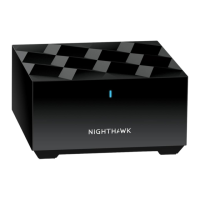
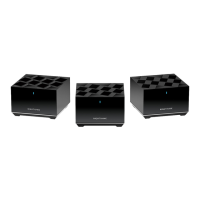
The NETGEAR Nighthawk mesh WiFi system is designed to provide comprehensive and reliable wireless internet coverage throughout your home or office. It consists of a main router and two satellite units that work together to create a unified and seamless WiFi network. This mesh system eliminates dead zones and ensures a strong, consistent signal in every corner of your space. The primary function is to distribute internet connectivity from your modem to all your connected devices, including computers, smartphones, smart home devices, and more. The system is built to handle multiple devices simultaneously, providing a smooth online experience for streaming, gaming, and general browsing.
The core of the system is the router, which connects directly to your internet modem. The satellites extend the WiFi coverage, ensuring that even distant areas receive a robust signal. This setup is particularly beneficial for larger homes or multi-story buildings where a single router might struggle to provide adequate coverage. The mesh technology allows your devices to seamlessly switch between the router and satellites as you move around, without experiencing drops in connectivity.
A significant feature of the Nighthawk system is the integration of NETGEAR Armor cybersecurity. This security suite is designed to protect all devices connected to your network from online threats. It acts as a shield against hackers, phishing attempts, malware, and other malicious activities, providing an added layer of security for your digital life. NETGEAR Armor continuously monitors your network for vulnerabilities and suspicious activity, offering real-time protection.
The Nighthawk mesh WiFi system is designed for ease of use, primarily managed through the intuitive Nighthawk app.
The first step involves downloading the Nighthawk app on your mobile phone. The app guides you through a step-by-step installation process for your mesh system. This typically includes connecting the router to your modem, powering on the devices, and then allowing the app to discover and configure the router and satellites. The app simplifies the network setup, making it accessible even for users with limited technical expertise.
Once installed, the Nighthawk app becomes your central hub for managing your WiFi network.
The router and satellites have several physical ports and buttons for connectivity and control:
Maintaining your NETGEAR Nighthawk mesh WiFi system primarily involves ensuring its optimal performance and security, largely managed through the Nighthawk app and occasional physical checks.
The manual provides basic troubleshooting steps for common installation issues:
http://www.routerlogin.net. This provides an alternative method for advanced users or in cases where the app encounters specific compatibility issues.netgear.com/meshhelp and netgear.com/support, which offer additional troubleshooting guides, FAQs, and support articles.While not explicitly detailed as a maintenance feature in the quick start guide, NETGEAR typically provides firmware updates for its devices. These updates often include performance enhancements, bug fixes, and security patches. The Nighthawk app usually notifies you when updates are available and guides you through the process of applying them, ensuring your system remains secure and performs optimally.
The NETGEAR Armor feature is a continuous maintenance aspect. It automatically blocks online threats, but periodically checking the Security section in the Nighthawk app can confirm its activation and review any security reports or alerts. This proactive security measure helps protect your network without constant manual intervention.
For ongoing support and advice, NETGEAR encourages users to visit community.netgear.com. This platform allows users to interact with other Nighthawk owners, share tips, and find solutions to common issues, fostering a self-help environment. Direct support is also available through netgear.com/support for more specific technical assistance.
The manual also points to resources for regulatory compliance information, including the EU Declaration of Conformity, and NETGEAR's Privacy Policy and Terms and Conditions. While not a direct maintenance task, being aware of these documents ensures responsible use and understanding of the device's operational guidelines.
 General
| Brand | NETGEAR |
|---|---|
| Model | Nighthawk MK83 |
| Category | Wireless Router |
| Language | English |