
 Need help?
Do you have a question about the NETGEAR R7900 and is the answer not in the manual?
Describes finding the WiFi network name (SSID) and password on the router's label.
Provides space to write down the SSID and password for easy reference.
Details the default login URL, username, and password for accessing router settings.
Explains using the WPS button on the router and device for a quick and easy connection.
Guides on connecting by selecting the network name (SSID) and entering the password.
Details the process to access router settings via a web browser using default credentials.
Guides on changing the network name (SSID) and password for enhanced security.
Explains how to change the router's administrator password and enable recovery options.
Details steps to recover the admin password using security questions and the router's serial number.
Guides on accessing a connected USB drive on the network using Windows computers via \\readyshare.
Explains how to enable and configure Dynamic Quality of Service for better traffic management.
Guides on setting up remote access using the NETGEAR genie app for Windows computers.
Details how to back up Windows computers using ReadySHARE Vault software for data safety.
Explains how to connect and set up a USB printer for wireless printing.
Explains using the iTunes Server feature for media streaming from USB storage.
Describes how VPN service allows secure remote access to the home network and its resources.
Explains setting up a personal FTP server for remote network access via a custom URL.
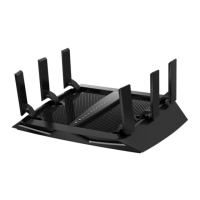
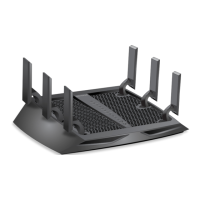
This document describes the NETGEAR Nighthawk X6 AC3000 Tri-Band WiFi Router, Model R7900, focusing on its functions, usage, and maintenance features.
The NETGEAR Nighthawk X6 AC3000 Tri-Band WiFi Router is designed to provide robust and secure WiFi connectivity for your home network, enabling users to "Do More" with their internet connection. It offers a range of features for easy setup, network management, and enhanced functionality, catering to both basic and advanced networking needs.
The primary function of the Nighthawk X6 router is to establish and manage a WiFi network, allowing multiple devices to connect to the internet wirelessly. It operates as a tri-band WiFi router, which means it broadcasts on three separate WiFi bands, typically one 2.4 GHz band and two 5 GHz bands. This tri-band capability helps in distributing network traffic more efficiently, reducing congestion, and providing faster speeds for a larger number of connected devices, especially in environments with many WiFi-enabled gadgets, streaming, and gaming activities.
The router comes with preassigned WiFi network names (SSIDs) and passwords (network keys) that are unique to each device, similar to a serial number. This preassignment ensures that the router automatically uses WiFi security from the moment it's set up, eliminating the need for manual security configuration during initial installation. These default WiFi settings are conveniently located on a label on the router itself, making them easily accessible for connecting devices.
Beyond basic WiFi connectivity, the Nighthawk X6 offers several advanced features to enhance network performance and utility:
The Nighthawk X6 router is designed for ease of use, from initial setup to daily operation and advanced configuration.
Joining the WiFi Network: Users have two primary methods to connect their WiFi-enabled devices to the network:
Logging In and Managing Settings: After the initial setup, users can log in to the router's web-based interface to view or change its settings.
www.routerlogin.net.admin, and the default password is password. It is highly recommended to change these default credentials for security purposes.Changing WiFi Network Name and Password: Users can easily customize their WiFi network name (SSID) and password (network key) through the router's web interface. This involves navigating to the "Wireless" section, entering the new desired name and password, and applying the changes.
Changing the Admin Password: For enhanced security, the router allows users to change the default admin password. This is done by accessing the "ADVANCED > Administration > Set Password" section in the web interface. Users are prompted to enter their old password and then the new password twice.
Accessing USB Devices:
\\readyshare, and click OK. A window will display the files and folders on the device.smb://readyshare in the Server Address field. They can then connect as a Guest or as a Registered User if access control is set up.Enabling Dynamic QoS: To enable Dynamic QoS, users log in to the router's web interface, select "Dynamic QoS," and check the "Enable Dynamic QoS" box. They can then specify their internet bandwidth, either by using the built-in Speedtest feature or by manually entering the values.
Remote Access with Genie App: The NETGEAR genie app allows users to remotely access their router and modify key settings from Windows computers, iOS mobile devices, and Android mobile devices. To set this up, users download the genie app, connect to the router's network, launch the app, select "Router Settings," choose "Remote Access" from the "Login as" menu, and sign up for a remote access genie account.
The Nighthawk X6 router incorporates features and recommendations to ensure its smooth operation and security over time.
Password Recovery:
The router includes a password recovery feature for the admin password. If the admin password has been changed and password recovery was enabled, users can retrieve a forgotten password by visiting www.routerlogin.net, clicking "Cancel" on the login window, and then entering the router's serial number (found on the label) and answering security questions that were set up during the password change process. Enabling password recovery is recommended.
Firmware Updates: While not explicitly detailed in the provided excerpts, NETGEAR routers typically offer firmware update capabilities through the web interface. Regular firmware updates are crucial for maintaining security, improving performance, and adding new features. Users are usually notified of available updates or can manually check for them.
Documentation and Support: NETGEAR provides comprehensive support resources:
www.netgear.com/support to register their product, get help, access the latest downloads and user manuals, and join the community. It is recommended to use only official NETGEAR support resources.downloadcenter.netgear.com or through links within the router's user interface, providing in-depth information on all features and configurations.Physical Maintenance: Although not explicitly mentioned, general maintenance practices for electronic devices apply:
By leveraging these functions, usage, and maintenance features, users can effectively manage their home network, enhance their internet experience, and ensure the long-term reliability of their NETGEAR Nighthawk X6 router.
 General
| WiFi Technology | 802.11ac |
|---|---|
| Beamforming+ | Yes |
| Dynamic QoS | Yes |
| Smart Connect | Yes |
| Parental Controls | Yes |
| Guest Network | Yes |
| WiFi Band | Tri-Band (2.4 GHz + 5 GHz + 5 GHz) |
| Number of Ethernet Ports | 5 (4 x Gigabit LAN + 1 x Gigabit WAN) |
| USB Ports | 2 (1 x USB 3.0 + 1 x USB 2.0) |
| VPN Support | Yes |







 To Next Page