Need help?
Do you have a question about the Netis WF2120 and is the answer not in the manual?
Lists the hardware and software prerequisites for installation and operation.
Guides the user through selecting the installation language and proceeding through the wizard steps.
Allows selection of installation type and begins the driver installation process.
Finalizes the software installation and advises on system restart.
Guides the user to install the driver using the Found New Hardware Wizard.
Instructs on launching the utility and connecting via Method 1.
Details entering the network key/password for encrypted connections.
Describes an alternative method for connecting to a wireless network without the utility.
Provides regulatory information regarding FCC compliance for Class B devices.
States compliance with RF exposure limits and provides user cautions.
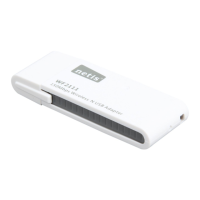
The Netis WF2120 is a 150Mbps NANO Wireless-N USB Adapter, designed to provide wireless network connectivity to your computer. This quick installation guide outlines the steps for setting up and using the adapter, ensuring a smooth experience for users looking to add or upgrade their wireless capabilities.
The WF2120 adapter serves as a bridge, enabling your computer to connect to wireless networks that operate on the 802.11b/g/n standards. Its primary function is to receive and transmit wireless signals, allowing your device to access the internet or communicate with other devices on a local wireless network. The "NANO" designation suggests a compact and portable design, making it convenient for both desktop and laptop users. With a speed of 150Mbps, it is suitable for general internet browsing, email, and standard online activities. The adapter supports both Infrastructure Mode, where it connects to an access point (like a wireless router), and Ad-Hoc (Peer-to-Peer) networking mode, which allows direct connection to another wireless adapter without an intermediary access point. This flexibility ensures that the adapter can be used in various network environments, from home networks to small office setups.
The installation process for the WF2120 adapter is designed to be user-friendly, guided by an InstallShield Wizard. Upon inserting the included CD-ROM, an install screen will appear, prompting you to select your preferred language. The wizard then guides you through the driver installation, offering options to install both the driver and a utility, or just the driver. The utility provides additional features for managing your wireless connections. The guide specifically details steps for Windows XP, but notes that the process is similar for other Windows operating systems like Windows 7, Vista, and 2000 SP4.
Once the driver is installed, you plug the Wireless-N USB Adapter into an available USB 1.1 or USB 2.0 port on your computer. The "Found New Hardware Wizard" will then appear, prompting you to install the software automatically. After this step, the hardware installation is complete, and the adapter is ready for use.
Connecting to a wireless network can be done in a couple of ways. If you installed the utility, you can double-click the "netis 11n USB Wireless LAN Utility" icon on your desktop or access it through the Start menu. Within the utility, an "Available Network" tab displays all detected wireless networks. You can then select and connect to your desired network. If the network is encrypted, the utility will prompt you to enter the network key or password. For Windows XP users, the guide recommends using the netis Wireless LAN Utility over the Windows Zero Configuration Utility for optimal performance and features.
Alternatively, if you only installed the driver without the utility, you can connect to a wireless network through Windows' built-in network management features. This involves navigating to "My Network Places," then "View network connections," right-clicking "Wireless network connections," and selecting "Available wireless network connections." This will display the available networks, allowing you to choose and connect to one.
The adapter's compatibility with various Windows operating systems (Windows 7, Vista, XP, 2000 SP4) ensures broad usability across different computer setups. The minimum system requirements are modest, needing an available USB 1.1 or 2.0 port, a 300 MHz processor, and 32 MB of memory, making it accessible to a wide range of older and newer computers.
While the manual primarily focuses on installation and initial setup, several aspects touch upon maintenance and troubleshooting. The guide emphasizes checking the package contents upon receipt to ensure all items (adapter, quick installation guide, CD-ROM) are present and undamaged. This initial check helps prevent issues stemming from missing components.
During the installation process, the InstallShield Wizard provides clear prompts and options, such as restarting the computer after installation. Following these prompts correctly is crucial for the adapter's proper functioning. The option to install "Both Driver And Utility" or "Install Driver Only" allows users to choose based on their preference for network management tools, which can impact how they interact with and maintain their wireless connection settings. The utility, if installed, offers a centralized interface for managing profiles, viewing network status, and configuring Wi-Fi Protect Setup, simplifying ongoing network management.
The manual also includes an FCC Statement, which is important for understanding regulatory compliance and potential interference issues. It advises users on measures to correct interference, such as reorienting antennas or increasing separation from other equipment. It also warns against unauthorized modifications to the equipment, as this could void the user's authority to operate it and potentially cause radio or TV interference. This information is key for maintaining the device's compliance and ensuring stable operation.
In case of any issues during installation or operation, the guide implicitly suggests troubleshooting by re-checking the steps or contacting the store of purchase if package contents were initially incomplete or damaged. The clear, step-by-step instructions act as a primary maintenance tool, enabling users to self-diagnose and resolve common setup problems. The presence of a "Refresh" button in the utility's "Available Network" tab allows users to rescan for networks, a simple troubleshooting step if a network isn't immediately visible. The ability to create and manage network profiles within the utility also aids in maintaining organized and reliable connections to frequently used wireless networks.
 General
| Interface | WLAN |
|---|---|
| Connectivity technology | Wireless |
| Chipset | - |
| Internal | No |
| Certification | FCC, CE, KC, NCC, BSMI |
| Component for | PC/Laptop |
| Product color | White |
| Wi-Fi | Yes |
| Wi-Fi band | Single-band (2.4 GHz) |
| Frequency range | 2.4 - 2.4835 GHz |
| Wi-Fi standards | 802.11b, 802.11g, Wi-Fi 4 (802.11n) |
| Top Wi-Fi standard | Wi-Fi 4 (802.11n) |
| Security algorithms | 128-bit WEP, 64-bit WEP, WPA-PSK, WPA2-PSK |
| Networking standards | IEEE 802.11b, IEEE 802.11g, IEEE 802.11n |
| Maximum data transfer rate | 150 Mbit/s |
| Windows operating systems supported | Windows 7 Home Basic, Windows 7 Home Basic x64, Windows 7 Home Premium, Windows 7 Home Premium x64, Windows 7 Professional, Windows 7 Professional x64, Windows 7 Starter, Windows 7 Starter x64, Windows 7 Ultimate, Windows 7 Ultimate x64, Windows 8, Windows 8 Enterprise, Windows 8 Enterprise x64, Windows 8 Pro, Windows 8 Pro x64, Windows 8 x64, Windows Vista Business, Windows Vista Business x64, Windows Vista Enterprise, Windows Vista Enterprise x64, Windows Vista Home Basic, Windows Vista Home Basic x64, Windows Vista Home Premium, Windows Vista Home Premium x64, Windows Vista Ultimate, Windows Vista Ultimate x64, Windows XP Home, Windows XP Home x64, Windows XP Professional, Windows XP Professional x64 |
| Storage temperature (T-T) | -40 - 70 °C |
| Operating temperature (T-T) | 0 - 40 °C |
| Storage relative humidity (H-H) | 5 - 90 % |
| Operating relative humidity (H-H) | 10 - 90 % |
 Weight and Dimensions
| Depth | 19 mm |
|---|---|
| Width | 14 mm |
| Height | 7 mm |
| Weight | 2 g |


 To Next Page