Need help?
Do you have a question about the Netis WF-2109 and is the answer not in the manual?
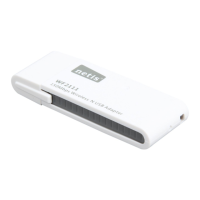
The Netis WF-2109 300M Wireless-N USB Adapter is a compact and efficient device designed to provide wireless network connectivity to your computer. This quick installation guide outlines the steps to set up and use the adapter, ensuring a smooth and reliable wireless experience. The adapter is built to offer high-speed wireless performance, making it suitable for various online activities such as streaming, gaming, and general web browsing. Its design emphasizes ease of use, allowing even novice users to quickly establish a wireless connection.
The primary function of the Netis WF-2109 is to enable your desktop or laptop computer to connect to a wireless network (Wi-Fi). It operates as a Wireless-N USB adapter, meaning it supports the 802.11n standard, which is known for its improved speed and range compared to older wireless standards like 802.11b and 802.11g. By plugging this adapter into an available USB port on your computer, you can access wireless networks without the need for an internal wireless card or Ethernet cable. This is particularly useful for older computers that lack built-in Wi-Fi capabilities or for systems where the internal Wi-Fi is not performing optimally.
The adapter facilitates communication with wireless access points (APs) or routers in "Infrastructure Mode," which is the most common setup for home and office networks. In this mode, the adapter connects to a central router that manages the network and provides internet access. Additionally, it supports "Ad-Hoc" or "Peer-to-Peer" networking mode, allowing it to connect directly to another 802.11b/g/n wireless adapter without an intermediate access point. This can be useful for creating a temporary local network between two computers for file sharing or gaming.
The WF-2109 is designed to be compatible with a range of Microsoft Windows operating systems, including Windows 7, Vista, XP, and 2000 SP4, ensuring broad usability across different computer setups. The installation process involves installing a driver and an optional utility software from an included CD-ROM, which helps manage and configure the wireless connection. The utility provides a user-friendly interface to scan for available networks, view connection status, and set up security protocols.
Setting up the Netis WF-2109 involves a straightforward process. First, you need to ensure your computer meets the minimum requirements, which include an available USB 1.1 or USB 2.0 slot, a 300 MHz processor, 32 MB of memory, and a CD-ROM drive for software installation. Once these prerequisites are met, the installation begins by inserting the included CD into your computer's CD-ROM drive. The installation screen should appear automatically; if not, you can manually launch the installer from the CD.
The installation wizard guides you through selecting the setup language and then proceeds to install the necessary drivers and utility software. The guide recommends installing both the driver and the utility for optimal functionality, though an option to install only the driver is also available if you prefer to manage connections through Windows' built-in wireless management tools. The utility, once installed, provides a comprehensive interface for managing your wireless connections.
After the software installation is complete, you can insert the 300M Wireless-N USB Adapter into an available USB slot on your computer. The driver will be installed automatically upon detection of the device. The adapter features an Lnk/Act indicator, which is a green LED that flashes to indicate data transmission and stays on for approximately 3 seconds when a WPS (Wi-Fi Protected Setup) connection is successfully established. This visual feedback helps confirm the operational status of the adapter.
Connecting to a wireless network can be done using the Wireless LAN Utility. You can launch the utility by double-clicking its icon on your desktop or by navigating through the Start menu. Within the utility, there's an "Available Network" tab that displays all detected wireless networks. You can then select the desired network and initiate the connection. If the network is encrypted, you will be prompted to enter the network key or password to establish a secure connection.
The adapter also supports Wi-Fi Protected Setup (WPS), which simplifies the process of connecting to a secure wireless network. WPS offers two methods: the Push Button method and the PIN method.
The utility also provides detailed information about the link status, network profiles, and statistics, allowing users to monitor their wireless connection and troubleshoot any potential issues. This comprehensive management tool enhances the user experience by providing control and visibility over the wireless network.
The Netis WF-2109 is designed for minimal maintenance. The primary aspect of maintenance involves ensuring the software drivers are up to date, although the provided CD-ROM typically contains stable drivers that work well with the supported operating systems. Periodically checking the manufacturer's website for updated drivers might be beneficial, especially if you encounter compatibility issues with newer operating system versions or wish to leverage performance enhancements.
The device itself is a plug-and-play USB adapter, meaning it does not require complex physical maintenance. Keeping the USB port and the adapter free from dust and debris can help ensure a reliable connection. If the adapter is frequently moved between computers or USB ports, care should be taken to handle it gently to prevent damage to the USB connector.
In case of connectivity problems, the Wireless LAN Utility can be a valuable diagnostic tool. It provides status information that can help identify whether the issue lies with the adapter, the network, or the security settings. For instance, if the utility shows no available networks, it might indicate an issue with the adapter's reception or that no wireless networks are within range. If it shows networks but fails to connect, it could point to incorrect security keys or router configuration issues.
The device is built to comply with FCC regulations, indicating that it has been tested to ensure it does not cause harmful interference and can accept interference from other devices. Users are advised to avoid unauthorized modifications to the equipment, as this could void the user's authority to operate the device and potentially cause radio or TV interference. This emphasizes the importance of using the device as intended and avoiding tampering with its internal components.
Overall, the Netis WF-2109 300M Wireless-N USB Adapter offers a practical and user-friendly solution for adding or upgrading wireless connectivity to your computer. Its straightforward installation, comprehensive utility, and support for WPS make it an accessible device for a wide range of users, while its adherence to wireless standards ensures reliable performance.
 General
| Model | WF-2109 |
|---|---|
| Category | Adapter |
| Wireless Standards | IEEE 802.11b/g/n |
| Frequency Band | 2.4GHz |
| Maximum Data Rate | Up to 150Mbps |
| Interface | USB 2.0 |
| Security | WEP, WPA, WPA2 |
| Operating System Compatibility | Windows, Mac OS |


 To Next Page