Got Questions? Let Us Help! Email SUPPORT@NEUMITECH.COM
To display a subtitle track, press the Menu button on the remote control to bring up the playback
menu, select the subtitle track you want to display and press the OK button to confirm. To stop
displaying subtitles, select “Close Subtitle” in the playback menu.
User Advice: Subtitle text encoding uses the UTF-8 code page by default. Due to the many ways
in which text can be encoded, the only officially supported subtitle languages are English, Spanish,
and Chinese.
How do I play photos?
From the main menu, select the Photo icon, then select the USB drive or Micro SD Card to browse
for photos to play. Find the photo you would like to play, press the OK button on the remote and it
will be displayed. The media player recognizes up to 1000 photos in a folder and can play a
slideshow of photos within the same folder. The media player can also be configured to
automatically start playing photos in a slideshow whenever it is turned on – please refer to the
settings section for how to configure and use this automatic playback feature.
During photo playback, you can...
• Pause or resume photo slideshow using the OK button. Press the Return button to stop.
• Use the Left/Right buttons on the remote to go to the previous or next photo.
• Use the Up/Down buttons on the remote to rotate the display of the photo. Note that this
effect is only for display and is not saved.
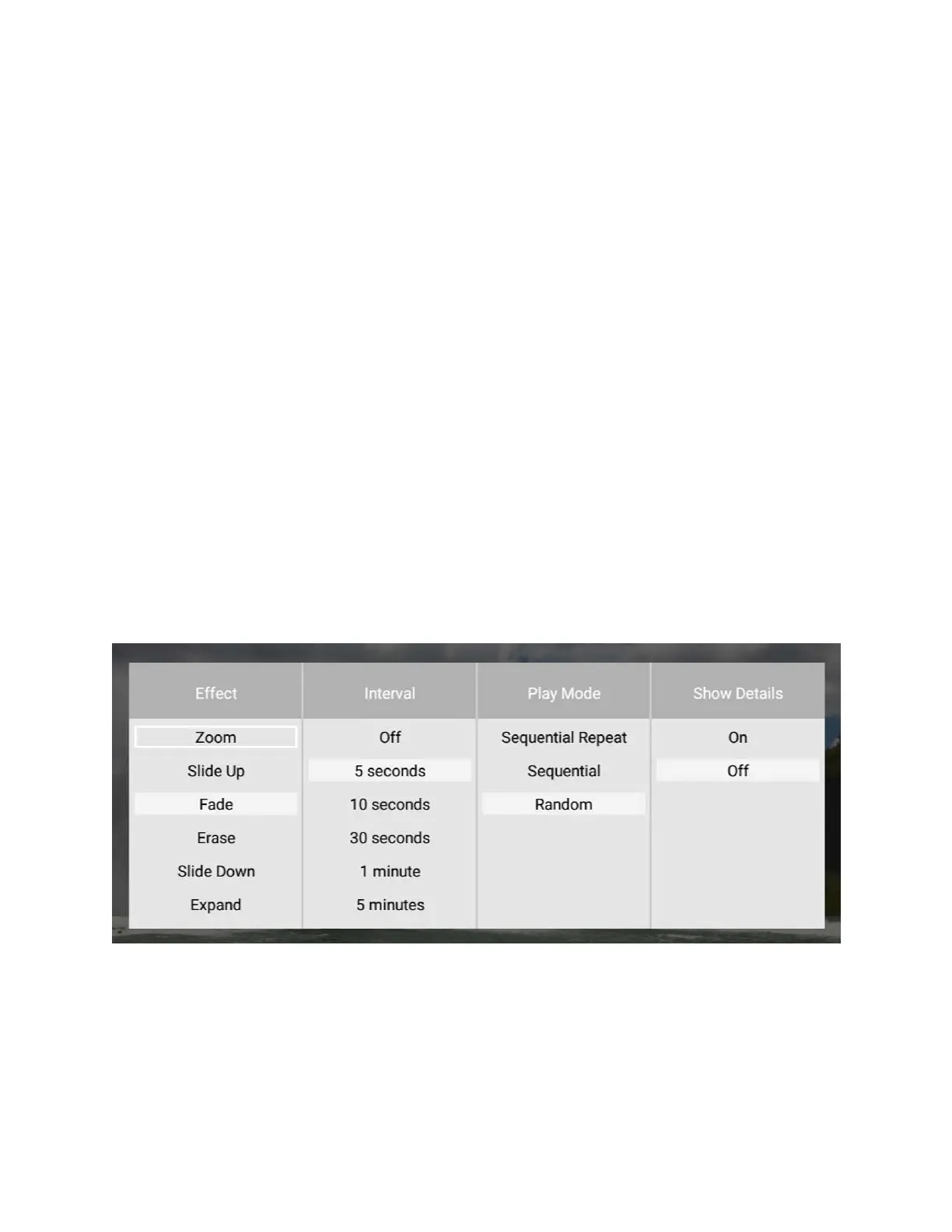
Additional photo display options are available by pressing the Menu button:
• Effect – Sets the slideshow transition effect.
• Interval – Set the delay time between photos in a slideshow.
• Play Mode – Selects sequential or random order for slideshow.
• Show Details – Toggle display of photo name and date taken.


 To Next Page
 Loading...