EasyManua.ls Logo

New Digital T2 265 HD User Manual

New Digital T2 265 HD
27 pages
To Next Page IconTo Next Page
Page #1 background imageLoading...
Page #1 background image
This symbol on the product means that your equipment is suitable only for Indoor use.
* NOTE: this Tuner is supporting the reception of Free To Air
programmes only
FRONT AND REAR PANELS AND CONNECTIONS DIAGRAM
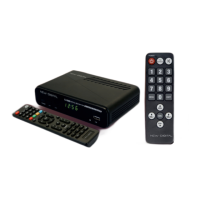
Front panel and controls
Rear panel
1 POWER – Switches between working and Standby mode
2 CH- switches TV program up the list
3 CH+ switches TV program down the list
4 IR (Infrared remote control) window
5 USB -- connector for external USB memory device (USB 2.0 support)
1 2 3 4 5
1 RF IN: This socket connects to your external Aerial
2 COAXIAL (SPDIF) – Digital Audio Output
3 HDMI: High definition audio and video output used to connect to TV HDMI socket
4 LAN – Data network connector for service/maintenance functions
5 TV SCART – analog Audio / video output for connection to TV set
1 2 3 4 5
HIGH DEFINITION DIGITAL TERRESTRIAL
DVB-T2/T TUNER WITH H.265 SUPPORT
USER MANUAL
1. Read and follow these instructions.
2. Do not use this apparatus near water, heat sources, do not expose to direct sunlight and the
temperatures higher than in normal household. For Indoor use only!
3. Clean only with dry cloth, protect from moisture and dirt, do not cover the ventilation grid.
4. Operate this product only from the type of power source indicated on the label. Protect the
Device and the power cord from the moisture, physical damage.
5. Unplug this apparatus during lightning storms or when unused for the longer period.
6. Do not disassemble the unit or try to insert any extraneous items into it.
7. Refer all servicing to qualified service personnel only. Servicing is required when the apparatus
has been damaged in any way, including damage to the mains cord or plug, if the unit was
exposed to liquids or moisture, has been dropped or not operating correctly.
IMPORTANT SAFETY INSTRUCTIONS
CAUTION
Risk of electric shock!
DO NOT OPEN!
ATTENTION
Risque de choc electrique!
NE PAS OUVRIR!
This symbol indicates that dangerous voltages constituting a risk of electric shock are
present within this unit.
This symbol on the product or in the instructions means that your electrical and
electronic equipment should be disposed at the end of life separately from your
household waste. There are separate collection systems for recycling.
For more information, please contact the local authority or your retailer where you
purchased the product.
This symbol indicates that this product incorporates double insulation between
hazardous mains voltage and user accessible parts. When servicing use only identical
replacement parts.
This symbol indicates that there are important operating and maintenance
instructions in the literature accompanying this unit.
CONTENTS OF THE PACKAGE
Tuner Unit, Remote Control Unit, 2 pcs AAA type Batteries,
User Manual
EN

Questions and Answers:

New Digital T2 265 HD Specifications

General IconGeneral
USB PortYes
EPGYes
RecordingYes
Time ShiftYes
Tuner TypeDVB-T2
Video Resolution1920x1080
InputAntenna
OutputHDMI
Supported CodecsH.264
Power Supply5V

Summary

Important Safety Instructions

Front and Rear Panel Overview

Front Panel Controls

Identifies buttons and connectors on the front panel for basic operation.

Rear Panel Connections

Details input/output ports on the rear of the device, including RF IN and HDMI.

Remote Control Unit (RCU) Functions

RCU Button Descriptions

Explains the purpose and operation of each button on the remote control.

Initial Setup and Menus

First Time Installation Guide

Steps for initial setup, including language and channel search.

Welcome Menu Navigation

Guidance on navigating the initial setup wizard using the remote.

Main OSD Menu Structure

Overview of main menu categories like Media Player, Installation, and System Setup.

Media Player Usage

Instructions for using the Media Player to access and play files from USB.

Channel List Management

Edit Channel Menu Overview

Details options for managing TV and Radio channel lists.

Editing TV Channels

Steps for modifying individual TV channels, including FAV, Lock, Skip, Move, Edit.

Favorite Group Assignment

Procedure to assign channels to favorite groups using the FAV function.

Channel Management Features

Viewing Favorite Programs

How to access and view channels stored in favorite groups.

Channel Lock, Skip, Move, Edit

Explanation of functions to lock, skip, reorder, or edit channel properties.

Radio Channel List Editing

Guidance for editing the radio channel list, mirroring TV channel editing.

Channel Scanning Methods

DVBT Channel Scan Process

Steps for performing a manual TV channel scan by specific channel or frequency.

DVBT Auto Scan Process

Steps for performing an automatic scan of all available TV channels.

Logical Channel Numbering (LCN)

Information on enabling/disabling LCN for standardized channel ordering.

Channel Scanning Configuration

DVBT Scan Mode: By Channel

Detailed configuration for scanning channels using the 'By Channel' method.

DVBT Scan Mode: By Frequency

Detailed configuration for scanning channels using the 'By Frequency' method.

DVBT Auto Scan Options

Configuring Auto Scan parameters like Country, FTA Only, and T2 Signal.

LCN Menu Configuration

Settings related to the Logical Channel Numbering (LCN) feature.

System Setup Options

Language Settings

Adjusting OSD, Audio, and Teletext language preferences.

TV System Settings

Configuring video output, aspect ratio, digital audio, and HDR.

Display Settings

Adjusting picture quality parameters such as color, brightness, contrast, and saturation.

Time and Timer Settings

Setting the local time zone and configuring the automatic timer for channel viewing.

Advanced System Settings

Parental Lock and OSD Settings

Setting up parental controls and customizing OSD display.

Favorite Program Group Management

Renaming and organizing favorite program groups.

Audio Description and Other Options

Enabling Audio Description and configuring antenna power/auto standby.

Tools Menu and Maintenance

System Information and Reset

Viewing tuner info and performing a factory reset.

USB Update and Network Status

Managing USB devices, software upgrades, and checking network status.

Other Device Functions

Program Guide Display

Accessing and viewing the electronic program guide (EPG).

Audio and Subtitle Selection

Choosing preferred audio tracks and subtitle languages.

Teletext Service Activation

How to activate and use the Teletext service for information.

OSD Information Window

Displaying current program details and signal information on screen.

Troubleshooting Common Issues

Problem Resolution Guide

Solutions for common problems like no picture, no sound, remote issues, and weak signal.

Related product manuals