EasyManua.ls Logo

NewLine TT-6519VNC - User Manual

NewLine TT-6519VNC
105 pages
Print Icon
To Next Page IconTo Next Page
Loading...
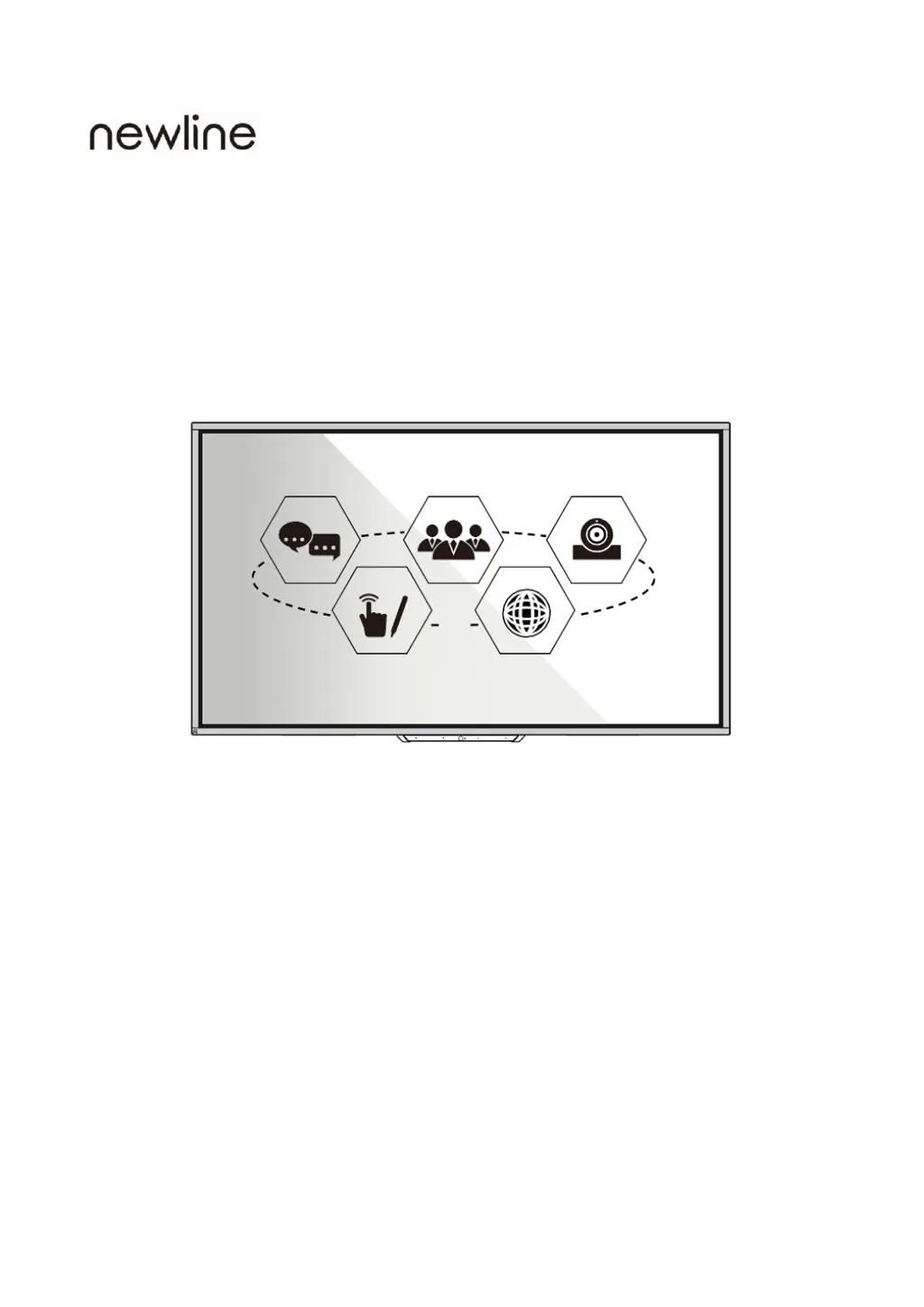
Unified Collaboration Display
TT-6519VNC/ TT-7519VNC/ TT-8619VNC
Users Manual
V2.2 – Firmware version v2.8.9
Please keep this Manual properly for future reference!
This manual is a general manual, the pictures are for reference only, please refer to the real product.

Table of Contents

Questions and Answers

Summary

Symbol Convention

Safety Instructions

Product Overview

1.1 Product Introduction

Introduces the multi-functional device for interactive conference and digital presentation.

1.2 Appearance Introduction

Details the front and rear views of the device, including component identification.

1.3 Front Control Panel

Explains the function of the front control buttons, specifically the power button.

1.4 Rear Port

Lists and describes all ports located on the rear of the device.

1.5 Remote Control

Provides instructions for proper use and safety precautions for the remote controller.

Installation Guide

2.1 Safety Precautions

Outlines safety guidelines for installing the machine in various environments and directions.

2.2 Weight Loading

Details weight specifications and guidelines for mobile stands and wall-mount installations.

2.3 Ventilation

Specifies the required clearance around vents for proper air circulation and cooling.

2.4 Installing the Built-in Computer

Provides step-by-step instructions for installing an optional built-in computer.

Turning On;Off

3.1 Power On

Explains the procedure for powering on the machine using AC power and the power button.

3.2 Power Off

Details the steps for turning off the machine and completely disconnecting power.

3.3 Indicator Status

Describes the meaning of different indicator light states (Off, Red, Green, Flashing).

Basic Operation

4.1 Home

Describes the default home page layout and its interactive elements like status bar and toolbars.

4.2 Status Bar

Explains the status icons displayed in the top right corner, indicating network and hotspot status.

4.3 Floating Bar

Details how to expand and use the floating bar icons for quick access to functions.

4.3.1 Task Management Sidebar

Explains how to access and use the task management sidebar for managing apps and notifications.

4.4 Bottom Toolbar

Describes the function of the bottom toolbar and its default app icons.

4.4.1 View and Hide Bottom Toolbar

Explains how to show and hide the bottom toolbar using gestures.

4.4.2 Edit Bottom Toolbar

Guides users on adding or deleting icons from the bottom toolbar.

4.5 More - App List Interface

Details how to access the app list and manage applications, including adding shortcuts and uninstalling.

4.5.1 Newline Assistant (OPS Pluggable PC Needed)

Explains how to add Windows software shortcuts to the "More" interface.

4.6 Screen Off

Describes the function to turn off the screen for energy saving and methods to restore it.

Applications

5.1 Floating Bar and Bottom Toolbar - Default Applications

Lists and describes default applications accessible from the floating bar and bottom toolbar.

5.1.1 Whiteboard & Screen Annotation

Details the whiteboard functionality and how to use screen annotation tools.

5.1.2 Source

Explains how to select and switch between different input sources for projection.

5.1.3 File Commander

Describes how to use the File Commander to manage files and folders.

5.1.4 Windows (OPS Pluggable PC Needed)

Explains accessing the Windows interface when an OPS PC is installed.

5.1.5 More

Details accessing the app list and managing applications.

5.1.6 My USB (USB flash drive needed)

Explains how to access files on a USB flash drive.

5.2 “More” (App List Interface) - Default Applications

Lists and describes default applications available in the app list.

5.3 Task Management Sidebar Tool - Default Application

Explains the tools and functions available in the task management sidebar.

5.4 Settings

Guides on accessing and configuring various system settings like network, display, and sound.

Serial Port Control

Signal Input Specifications

7.1 VGA Signal Input Specifications

Provides detailed specifications for VGA signal input resolutions and refresh rates.

7.2 HDMI;OPS Signal Input Specifications

Lists technical specifications and standards for HDMI and OPS signal inputs.

7.3 HDMI outputs TIMING that can be supported

Details the supported timing formats for HDMI outputs.

7.4 Type-C Port

Describes the functionality and limitations of the Type-C port.

Formats Supported by Multi-media

Troubleshooting

Maintenance

Technical Parameter

Summary

Symbol Convention

Safety Instructions

Product Overview

1.1 Product Introduction

Introduces the multi-functional device for interactive conference and digital presentation.

1.2 Appearance Introduction

Details the front and rear views of the device, including component identification.

1.3 Front Control Panel

Explains the function of the front control buttons, specifically the power button.

1.4 Rear Port

Lists and describes all ports located on the rear of the device.

1.5 Remote Control

Provides instructions for proper use and safety precautions for the remote controller.

Installation Guide

2.1 Safety Precautions

Outlines safety guidelines for installing the machine in various environments and directions.

2.2 Weight Loading

Details weight specifications and guidelines for mobile stands and wall-mount installations.

2.3 Ventilation

Specifies the required clearance around vents for proper air circulation and cooling.

2.4 Installing the Built-in Computer

Provides step-by-step instructions for installing an optional built-in computer.

Turning On;Off

3.1 Power On

Explains the procedure for powering on the machine using AC power and the power button.

3.2 Power Off

Details the steps for turning off the machine and completely disconnecting power.

3.3 Indicator Status

Describes the meaning of different indicator light states (Off, Red, Green, Flashing).

Basic Operation

4.1 Home

Describes the default home page layout and its interactive elements like status bar and toolbars.

4.2 Status Bar

Explains the status icons displayed in the top right corner, indicating network and hotspot status.

4.3 Floating Bar

Details how to expand and use the floating bar icons for quick access to functions.

4.3.1 Task Management Sidebar

Explains how to access and use the task management sidebar for managing apps and notifications.

4.4 Bottom Toolbar

Describes the function of the bottom toolbar and its default app icons.

4.4.1 View and Hide Bottom Toolbar

Explains how to show and hide the bottom toolbar using gestures.

4.4.2 Edit Bottom Toolbar

Guides users on adding or deleting icons from the bottom toolbar.

4.5 More - App List Interface

Details how to access the app list and manage applications, including adding shortcuts and uninstalling.

4.5.1 Newline Assistant (OPS Pluggable PC Needed)

Explains how to add Windows software shortcuts to the "More" interface.

4.6 Screen Off

Describes the function to turn off the screen for energy saving and methods to restore it.

Applications

5.1 Floating Bar and Bottom Toolbar - Default Applications

Lists and describes default applications accessible from the floating bar and bottom toolbar.

5.1.1 Whiteboard & Screen Annotation

Details the whiteboard functionality and how to use screen annotation tools.

5.1.2 Source

Explains how to select and switch between different input sources for projection.

5.1.3 File Commander

Describes how to use the File Commander to manage files and folders.

5.1.4 Windows (OPS Pluggable PC Needed)

Explains accessing the Windows interface when an OPS PC is installed.

5.1.5 More

Details accessing the app list and managing applications.

5.1.6 My USB (USB flash drive needed)

Explains how to access files on a USB flash drive.

5.2 “More” (App List Interface) - Default Applications

Lists and describes default applications available in the app list.

5.3 Task Management Sidebar Tool - Default Application

Explains the tools and functions available in the task management sidebar.

5.4 Settings

Guides on accessing and configuring various system settings like network, display, and sound.

Serial Port Control

Signal Input Specifications

7.1 VGA Signal Input Specifications

Provides detailed specifications for VGA signal input resolutions and refresh rates.

7.2 HDMI;OPS Signal Input Specifications

Lists technical specifications and standards for HDMI and OPS signal inputs.

7.3 HDMI outputs TIMING that can be supported

Details the supported timing formats for HDMI outputs.

7.4 Type-C Port

Describes the functionality and limitations of the Type-C port.

Formats Supported by Multi-media

Troubleshooting

Maintenance

Technical Parameter

NewLine TT-6519VNC Specifications

General IconGeneral
Screen Size65 inches
Resolution3840 x 2160 (4K UHD)
Touch TechnologyInfrared
Touch Points20
Operating SystemAndroid
Brightness350 cd/m²
Contrast Ratio1200:1
Response Time8 ms
Aspect Ratio16:9
ProcessorQuad-core
RAM4 GB
Storage32 GB
VESA Mount400 x 400 mm
ConnectivityHDMI, USB, VGA, RS232
Viewing Angle178°
Display TechnologyLED Backlit LCD

Related product manuals