Manual Reset
Anti-Collision Function
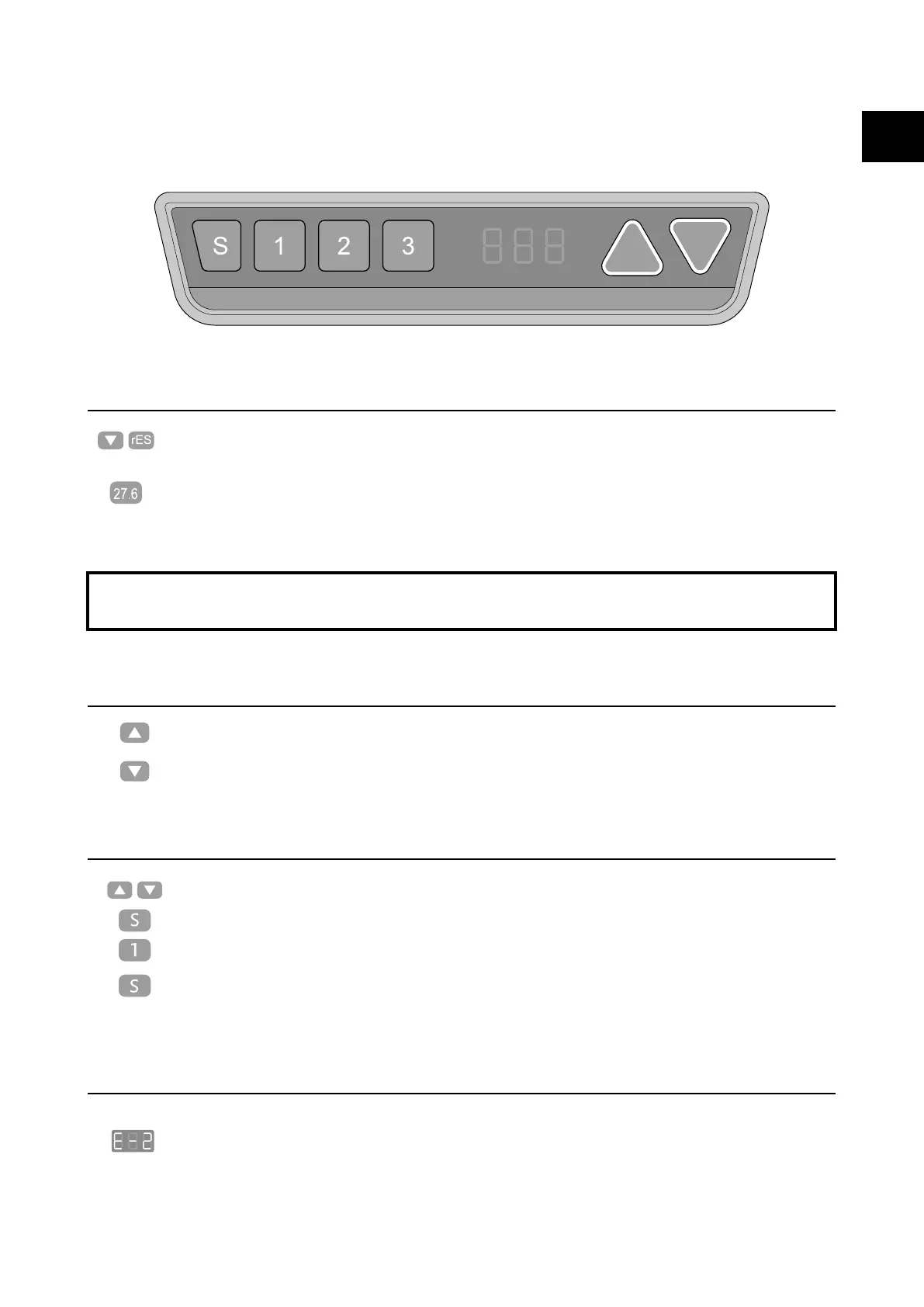
Up and Down
Saving Position
It is necessary to be reset manually aer the initial
installation and power o.
Before use, please make sure removing obstacle in advance
and human body is in the safe position.
1. Keep pressing down key until the display shows"E-1"and`'rES" alternately and release the key.
2. Keep pressing down key again, the desktop will move slowly down and retum back till the
display shows *70 (27.6’’)/60 (23.7’’)*
3. Release the key, the height-adjustable desk reselling finished.
• Once the desktop encounters any obstacle in its path, the screen displays “E-2”
• The desktop will move a defined distance in opposite direction, and it would be used normally
aer removing the obstacle.
1. Keep pressing "up" key till the required height is reached.
2. Keeping pressing "down" key till the required height is reached.
1. Adjust the desktop to the height you want to save
2. Press "S" key, until the display will show "S --"
3. Press"1", and the display will show alternately as "S-1" and the desktop height.
4. Press "S" key, the first memory position is set successfully. Similar progress for 2 and 3
memory positions.
Note: The anti-Collision function is not enabled during all resets. Please note that there is a potential risk of pinching
in this case, and be sure no obstacles in the desk's path.
USAGE INSTRUCTION
EN


 To Next Page