Your tablet has a multi-touch display. You can touch the screen to operate the tablet.
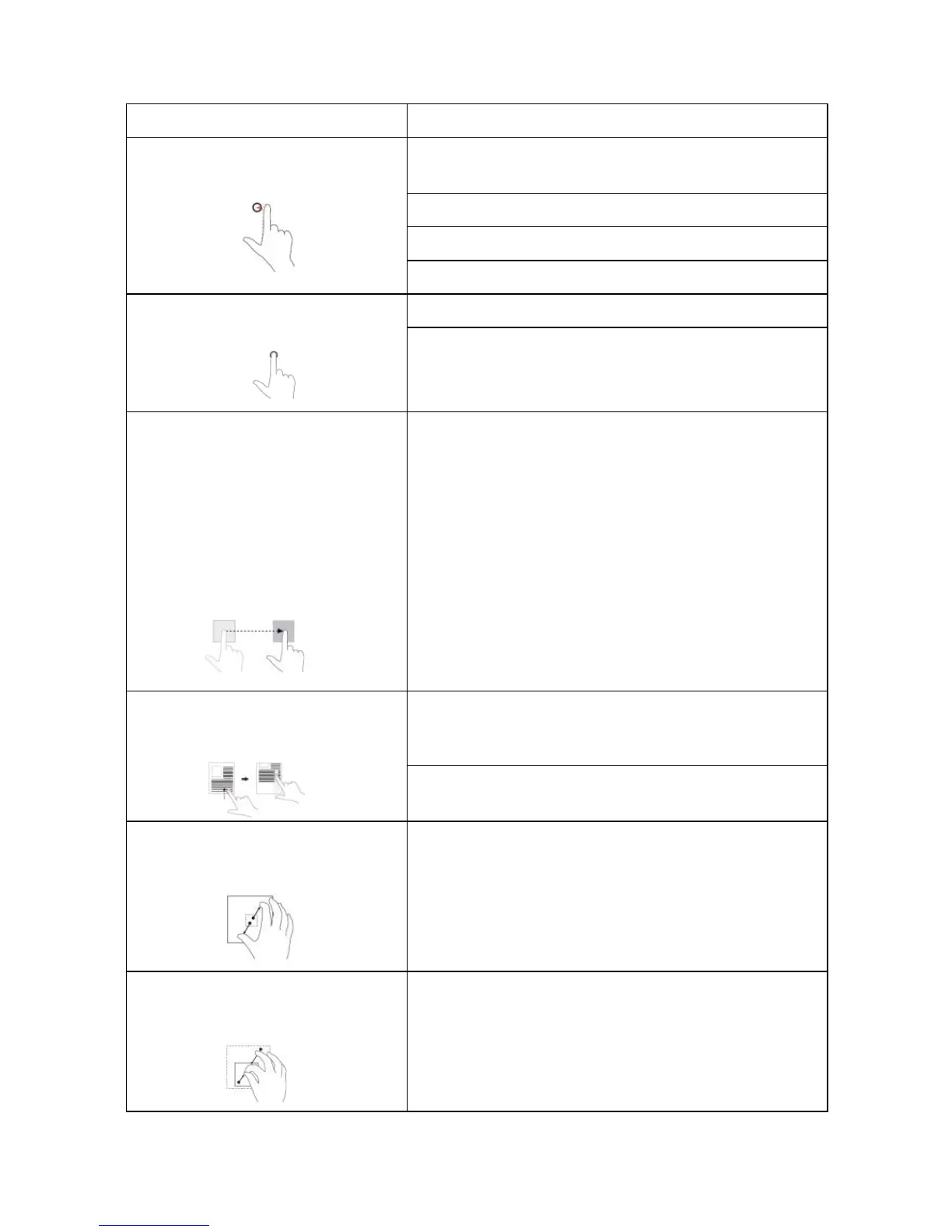
Touch
Tap gently on the display with your
fingertip.
Select items on the screen, including options, entries,
images, and icons.
Start apps.
Touch buttons on the screen.
Input text using the on-screen keyboard.
Touch and Hold
Touch and hold your finger on the
display.
Display detailed information about an item.
Open the context menu of an item to perform further
actions.
1. Touch and hold your finger on
an item on the screen.
2. Keeping your finger in contact
with the display, move your fingertip
to the desired location.
3. Take your finger off the display to
drop the item in the desired
location.
Move items such as images and icons on the screen.
Swipe or Slide
Move your finger in a vertical or
horizontal direction on the display.
Scroll through the Start screen, web pages, lists,
entries, photos, contacts, and so on.
Close an app. (Swipe the app to the bottom of the
display.)
Touch the display with two fingers
and then move the fingers apart.
Enlarge the view of an image or web page.
Zoom out
Touch the display with two fingers
and then move the fingers closer.
Reduce the view of an image or web page.
Screen Orientation
10





 To Next Page