
 Need help?
Do you have a question about the Nextbook NXW101QC232 and is the answer not in the manual?
Explains warning symbols like "Risk of Electric Shock" and "Caution" for user safety.
Guidance on responsible disposal and compliance with environmental regulations.
Steps to set a comfortable and safe audio volume level to prevent hearing damage.
Details the purpose and functionality of various hardware ports and components.
Instructions for connecting the power adapter and charging the device.
Steps to power on the device, wake it up, and shut it down.
Guides on inserting and safely removing a microSD card to manage storage.
How to connect headphones and use the audio port for sound output.
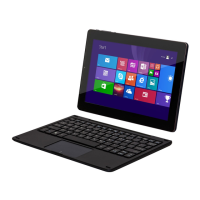
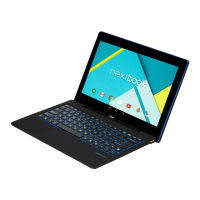
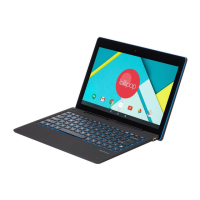
Steps to connect the dedicated keyboard and its usage as a laptop-like device.
Instructions for enabling Wi-Fi and connecting to available wireless networks.
Explains basic touch interactions like tap, hold, drag, swipe, and zoom for navigation.
How to lock the display orientation to portrait or landscape mode.
Methods to navigate to and utilize the Windows Start screen interface.
Demonstrates swipe gestures for accessing charms, apps, and recent items.
How to sync tablet settings and data using a Microsoft account.
Instructions for transferring files to and from the tablet using a USB connection.
Guidelines for safely cleaning the device's exterior surfaces.
Procedures for restoring the device to factory settings or refreshing Windows.





 To Next Page

 General