EasyManua.ls Logo

Nextbook NX008HD8G - User Manual

Nextbook NX008HD8G
12 pages
Print Icon
To Next Page IconTo Next Page
Loading...
1
Accessories
USB Cable DC Adaptor Pouch
Buttons & Ports
Step by Step to Get Started
STEP 1 Charge the Battery
Plug the DC adaptor to the POWER-IN port of the
unit and the standard power socket to start
charging. It takes about 5 hours to fully charge the
battery. The charge indicator should light up in
orange once the battery is fully charged.
STEP 2 Transfer files
(1) Connect the device to computer with the supplied USB cable.
(2) Two new removable disk drives should appear on your computer standing for the internal
memory of the device and the memory card inside it.
(3) Copy files to the removable disk drive just as you would do to your hard drive.
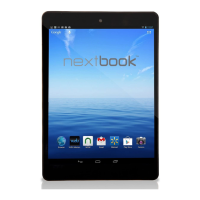
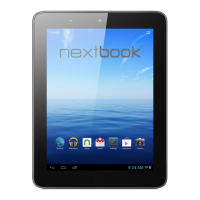
8” Capacitive Touch Android Tablet
Quick Start Guide
NX008HD8G
Ver.1.0
A. VOL- – decrease the volume.
B. VOL+ – Increase the volume.
C. Power – Press and hold to turn on or off the unit;
briefly press to lock or unlock the screen.
D. Earphone socketConnects to stereo
earphones.
E. DC-IN port – Connects to standard electric source
through the AC adaptor.
F. Micro USB Port – Connects to PC via USB cable;
connects to USB memory device, keyboard, or
mouse; connects to 3G dongle via USB host cable.
G. Micro SD card slot
H. HDMI interface – Connects to
HD TV that supports HDMI
connection.
I. Built-in webcam
J. Charging indicator– Lights
red during charging, and lights
orange as charging completes.
K. Touch Screen
L. Built-in Speakers
M. Rear camera lens
Question and Answer IconNeed help?

Do you have a question about the Nextbook NX008HD8G and is the answer not in the manual?

Summary

Buttons & Ports Overview

Volume Down Button

Decreases the volume on the unit.

Volume Up Button

Increases the volume on the unit.

Power Button Functionality

Turns the unit on/off; briefly presses to lock/unlock the screen.

Earphone Socket

Connects to stereo earphones.

DC-IN Power Port

Connects to standard electric source via AC adapter.

Micro USB Port

Connects to PC, USB devices, or 3G dongle via USB host cable.

Micro SD Card Slot

Slot for Micro SD memory cards.

HDMI Interface

Connects to HD TV supporting HDMI connection.

Built-in Webcam

Integrated webcam for video capture.

Charging Indicator Light

Shows charging status: red for charging, orange when complete.

Touch Screen

The primary interface for user interaction.

Built-in Speakers

Integrated speakers for audio output.

Rear Camera Lens

Lens for the rear-facing camera.

Getting Started: Charging & File Transfer

Charge the Battery

Instructions for charging the tablet's battery using the DC adaptor.

Transfer Files via USB

Steps to connect and transfer files between the device and a computer.

Basic Operations

Turn On the Unit

Procedure to power on the tablet and wake it from sleep mode.

Make Wi-Fi Connection

Guide to connecting the device to a wireless network.

Home Screen Navigation

Understanding icons and navigation within the main home screen interface.

Extended Home Screen

How to navigate left or right panels of the extended Home Screen.

Customizing Your Home Screen

Add Home Screen Items

How to add shortcuts, widgets, or folders to the home screen.

Move or Delete Items

Instructions for repositioning or removing items from the home screen.

Change Wallpaper

Steps to customize the device's background image.

Change System Settings

How to access and modify system preferences.

Display All Applications

Accessing the list of all installed applications on the device.

Touch Screen Interaction Tips

Basic Touch Gestures

Details on clicking, dragging, and sliding gestures for interaction.

Advanced Touch Gestures

Instructions for holding and pinching gestures for options and zoom.

Exploring Device Content

Pre-installed Applications

Overview of useful applications available on the device.

File Navigation with Toolbar

Using the toolbar to explore internal memory and copy/delete files.

Application Management

Managing 3 rd Party Applications

Steps for installing and uninstalling third-party applications.

Close Recent Applications

How to view and close recently used applications to improve performance.

Managing Tasks and Safety

Managing Tasks with Task Killer

Using the Task Killer to end unused applications and save memory.

Important Safety Advisory

Recommended usage precautions and liability limitations.

Summary

Buttons & Ports Overview

Volume Down Button

Decreases the volume on the unit.

Volume Up Button

Increases the volume on the unit.

Power Button Functionality

Turns the unit on/off; briefly presses to lock/unlock the screen.

Earphone Socket

Connects to stereo earphones.

DC-IN Power Port

Connects to standard electric source via AC adapter.

Micro USB Port

Connects to PC, USB devices, or 3G dongle via USB host cable.

Micro SD Card Slot

Slot for Micro SD memory cards.

HDMI Interface

Connects to HD TV supporting HDMI connection.

Built-in Webcam

Integrated webcam for video capture.

Charging Indicator Light

Shows charging status: red for charging, orange when complete.

Touch Screen

The primary interface for user interaction.

Built-in Speakers

Integrated speakers for audio output.

Rear Camera Lens

Lens for the rear-facing camera.

Getting Started: Charging & File Transfer

Charge the Battery

Instructions for charging the tablet's battery using the DC adaptor.

Transfer Files via USB

Steps to connect and transfer files between the device and a computer.

Basic Operations

Turn On the Unit

Procedure to power on the tablet and wake it from sleep mode.

Make Wi-Fi Connection

Guide to connecting the device to a wireless network.

Home Screen Navigation

Understanding icons and navigation within the main home screen interface.

Extended Home Screen

How to navigate left or right panels of the extended Home Screen.

Customizing Your Home Screen

Add Home Screen Items

How to add shortcuts, widgets, or folders to the home screen.

Move or Delete Items

Instructions for repositioning or removing items from the home screen.

Change Wallpaper

Steps to customize the device's background image.

Change System Settings

How to access and modify system preferences.

Display All Applications

Accessing the list of all installed applications on the device.

Touch Screen Interaction Tips

Basic Touch Gestures

Details on clicking, dragging, and sliding gestures for interaction.

Advanced Touch Gestures

Instructions for holding and pinching gestures for options and zoom.

Exploring Device Content

Pre-installed Applications

Overview of useful applications available on the device.

File Navigation with Toolbar

Using the toolbar to explore internal memory and copy/delete files.

Application Management

Managing 3 rd Party Applications

Steps for installing and uninstalling third-party applications.

Close Recent Applications

How to view and close recently used applications to improve performance.

Managing Tasks and Safety

Managing Tasks with Task Killer

Using the Task Killer to end unused applications and save memory.

Important Safety Advisory

Recommended usage precautions and liability limitations.
Nextbook NX008HD8G Specifications

General IconGeneral
BrandNextbook
ModelNX008HD8G
CategoryTablet
LanguageEnglish

Related product manuals