3.3 eKeys
A file to manage the status and history
of eKeys.
3.4 Passcodes
A file to manage the status and history
of Passcodes.
3.5 Records
View locking and unlocking information
to check when and who used it.
3.6 Setting
3.6.1 Display the Lock ID.
3.6.2 Display the battery power.
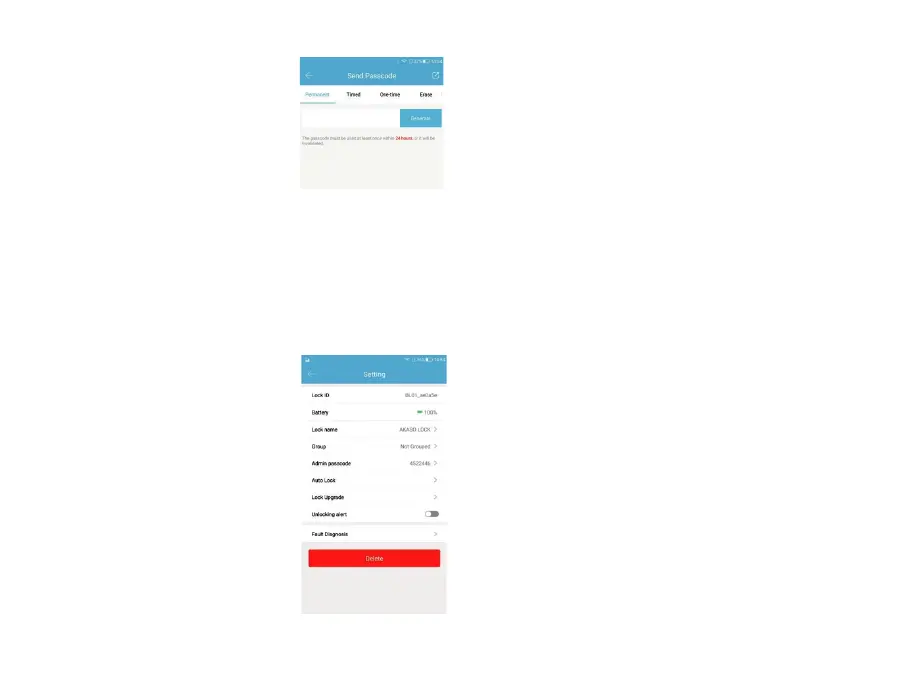
3.2 Send Passcode
The passcode receiver can unlock the
smart lock by entering the passcode
manually. The passcode can be set as a
different type: The passcode can be set
as different type: Permanent / Timed /
One-time (6 hours) / Erase (24 hours) /
Customised / Cyclic. All passcodes
generated can be sent to those in need
by mail and chatting tools.
3.6.3 Display the name of the Lock.
You can manually change name of the door.
3.6.4 Group: the administrator can add multiple locks for grouping,
which is suitable for rental housing. It is more convenient for group
management of personnel.
3.6.5 Admin passcode: the default passcode is the unlock passcode
of the administrator, which can be manually changed to a custom
passcode.
3.6.6 Auto Lock: Auto lock off by default. Open the app, click
Setting, click Auto lock-turn on and set time 5 to 120 seconds you
need to click OK. When the setup is completed, it will be
automatically locked after unlocking (for example, it will be
automatically locked 5 seconds after unlocking if the time is set at
5 seconds).
3.6.7 Lock upgrade: to check whether there is any update version.
3.6.8 Unlocking alert: off-by-default. If turn on it, the
administrator’s phone will receive the unlocking information when
someone who assigned with a key unlocks the door with the APP.
3.6.9 Fault Diagnosis


 To Next Page