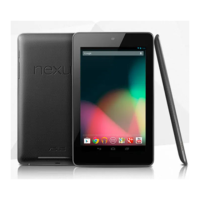
Need help?
Do you have a question about the Nexus 7 and is the answer not in the manual?
Connect the micro USB cable to Nexus 7 and the charging unit, then connect the unit to a power outlet.
Instructions for turning on, putting to sleep, waking, turning off, and restarting your Nexus 7 using the power button.
Follow on-screen instructions to choose a language and set up your tablet, including using a Google Account.
Play music, watch films, or read books from Google Play libraries over Wi-Fi on any device.
Connect your Google Account to Google Wallet for easy purchases of music, books, apps, and films.
Links to the full reference manual, first use video, and tips for your Nexus 7 tablet.
Resources for discovering tips and tricks for using your Nexus 7.
The Nexus 7 is a tablet device designed for a variety of functions, including entertainment, communication, and productivity. Its primary function is to provide a portable computing experience, allowing users to access the internet, consume media, and utilize various applications.
To begin using your Nexus 7, the first step is to ensure it is adequately charged. The device is charged by connecting a micro USB cable to the Nexus 7 and then to a charging unit. This charging unit should then be plugged into a power outlet. The micro USB port is located on the bottom edge of the device.
To turn on your Nexus 7, press and hold the Power button, located on the right edge near the top, for approximately four seconds. Once the Nexus 7 is on, a quick press of the power button will put the device into sleep mode or wake it up from sleep. To completely turn off your Nexus 7, press and hold the power button until a confirmation dialogue appears on the screen. Then, touch "OK" to complete the shutdown process. If your Nexus 7 becomes unresponsive, you can force a restart by pressing and holding the power button for at least 10 seconds.
The first time you power on your tablet, you will be greeted by a "Welcome" screen. From this screen, you can choose a different language by touching the menu icon. After selecting your language, touch "start" and follow the on-screen instructions to proceed with the setup. The setup process involves a series of screens that guide you through configuring your device. If you already possess a Gmail account, you will be prompted to use your Gmail address and password. If you do not have a Gmail or any other Google Account, you will have the option to create one during this process.
A Google Account is central to the Nexus 7's functionality, enabling access to your personal information from any computer or mobile device. This integration offers several benefits:
The Nexus 7 features a volume key, located on the right side of the device, which allows you to adjust the audio output.
For private listening or hands-free communication, the Nexus 7 is equipped with a 3.5 mm headset jack. This port is located on the top edge of the device.
In the event that your Nexus 7 becomes unresponsive, a simple maintenance feature is available: pressing and holding the power button for at least 10 seconds will force the device to restart. This can often resolve temporary software glitches.
To ensure optimal performance and access to the latest features, it is advisable to consult the official reference manual and other resources. These resources provide detailed information on various aspects of the device, including troubleshooting, advanced settings, and tips for maximizing your user experience. These include:
http://static.googleusercontent.com/external_content/untrusted_dlcp/www.google.com/en//help/hc/images/android/android_ug_42/Nexus-7-Guidebook.pdfhttps://www.youtube.com/watch?v=m7FlvnNQTTAhttps://www.youtube.com/watch?v=_GCiEqB5Howhttp://www.thefullsignal.com/google/google-nexus-7/12251/best-tips-and-tricks-nexus-7http://cerebrux.net/nexus-7-first-things/These resources are invaluable for understanding the full capabilities of your Nexus 7 and for addressing any issues that may arise. Regular consultation of these materials can help maintain the device's functionality and extend its lifespan.
 General
| Release Date | July 2012 |
|---|---|
| Resolution | 1280 x 800 pixels |
| RAM | 1 GB |
| Camera (Front) | 1.2 MP |
| Battery | 4325 mAh |
| Operating System | Android 4.1 Jelly Bean (upgradable) |
| Display | 7-inch IPS LCD |
| Processor | Nvidia Tegra 3 |
| Storage | 8 GB / 16 GB / 32 GB |
| Dimensions | 198.5 x 120 x 10.5 mm |
| Weight | 340 g |
| Connectivity | Wi-Fi 802.11 b/g/n, Bluetooth |

 To Next Page