7078 Shady Oak Road, Eden Prairie, MN 55344-3505
+1 952 995-8000 www.controltechniques.com
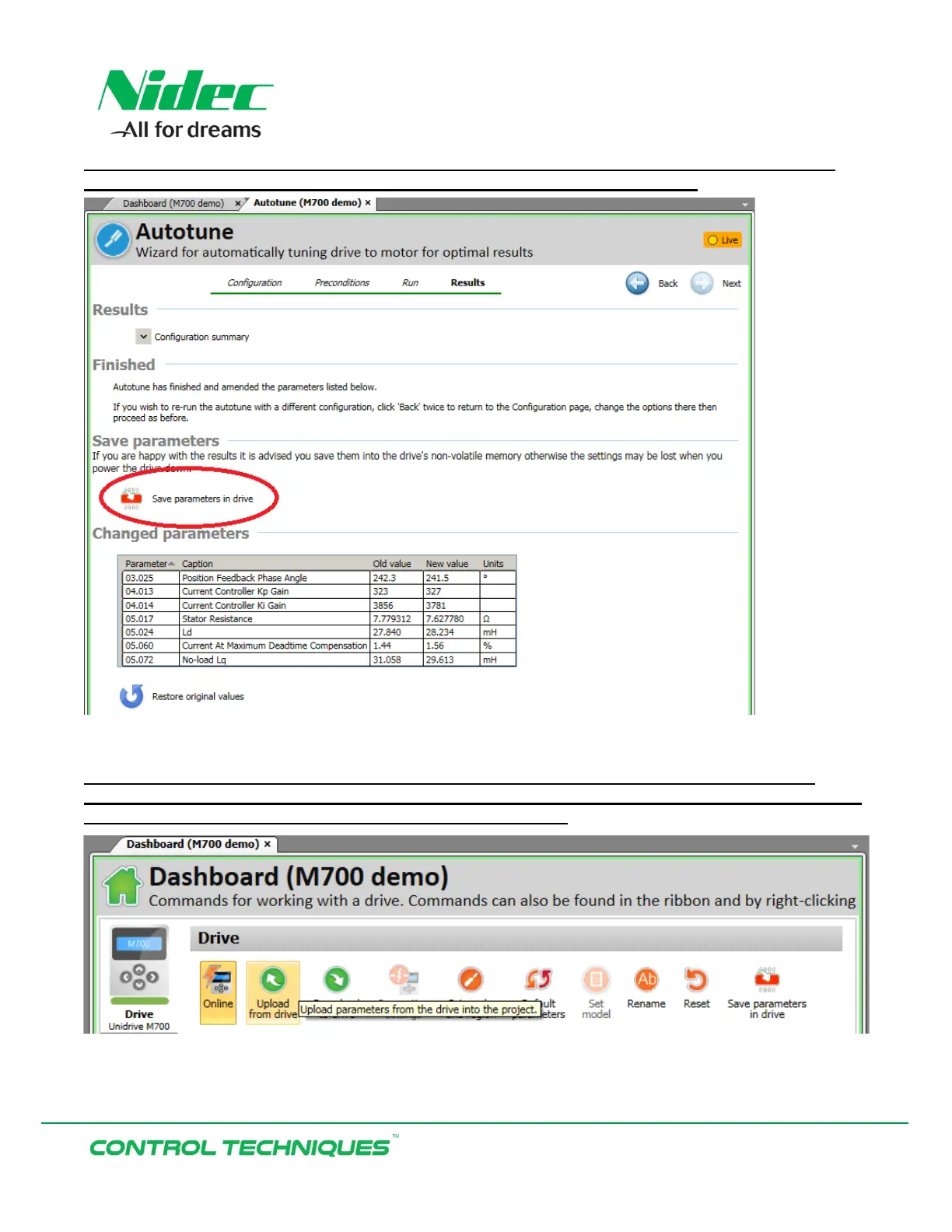
Select ‘Next’ to view the changed parameters in the drive as a result of performing a rotating
Autotune. Select ‘Save parameters in drive’ to save the parameter changes:
At this point all of the changes made from performing the Autotune are saved in the drive,
however, these changes do not reside in the MConnect project. While the drive is still Online go
back to the Drive dashboard and select ‘Upload from drive’.


 To Next Page