Need help?
Do you have a question about the Nidec M700 and is the answer not in the manual?
Create a new project and configure basic drive parameters like name, model, and communication.
Configure the drive's motor parameters by selecting a motor or entering details.
Set up the motor feedback device, type, and configuration for the drive.
Configure the IP address and other network settings for drive communication.
Transfer the configured project setup and parameters from the software to the drive.
Perform automatic motor tuning to optimize drive performance and parameters.
Save autotune changes to the drive and upload them back into the MConnect project.
Save the MConnect project file as a backup for future reference or use.
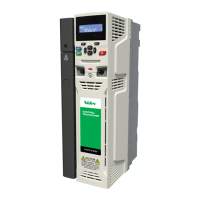
The Nidec M700/M702 series of AC and servo inverters are designed for manufacturing automation, offering comprehensive control and setup capabilities through the MConnect software. This instruction manual outlines the basic setup of an M700 demo drive and motor in Analog Velocity Mode, focusing on the software interface and essential configuration steps.
The M700/M702 drives serve as versatile inverters for controlling motors in various manufacturing automation applications. They support both AC and servo motor types, providing precise control over motor speed and position. The core functionality revolves around their ability to interface with motors, receive commands, and execute motion profiles, making them suitable for a wide range of industrial tasks.
The MConnect software is the primary tool for interacting with these drives. It provides a graphical user interface (GUI) that simplifies the configuration, monitoring, and diagnostics of the M700/M702 inverters. Users can create new projects, add drives, and define motor parameters, communication settings, and operational modes. The software facilitates a structured approach to drive setup, ensuring that all necessary parameters are correctly configured for optimal performance.
One of the key functions is the "Motor Setup" wizard, which guides users through the process of defining motor characteristics. This includes selecting a motor from a predefined database or entering custom parameters such as rated current, speed, voltage, and various inductance and resistance values. The software then uses these parameters to optimize the drive's control algorithms for the specific motor.
Another critical function is the "Motor Feedback Setup," which configures the encoder or other feedback devices connected to the drive. This ensures accurate measurement of motor position and speed, which is essential for closed-loop control. The MConnect software supports various encoder types, such as EnDat, and allows for detailed configuration of communication parameters, supply voltage, and error detection mechanisms.
The drives also feature extensive communication capabilities, primarily through Ethernet. The MConnect software allows users to configure the drive's IP address, subnet mask, and other network settings, enabling seamless integration into existing industrial networks. The ability to set DHCP enable/disable options provides flexibility in network management.
A significant feature is the "Autotune" function, which automatically optimizes the drive's control parameters for the connected motor. This wizard-driven process helps achieve optimal performance by performing a series of tests, such as rotating autotune, to determine the motor's dynamic characteristics. The autotune process adjusts parameters like current controller gains and motor electrical constants, ensuring efficient and stable motor operation. The software provides a clear summary of the changes made during autotune and allows users to save these parameters to the drive's non-volatile memory.
The M700/M702 drives are designed for ease of use, particularly through the MConnect software. The project-based structure of MConnect allows users to manage multiple drives and their configurations efficiently.
The initial setup involves creating a new project and adding a drive. Users can specify a name for the drive, select its type (e.g., Unidrive M700), and define its model, rating, and voltage. The software also prompts for the desired operating mode (e.g., RFC-S) and region (e.g., 60Hz), which helps in tailoring the drive's behavior to specific application requirements.
Connecting to the drive is straightforward, typically via an Ethernet patch cable. The MConnect software requires the PC's static IP address to be configured to communicate with the drive's default IP address. Once connected, the drive's dashboard provides a centralized view of its status and configuration options.
The "Setup & Diagnostics" section within the dashboard is a key area for configuration. It contains various sub-sections, including "Motor Setup," "Motor Feedback Setup," "Digital I/O," "Analog I/O," "Speed References," "Ramps Setup," "Autotune," "Logic Function," "Motorized Pot," and "Threshold Detector." Each of these sections allows for detailed configuration of specific drive functionalities.
The "Motor Setup" wizard simplifies the process of entering motor parameters. Users can choose from a motor database, which pre-populates many parameters, or manually input custom values. This ensures that the drive has accurate information about the motor it is controlling.
The "Motor Feedback Setup" is crucial for applications requiring precise control. It allows users to select the encoder type and configure its communication and error detection settings. This ensures reliable feedback for the drive's control loops.
Network configuration is managed under the "Ethernet" section, where users can access "Menu 4.02: Ethernet Configuration." Here, parameters like DHCP enable/disable, IP address, and subnet mask can be set. This flexibility allows the drive to be integrated into various network topologies.
The "Online" and "Download to drive" features are essential for deploying configurations. After configuring parameters in MConnect, users can download the project setup to the drive. The software prompts for confirmation before overwriting existing parameters, providing a safeguard against unintended changes.
The "Autotune" wizard is a powerful usage feature that automates the optimization of drive parameters. Users select the type of autotune (e.g., rotating) and follow the on-screen instructions. The software provides safety warnings and guides the user through the process, ensuring that the motor is safely tuned for optimal performance. Once autotune is complete, the changed parameters are displayed, and users can save them to the drive.
After successful configuration and autotune, the drive can be enabled by activating the Drive Enable input (T31). Motor operation can then be initiated using Run Forward (T26) or Run Reverse (T25) commands, with speed control often achieved via an analog potentiometer.
The M700/M702 drives, in conjunction with the MConnect software, offer several features that aid in maintenance and troubleshooting.
The "Dashboard" provides a quick overview of the drive's status, including its online/offline state and IP address. When the drive is successfully online, the dashboard elements are highlighted in green, indicating a healthy connection.
The "Diagnostics" section within MConnect offers tools for monitoring drive performance and identifying issues. While not explicitly detailed in the provided excerpts, this section typically includes fault logs, alarm indicators, and real-time parameter monitoring, which are invaluable for diagnosing operational problems.
The "Parameter Listings" and "Block Diagrams" features in MConnect allow users to view and understand the drive's internal configuration and control logic. These visual aids can help maintenance personnel quickly grasp the drive's operation and pinpoint areas that might require attention.
The ability to "Upload from drive" is a critical maintenance feature. After performing an autotune or making manual adjustments to parameters on the drive, these changes can be uploaded back into the MConnect project. This ensures that the software project remains synchronized with the actual drive configuration, preventing discrepancies and facilitating consistent maintenance.
The "Save project as" function allows users to create backup files of their drive configurations. This is an essential maintenance practice, as it enables quick restoration of known good configurations in case of accidental parameter changes or drive replacement. Storing these backup files ensures that the drive can be quickly brought back to an operational state.
The "Parameter Help" section within MConnect provides detailed information about individual parameters, assisting users in understanding their function and appropriate settings. This built-in documentation reduces the need to consult external manuals for every parameter, streamlining the maintenance process.
The "Compare with Defaults" and "Compare with File" features allow maintenance personnel to compare the current drive parameters against factory defaults or a previously saved configuration file. This helps in identifying any deviations or unauthorized changes that might affect drive performance.
The "Reset" function allows the drive parameters to be reset to factory defaults or a specific saved state, which can be useful for troubleshooting or preparing the drive for a new application.
Overall, the M700/M702 drives, supported by the MConnect software, are designed with a strong emphasis on user-friendly configuration, robust operational control, and comprehensive maintenance tools to ensure reliable performance in manufacturing automation environments.
 General
| Series | M700 |
|---|---|
| Protection Rating | IP20 |
| Operating Temperature | -10°C to +50°C |
| Overload Capacity | 150% for 60 seconds |
| Protection Functions | Overcurrent, Overvoltage, Undervoltage, Overheating |

 To Next Page