Setting Up an iView PC
42-02-7223 C1 8-7
8
iControl DC
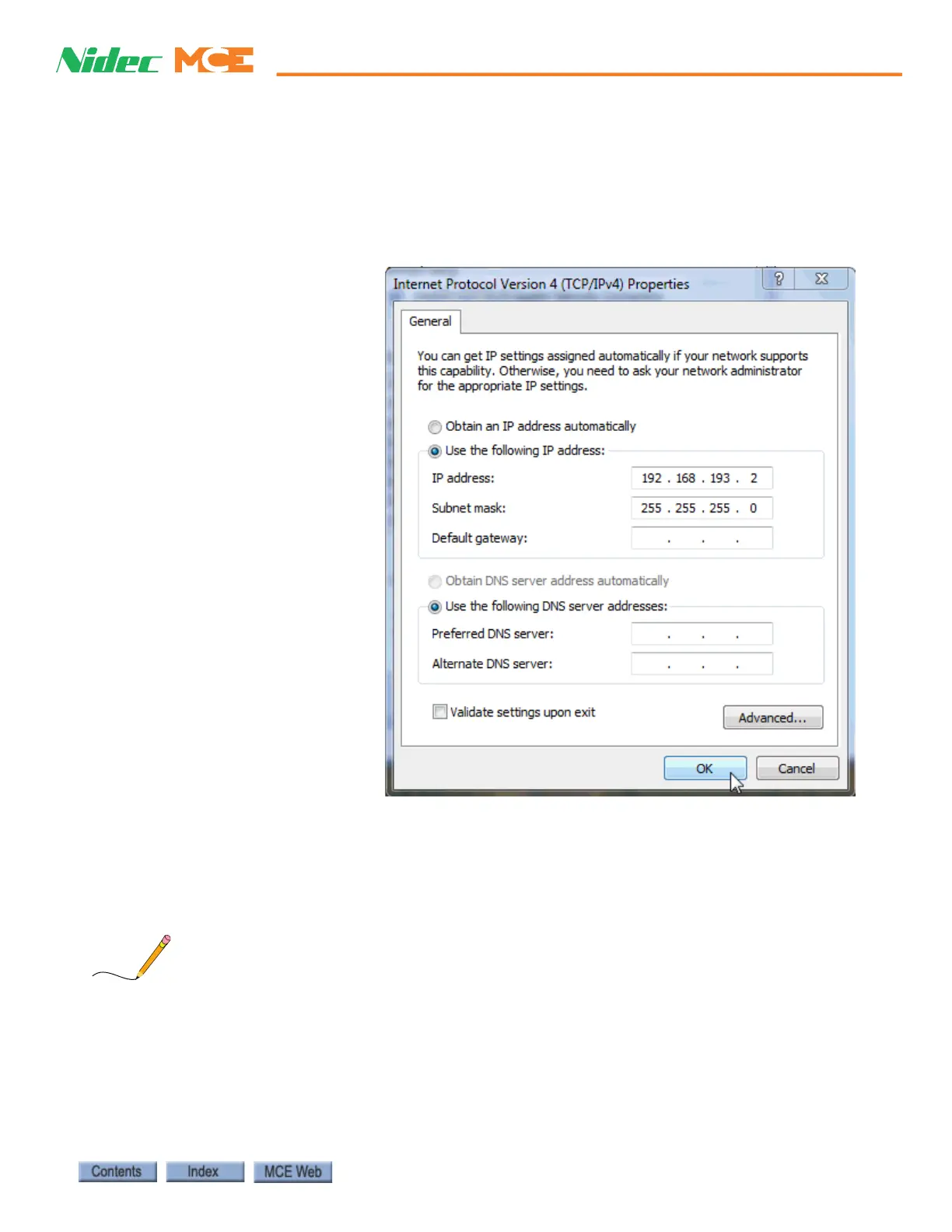
9. For a direct connection, set the IP Address to match the iBox EXCEPT FOR the last set
of numbers. The #3 iBox port is defaulted to 192.168.193.1. Typically, you can set your
PC’s IP address to 192.168.193.2
10. For a LAN connection, the IP addresses available are 192.168.191.101 - 200. The main
iView PC’s IP address is typically set to 192.168.191.101. Each PC connected to the net-
work most have a unique address.
11. Set the Subnet Mask
to 255.255.255.0.
12. Click OK and follow
any instructions to
save the changes you
made.
Sample screens are Windows
10 operating system.
The default Subnet Mask for all ports is 255.255.255.000.
The default Gateway for the #1 (LAN or Peripheral Port) is 192.168.191.254.
The default Gateway for the #2 and #3 ports is 000.000.000.000.
It is important that a free-standing iView PC have only one IP address assigned (The iView/iCue
PC in the iCentral dispatcher has two network interface cards; each with its own IP address).
Click the Advanced button and verify that the PC is configured for only a single IP Address
(192.168.193.2 for a direct connection and an unused address like 192.168.191.110 - 200 for a
LAN connection). Creating a Direct Connection in iView



 To Next Page