EasyManua.ls Logo

Nikon CoolPix P500 - User Manual

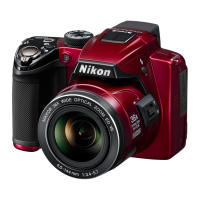
Nikon CoolPix P500
252 pages
Print Icon
To Next Page IconTo Next Page
Loading...
En
Users Manual
DIGITAL CAMERA

Table of Contents

Other manuals for Nikon CoolPix P500

Questions and Answers

  • H
    Hayden LindseySep 8, 2025
    Why is the monitor off and power lamp flickering on Nikon Digital Camera?
    • Z
      Zachary KellySep 8, 2025
      If the monitor is turned off and the power-on lamp flickers on your Nikon Digital Camera, it indicates that the battery temperature is high. Turn off the camera and allow the battery to cool down before resuming use.
  • K
    Karen FloresAug 25, 2025
    How to fix Nikon CoolPix P500 Digital Camera if it cannot focus?
    • C
      Chase MartinezAug 25, 2025
      If your Nikon Digital Camera cannot focus, ensure the subject is not too close; try using macro close-up, Scene auto selector, or Close-up scene mode. If the subject is difficult for autofocus, set AF assist to Auto in the setup menu. Make sure the subject is within the focus area when pressing the shutter-release button halfway. Check that the focus mode is not set to manual focus. You can also try turning the camera off and then on again.
  • J
    Jessica McdowellAug 25, 2025
    Why won't my Nikon Digital Camera battery charge when connected to computer?
    • B
      billy05Aug 26, 2025
      If your Nikon Digital Camera's battery cannot be charged by connecting the camera to a computer, it could be due to several reasons: Charge by computer is set to Off in the setup menu. Battery charging stops when the camera is turned off or when the computer is suspended (sleeping). Depending on computer specifications, settings, and status, charging may not be possible via computer connection.
  • M
    Mark PriceSep 18, 2025
    Why can't I edit pictures and movies on my Nikon CoolPix P500?
    • J
      Jennifer WillisSep 18, 2025
      If you cannot edit pictures and movies on your Nikon Digital Camera, editing other than Black border cannot be performed on pictures shot with Image size of I 3984×2656, u 3968×2232, O 1920×1080 or H 2992×2992. Pictures recorded with easy panorama cannot be edited. Confirm the conditions that are required for editing. Pictures and movies taken with cameras other than COOLPIX P500 cannot be edited.
  • G
    gevansSep 9, 2025
    Why are the colors unnatural on my Nikon CoolPix P500 Digital Camera?
    • A
      Andrew HarrisSep 9, 2025
      If your Nikon Digital Camera is displaying unnatural colors, it could be that the white balance or hue settings do not match the light source.
  • A
    Adam BlevinsSep 13, 2025
    Why is image size not available on my Nikon CoolPix P500?
    • J
      Jenna HornSep 13, 2025
      If image size is not available on your Nikon Digital Camera, it means that another function that is set now is restricting Image size.
  • J
    Janice BaileySep 3, 2025
    Why won't the display switch to the monitor (or viewfinder) when I press the x button on my Nikon CoolPix P500 Digital Camera?
    • M
      Margaret MullinsSep 3, 2025
      You cannot switch the display in the following situations: while recording or playing back movies, while recording or playing back voice memos, during interval timer shooting, while connected to a printer, or while displaying image deletion screens. Also, you cannot switch the display while displaying a certain error message.
  • A
    Anthony AdamsSep 4, 2025
    Why is the date not appearing on pictures even when Print date is enabled on my Nikon CoolPix P500 Digital Camera?
    • T
      Thomas CruzSep 4, 2025
      The date is not appearing on pictures because a shooting mode that does not support Print date is selected. The date cannot be imprinted onto a movie, or on still images saved during movie recording.
  • N
    nancy83Sep 23, 2025
    Why is print date not available on my Nikon CoolPix P500 Digital Camera?
    • D
      Dawn KellySep 23, 2025
      If print date is not available on your Nikon Digital Camera, Time zone and date has not been set.
  • J
    James HollandAug 29, 2025
    Why doesn't the flash fire on my Nikon Digital Camera?
    • D
      drewwilliamsAug 29, 2025
      If the flash on your Nikon Digital Camera does not fire, check if the flash is set to W (Off). Also, some scene modes do not allow the flash to be turned on. If Blink proof is set to On in smart portrait mode, or if another function is restricting the flash, it may not fire.

Summary

Introduction

About This Manual

Manual provides an overview of the camera's features and how to use it.

For Your Safety

Warnings

Crucial safety precautions to prevent damage or injury when using the camera.

Information and Precautions

Use Only Nikon Brand Electronic Accessories

Emphasizes using Nikon-certified accessories to prevent damage and voiding warranty.

Parts of the Camera

Camera Body Layout

Identifies and describes the main external components of the camera body.

Monitor and Viewfinder Details

Explains the indicators displayed on the camera's monitor during shooting and playback.

Basic Operations

Using the Command Dial

Explains how to use the command dial for menu selection and setting adjustments.

Navigating with the Multi Selector

Details operations using the multi selector for navigation and selection.

Understanding Camera Buttons

Explains the function of key buttons like shutter-release, monitor, and display.

First Steps

Inserting and Charging the Battery

Step-by-step guide for inserting the rechargeable battery and charging it.

Setting Display Language, Date, and Time

Initial setup for camera language, time zone, and date settings upon first use.

Memory Card Handling

Instructions for handling memory cards, including insertion and removal.

Basic Photography and Playback: Auto Mode

Turning On and Selecting Auto Mode

Guide to powering on the camera and selecting the automatic shooting mode.

Framing and Focusing Pictures

Instructions on how to frame shots using the monitor/viewfinder and focus.

Capturing Pictures

Steps for focusing on a subject and capturing a photograph.

Viewing and Deleting Pictures

How to review captured images and delete unwanted ones.

More on Shooting

Selecting Scenes for Shooting (Mode Dial)

Explains how to use the mode dial to select various shooting modes.

Setting Exposure Modes (P, S, A, M)

Covers manual control over shutter speed and aperture in P, S, A, and M modes.

Continuous Shooting Options

Explains various continuous shooting modes like single, continuous, and burst.

Shooting Menu Options

Details various settings available in the shooting menu for image quality, WB, ISO, etc.

More on Playback

Full-Frame Playback Operations

Describes how to navigate and manage images in full-frame playback mode.

Thumbnail and Category Playback

Explains viewing multiple images in thumbnail or category format.

Playback Menu Functions

Details functions available in the playback menu like retouch, print order, protect.

Editing Pictures

Picture Editing Functions Overview

Introduces the built-in picture editing tools available on the camera.

Quick Retouch and D-Lighting

Enhances contrast, saturation, and brightness of pictures.

Skin Softening and Filter Effects

Applies skin smoothing and various digital filter effects.

Movie Recording and Playback

Recording Movies

Guide to recording high-definition movies with sound.

Movie Playback and Editing

Instructions for playing back and trimming recorded movies.

Connecting to Televisions, Computers and Printers

Connecting to a TV

Steps for connecting the camera to a television for playback.

Connecting to a Computer

Guide to transferring images and software installation.

Basic Camera Setup

Setup Menu Overview

Lists and briefly describes all options available in the camera's setup menu.

Monitor and Display Settings

Adjusts monitor brightness, framing grid, and histograms.

Time Zone and Date Setup

Configures camera clock and time zone settings.

Caring for the Camera

General Care and Precautions

General guidelines for using and storing the device to ensure continued enjoyment.

Battery Handling and Care

Provides important information on handling, charging, and storing the camera battery.

Technical Notes and Index

Optional Accessories and Memory Cards

Lists compatible accessories and approved memory card types for the camera.

File and Folder Naming Conventions

Explains how file and folder names are assigned to images and movies.

Error Messages

Troubleshooting

Power Supply and Display Issues

Addresses common problems related to battery, power, and blank displays.

Shooting and Playback Problems

Solutions for issues encountered during shooting and playback.

Specifications

Camera Technical Specifications

Details key technical specifications like sensor, lens, zoom, and AF.

Image Size, ISO, and Exposure Controls

Covers image resolution, ISO sensitivity ranges, and exposure control methods.

Shutter, Aperture, and Interface Details

Provides information on shutter speed, aperture, self-timer, interfaces, and languages.

Nikon CoolPix P500 Specifications

Lens and Zoom IconLens and Zoom
optical zoom36x
wide angle22.5 mm
telephoto range810 mm
Display IconDisplay
screen size3 inches
screen resolution921, 000 dots
vari-angle monitorYes
Power IconPower
battery typeRechargeable Li-ion Battery EN-EL5
battery life220 shots
charging adapterEH-69P
Image Sensor IconImage Sensor
sensor typeCMOS
effective pixels12.1 megapixels
ISO sensitivityISO 160-3200
Weight and Dimensions IconWeight and Dimensions
dimensions115.5 x 83.7 x 102.5 mm
weight494 g

Related product manuals