EasyManua.ls Logo

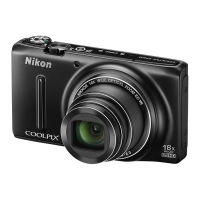
Nikon CoolPix S9100 - User Manual

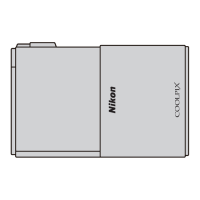
Nikon CoolPix S9100
265 pages
Print Icon
To Next Page IconTo Next Page
Loading...
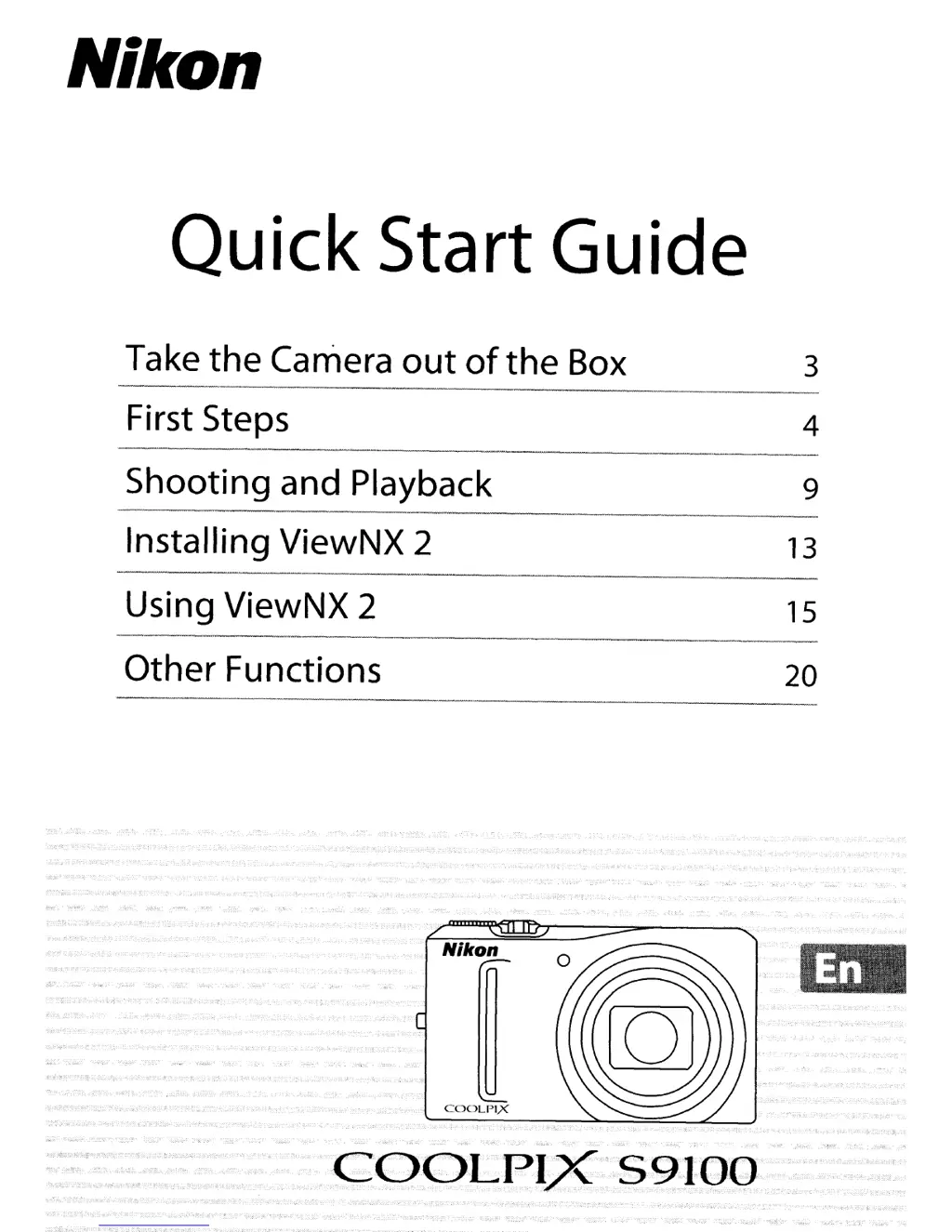
Nikon
Quick Start Guide
Take
the
Camera
out
of
the
Box 3
First Steps 4
Shooting
and Playback 9
Installing ViewNX 2 13
Using ViewNX 2
15
Other
Functions 20

Table of Contents

Other manuals for Nikon CoolPix S9100

Questions and Answers

  • T
    thomasmasonAug 17, 2025
    Why my Nikon CoolPix S9100 Digital Camera can not be turned on?
    • B
      Barbara VillanuevaAug 17, 2025
      If your Nikon Digital Camera won't turn on, the battery might be exhausted. Try replacing or recharging the battery. Also, the camera cannot be turned on while connected to an electrical outlet via the Charging AC Adapter.
  • M
    Miguel WashingtonAug 20, 2025
    How to fix a Nikon Digital Camera that is not charging?
    • L
      laura55Aug 20, 2025
      If the battery in your Nikon Digital Camera isn't charging, confirm all connections. Ensure that 'Charge by computer' is not set to 'Off' in the setup menu. Note that when charging via a computer, charging stops when the camera is turned off or when the computer goes into sleep mode. Also, depending on your computer's specifications, charging via computer connection may not be possible.
  • S
    smitholiviaAug 22, 2025
    How to set date and time on Nikon Digital Camera?
    • B
      Brandon TaylorAug 23, 2025
      If the date and time on your Nikon Digital Camera recordings are incorrect, it's likely that the camera clock hasn't been set. If the clock hasn't been set, the 'Date not set' indicator will blink, and images/movies will be dated '00/00/0000 00:00' or '01/01/2011 00:00'. Set the correct time and date in the Time zone and date option in the setup menu. Also, check the camera clock regularly and reset it as needed.
  • D
    David CampbellAug 26, 2025
    Why is the monitor blank on my Nikon Digital Camera?
    • C
      Catherine HerreraAug 26, 2025
      If the monitor on your Nikon Digital Camera is blank, ensure that the camera is turned on. If it is on, the camera may be in standby mode to save power; press the power switch, shutter-release button, c button, or b (e movie-record) button, or rotate the mode dial. If the flash lamp is blinking, wait until it has charged. The monitor may also be blank if the camera is connected to a computer via USB cable or to a TV via A/V or HDMI cable.
  • A
    Adam RileyAug 27, 2025
    Why date is not imprinted on Nikon Digital Camera images?
    • S
      Shawn RiceAug 27, 2025
      If the date isn't imprinted on your Nikon Digital Camera images even with Print date enabled, it could be because the current shooting mode doesn't support Print date. Switch to a shooting mode that does. Note that the date cannot be imprinted on movies or on still images saved during movie recording.
  • N
    nmcdonaldAug 30, 2025
    How to improve monitor visibility on Nikon CoolPix S9100?
    • K
      kaitlinvaughnAug 30, 2025
      If the monitor on your Nikon Digital Camera is hard to read, try adjusting the monitor brightness. Also, the monitor might be dirty, so clean it.
  • S
    Suzanne KlineSep 1, 2025
    What to do if Nikon CoolPix S9100 Digital Camera turns off without warning?
    • S
      Shawn AdamsSep 1, 2025
      Your Nikon Digital Camera might be turning off unexpectedly due to several reasons. The battery could be exhausted, so try replacing or recharging it. The camera might be turning off automatically to save power. Cold temperatures can also affect performance. Additionally, the camera will turn off if the Charging AC Adapter is connected while the camera is on, if the USB cable connecting it to a computer or printer is disconnected (reconnect the USB cable), or if the inside of the camera has become hot (let it cool down before turning it on again).
  • J
    Joshua Foster PhDSep 4, 2025
    Why does Nikon Digital Camera show time zone screen at startup?
    • S
      sean59Sep 4, 2025
      If the time zone and date setting screen appears every time you turn on your Nikon Digital Camera, the clock battery is likely exhausted, causing all settings to revert to default. Replace the clock battery.
  • B
    barkerdanielSep 6, 2025
    How to show indicators on Nikon CoolPix S9100 Digital Camera monitor?
    • E
      Elizabeth SmithSep 6, 2025
      If no indicators are displayed on your Nikon Digital Camera's monitor, check if 'Hide info' is selected for 'Photo info'. If it is, select 'Show info'.
  • S
    sjohnsonSep 9, 2025
    What does blinking power-on lamp mean on Nikon CoolPix S9100 Digital Camera?
    • R
      Rachel BartonSep 9, 2025
      If the monitor turns off and the power-on lamp blinks rapidly on your Nikon Digital Camera, it indicates that the battery temperature is high. Turn off the camera and allow the battery to cool down before resuming use. The camera will automatically turn off after the lamp blinks for three minutes. You can also manually turn it off by pressing the power switch.

Summary

Take the Camera out of the Box

Parts of the Camera

Details the physical components of the camera body and their functions.

First Steps

Inserting and Charging the Battery

Instructions for inserting and charging the camera's rechargeable battery.

Setting Display Language, Date, and Time

Guide to setting the camera's initial language, date, and time preferences.

Inserting Memory Cards

Instructions for inserting an SD memory card into the camera for storage.

Shooting and Playback

Step 1 Turn On Camera and Select Auto Mode

Basic procedure to power on the camera and set it to automatic shooting mode.

Step 2 Frame a Picture

Guidance on composing shots, including using the zoom and face detection.

Step 3 Focus and Shoot

Instructions on how to focus and take a picture using the shutter-release button.

Using the Flash

Explains flash modes and how to use the built-in flash for different lighting conditions.

Installing ViewNX 2

Install Software and Select Language

Steps for installing Nikon software and choosing the preferred language.

Using ViewNX 2

Copy Images to the Computer

Detailed steps for transferring photos and videos from the camera to a PC using Nikon Transfer 2.

View Images

How to view transferred images and navigate the ViewNX 2 interface.

Other Functions

Selecting a Shooting Mode (Mode Dial)

Explains how to rotate the mode dial to select different shooting modes.

Recording Movies

Instructions on how to record video clips using the camera's movie function.

Basic Photography and Playback:? (Auto) Mode

Step 1 Turn On Camera and Select Auto Mode

Guide to powering on the camera and setting it to Auto mode for simple shooting.

Step 2 Frame a Picture

Guidance on composing shots, including using the zoom and face detection.

Step 3 Focus and Shoot

Instructions on how to focus and take a picture using the shutter-release button.

Macro Mode

Instructions on using macro mode for close-up photography of small objects.

More on Shooting

Selecting a Shooting Mode (Mode Dial)

Explains the different shooting modes accessible via the mode dial.

Shooting Suited to Scenes (Scene Mode)

Details on using various scene modes like Portrait, Landscape, and Night for optimized shots.

More on Playback

Operations in Full-frame Playback Mode

Describes how to navigate and interact with single images displayed in full-frame playback.

Viewing Multiple Images: Thumbnail Playback

How to view multiple images simultaneously using thumbnail displays and calendar views.

Sorting Favorite Images (Favorite Pictures Mode)

Instructions on adding images to albums and organizing them for easier playback.

Playback Options: Playback Menu

Print Order (Creating a DPOF Print Order)

How to create print orders for compatible printers or photo labs.

Rotate Image

How to change the orientation of saved images for proper display.

Copy (Copy Between Internal Memory and Memory Card)

How to transfer images between the camera's internal memory and an SD card.

Editing Images

Editing Functions

Overview of the in-camera editing tools available for modifying photos.

Quick Retouch: Enhancing Contrast and Saturation

Guide to improving image contrast and saturation with the quick retouch function.

D-Lighting: Enhancing Brightness and Contrast

How to improve brightness and contrast, especially in dark image areas.

Movie Recording and Playback

Recording Movies

Steps for capturing high-definition movies with sound using the camera.

Recording Movies in Slow Motion and Fast Motion (HS Movie)

How to record HS movies for slow-motion or fast-motion playback.

Movie Playback

Playing Back Movies

Instructions on how to play recorded movie files on the camera.

Editing Movies

Guide to trimming recorded movies and saving desired portions as new files.

Connecting to Televisions, Computers and Printers

Connecting to a TV

How to connect the camera to a television for playback using AV or HDMI cables.

Connecting to a Computer

Steps for transferring images and software installation using a USB connection.

Connecting to a Printer

Instructions for printing images directly from the camera to a printer using PictBridge.

Basic Camera Setup

Setup Menu

Overview of the camera's setup menu options for customization.

Time Zone and Date

Setting the camera's clock and managing time zones for accurate image timestamps.

Reset All

Restoring all camera settings to their factory default values.

Caring for the Camera

Maximizing Camera Life and Performance

General precautions for proper usage and storage to ensure device longevity.

The Battery

Guidelines for battery care, charging, and handling to maintain performance and safety.

Technical Notes and Index

Error Messages

Common error messages displayed by the camera and their solutions.

Troubleshooting

Solutions for common problems encountered during camera operation.

Specifications

Nikon COOLPIX S9100 Digital Camera

Technical details and specifications of the camera model.

Supported Standards

Information on industry standards supported by the camera for file systems and printing.

Nikon CoolPix S9100 Specifications

General IconGeneral
Sensor Resolution12.1 MP
Optical Zoom18x
Display Size3.0 inches
Image StabilizationOptical
Max Video Resolution1920 x 1080 (Full HD)
ISO SensitivityISO 160 - 3200
TypeCompact
Digital Zoom4x
Supported Flash MemorySD, SDHC, SDXC
Video RecordingYes
Sensor TypeCMOS
LCD Screen Resolution921, 000 dots
Shutter Speed1/2000 - 1 sec
Weight214 g
Image Sensor Size1/2.3 inch
Battery TypeEN-EL12 Lithium-ion Battery

Related product manuals