Viewing Pictures on a Computer
Users of Mac OS 9.0–9.2, and versions 10.1.2–10.1.4 of Mac OS X can download Nikon View 6 at http://nikonimaging.com/ .
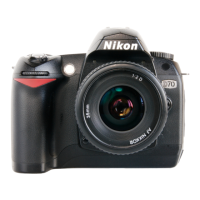
Pictures taken with your D70 can be transferred to a computer,
where they can be viewed and organized. To transfer your pictures,
you will need to install PictureProject as described below. For
complete instructions on using PictureProject, see the PictureProject
Reference Manual (on CD).
Depending on the version of PictureProject installed, the installation process and the dialogs and
messages displayed may differ from those described here.
Before installing PictureProject:
• Turn off any virus-checking software
• Exit all other applications that may be running
Windows XP Home Edition, Windows XP Professional, Windows 2000 Professional, Mac OS X
When installing, using, or uninstalling PictureProject, log on as a “Computer administrator”
(Windows XP Home Edition, Windows XP Professional), “Administrator” (Windows 2000
Professional), or “Admin” (Mac OS X).
Click Finish to complete installation.
12
10
Click Yes to create a new folder for PictureProject.
The destination folder for PictureProject will be
displayed; click Next.
9
PictureProject
Printed in Japan
SB4C02(11)
6MBA1511-02
After exiting the Import Assistant, remove the PictureProject installer CD from the CD-ROM
drive.
15
The PictureProject installer will start. After reading the
license agreement, click Yes to accept its terms and
proceed with installation.
8
Follow the on-screen instructions to install the driver
for D1-series cameras.
4
Click Yes to restart the computer.
13
11
Click Yes to create a shortcut to PictureProject on the
desktop.
Installation of QuickTime 6 opens with the dialog
shown at right. Click Yes .
5
Se lect Copy pic tures to a
folder on my com put er
using PictureProject
3
Turn the camera on. PictureProject will automatically detect the camera and display the
PictureProject Transfer window.
Start the computer.
1
Windows
Once your pictures are displayed in PictureProject, transfer is complete and you can
remove the camera from the system.
6
Windows 98 Second Edition (SE)
In My Computer, click with the right mouse button
on the removable disk corresponding to the camera
and select Eject from the menu that appears.
Mac OS X
Drag the “NIKON D70 (NIKON_D70)” camera volume
into the Trash.
Windows XP Home Edition/Windows XP Professional
Click the “Safely Remove Hardware” icon (
) in
the taskbar and select Safely remove USB Mass
Storage Device from the menu that appears.
Windows Millennium Edition (Me)
Click the “Unplug or Eject Hardware” icon (
) in
the taskbar and select Stop USB Disk from the
menu that appears.
Windows 2000 Professional
Click the “Unplug or Eject Hardware” icon (
) in
the taskbar and select Stop USB Mass Storage
Device from the menu that appears.
When transfer is complete, the pictures will be displayed in the PictureProject window.
5
Macintosh
Windows
The dialog shown at right will be displayed. Click
Yes .
8
Click Quit to complete installation.
10
Enter the administrator name and password and
click OK.
6
4
The Install Center program will launch
automatically. Click Easy Install to install
PictureProject. Apple QuickTime 6 will also be
installed if an earlier version is currently installed
on the computer.
Once installation is complete, European users can
install Nikon FotoShare by copying the “FotoShare”
folder to the hard disk (Step 13).
The PictureProject installer will start. Click Install.
7
9
Click Ye s to add PictureProject to the Dock, No
to proceed without adding PictureProject to the
Dock.
Turn the camera off and insert a memory card that contains pictures (see the front of this
guide for information on inserting memory cards).
1
Start the computer.
1
Macintosh
Insert the PictureProject installer CD into a CD-ROM drive. Double-click the PictureProject
installer CD icon on the desktop, then double-click the Welcome icon.
2
After exiting the Import Assistant, open the “FotoShare” folder on the Picture Project
installer CD and install Nikon FotoShare by dragging the Nikon FotoShare icon to
the “Applications” folder on the hard disk. When copying is complete, remove the
PictureProject installer CD from the CD-ROM drive.
13
4
Click Transfer to transfer all the pictures on the camera memory card to the computer.
Macintosh
Windows
Turn the computer on and wait for it to start up. Using the UC-E4 USB cable, connect
the camera to the computer as shown below.
2
If the “Select Language” Dialog Is Not Displayed Automatically
Select My Computer from the Start menu (Windows XP) or double-click the My
Computer icon on the desktop (other versions of Windows) and double-click the CD
(PictureProject) icon.
3
The Install Center program will launch automatically.
Click Easy Install to install a Mass Storage driver
(Windows 98SE only), a driver for D1-series
cameras, Apple QuickTime 6, Nikon FotoShare, and
PictureProject.
Windows 98SE
Clicking Easy Install displays the dialog shown at right.
Follow the on-screen instructions to install the Mass Storage
(Coolpix Camera) driver.
Click Restart to restart the computer (the dialog shown below at right will be displayed
only if QuickTime 6 has been installed).
11
Supported Operating Systems: Windows
(pre-installed versions only)
•Windows XP Home Edition/Windows XP Professional
•Windows Millennium Edition (Me)
•Windows 2000 Professional
•Windows 98 Second Edition (SE)
Macintosh •Mac OS X (10.1.5 or later)
AutoPlay (Windows XP)
When you turn the camera on, the di a log below will be dis played. Se lect Copy pic tures
to a folder on my com put er using PictureProject and click OK to start PictureProject.
To by pass this di a log in the future, check Al ways do the se lect ed ac tion.
Step1 Install PictureProject
Step2 Transfer pictures
Transfer…
Transferring pictures to a computer
couldn’t be easier—just connect the
camera and click.
Catalog…
Catalog existing pictures by importing them into
PictureProject.
…and organize
Organize pictures into categories (collections)—without copying or moving them between
folders! Each picture can belong to multiple collections.
Share—on paper or by e-mail
Insert the PictureProject installer CD into a CD-ROM drive.
The “Select Language” dialog will be displayed. Select a
language from the pop-up menu and click Next.
2
Print to order
Print pictures in a variety of sizes and
layouts.
Set pictures to music
Create slide shows with background music
and cross fade or wipe effects.
Better pictures are just a click away
Enhance pictures with a single click. PictureProject can also be used to trim pictures and
eliminate red-eye.
Store pictures on CD or DVD
Save pictures to CD or DVD for long-term
storage.
Note: This feature will be available in future
versions of PictureProject, which can be down-
loaded automatically using Nikon Message Cen-
ter (note that automatic update is not available
in Spain).
The “Select Language” dialog will be displayed.
Select a language from the pop-up menu and
click Next.
3
Share pictures by e-mail
Send selected pictures by e-mail.
Multiple pictures can be sent as a
single attachment.
Keep up-to-date with Nikon Message Center
Nikon Message Center automatically checks for PictureProject updates,
ensuring that you always have the latest version.
* Not available in Spain.
Update — automatic
ally
Internet
Apple QuickTime 6
If an older version of QuickTime is installed on
your computer, the QuickTime 6 installer will start
automatically. Follow the on-screen instructions to
complete installation. When the dialog shown at right
is displayed, click Continue without completing the
“Registered To,” “Organization,” and “Registration
Number” fi elds.
On some systems, the QuickTime installer may require
considerable time to complete installation.
Nikon Capture
PictureProject can be used with the following versions of Nikon Capture (available separately):
• Nikon Capture 3 version 3.5.3 or later • Nikon Capture 4 version 4.1 or later
The RAW (NEF) images edited in PictureProject can not be opened in Nikon Capture 3 version 3.5.2
or earlier or Nikon Capture 4 version 4.0; please update to the latest version of Nikon Capture 3 or
Nikon Capture 4, available for free download at the Nikon websites listed below:
• For users in the U.S.A.: http://www.nikonusa.com/
• For users in Europe: http://www.europe-nikon.com/support
• For users in Asia, Oceania, the Middle East, and Africa: http://www.nikon-asia.com/
The Import Assistant is used to catalog pictures already on the computer for display in
PictureProject. To proceed without cataloging existing pictures, click Cancel (existing
pictures can be cataloged manually at any time; see the PictureProject reference manual
for details). To catalog existing pictures, click Advanced… to choose the desired source
location and then click Start (note that some time may be required to catalog all pictures if
the selected location contains a large number of images). When all pictures in the source
location have been cataloged, a notifi cation dialog will be displayed; click Finish to exit the
Import Assistant.
For more information on importing pictures into PictureProject, see the PictureProject
Reference Manual (on CD).
When the computer restarts, the PictureProject Import Assistant will be displayed.
14
Source location
Advanced… button
Start button
Cancel button
When the computer restarts, log in to the “Admin” account. The PictureProject Import
Assistant will be displayed.
12
The Import Assistant is used to catalog pictures already on the computer for display in
PictureProject. To proceed without cataloging existing pictures, click Cancel (existing
pictures can be cataloged manually at any time; see the PictureProject reference manual
for details). To catalog existing pictures, click Advanced… to choose the desired source
location and then click Start (note that some time may be required to catalog all pictures
if the selected location contains a large number of images). When all pictures in the
source location have been cataloged, a notifi cation dialog will be displayed; click Finish
to exit the Import Assistant.
For more information on importing pictures into PictureProject, see the PictureProject
Reference Manual (on CD).
Cancel button
Source location
Advanced… button
Start button
Nikon View
Before installing PictureProject, uninstall Nikon View.
Before Connecting the Camera
Before connecting your camera to a computer, make sure that PictureProject is installed and you
have taken at least one picture with your camera.
The Nikon FotoShare setup program will start. Follow
the on-screen instructions to complete installation.
6
Click OK to exit the Nikon FotoShare setup program.
7
The message shown at right will be displayed.
Click OK.
5
Share pictures on-line
Invite friends and family to view pictures on-line with a FotoShare “P-mail.”



 To Previous Page
 Loading...