INFO:
. The recalculated route may not be the
shortest route because the system priori-
tizes roads that are easy to drive on for
safety reasons.
. If the route conditions are set from [Route
Settings], all sections in the route are
subject to the same route conditions. This
applies even if different route conditions
have been set for different sections in [Edit/
Add to Route].
CONFIRMING ROUTE
When the suggested route is displayed after
calculation, the route information can be con-
firmed or the suggested route can be simulated.
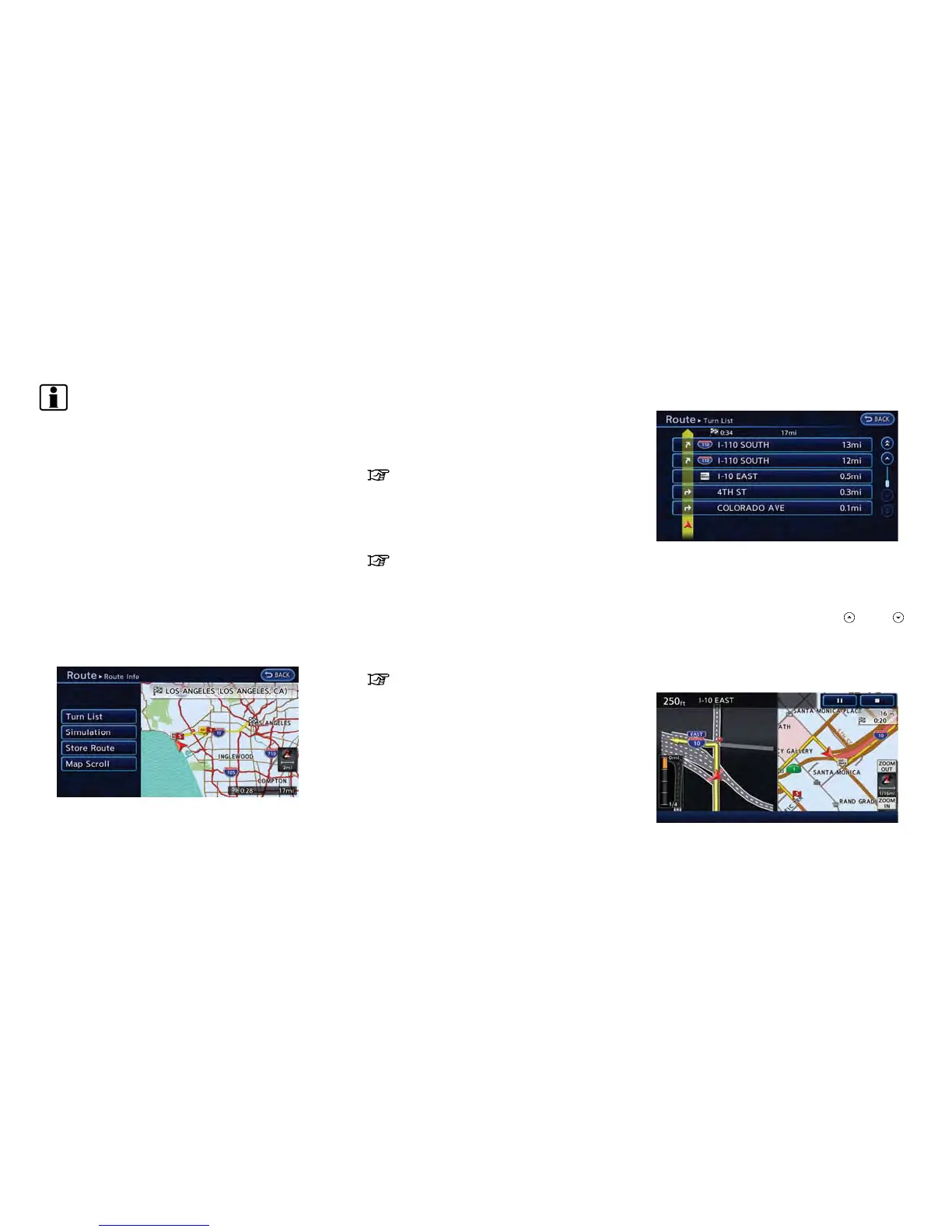
1. Push the MENU button and touch [Route].
2. Touch [Route Info].
3. Touch the preferred item.
Available settings
. [Turn List]:
Displays details of the suggested route.
“Using turn list” (page 3-49)
. [Simulation]:
Displays a simulation of the suggested
route. This function provides a detailed
image of the route with voice guidance.
“Confirming route by simulation”
(page 3-49)
. [Store Route]:
Stores a calculated route. A maximum of 5
routes can be stored. Stored routes can be
easily retrieved and set as the suggested
route.
“Storing route” (page 3-57)
. [Map Scroll]:
Displays a map screen where the location of
the destination can be confirmed.
Using turn list
1. Touch [Turn List].
2. The information (e.g., intersections) can be
confirmed on the route to the destination by
scrolling the screen touching [
]or[ ].
3. Push the MAP button to return to the
current location map screen.
Confirming route by simulation
1. Touch [Simulation]. Route simulation starts.
Navigation 3-49



 To Next Page