3-50 Navigation
2. Touch the preferred key.
: Pauses the simulation.
: Resumes the simulation.
: Ends the simulation.
3. Push the MAP button to return to the
current location map screen.
INFO:
During simulation, the map scale can be
changed by touching [ZOOM IN] or [ZOOM
OUT]. While the map scale is being changed,
the simulation is temporarily stopped.
VOICE GUIDANCE SETTINGS
Various guidance settings can be set.
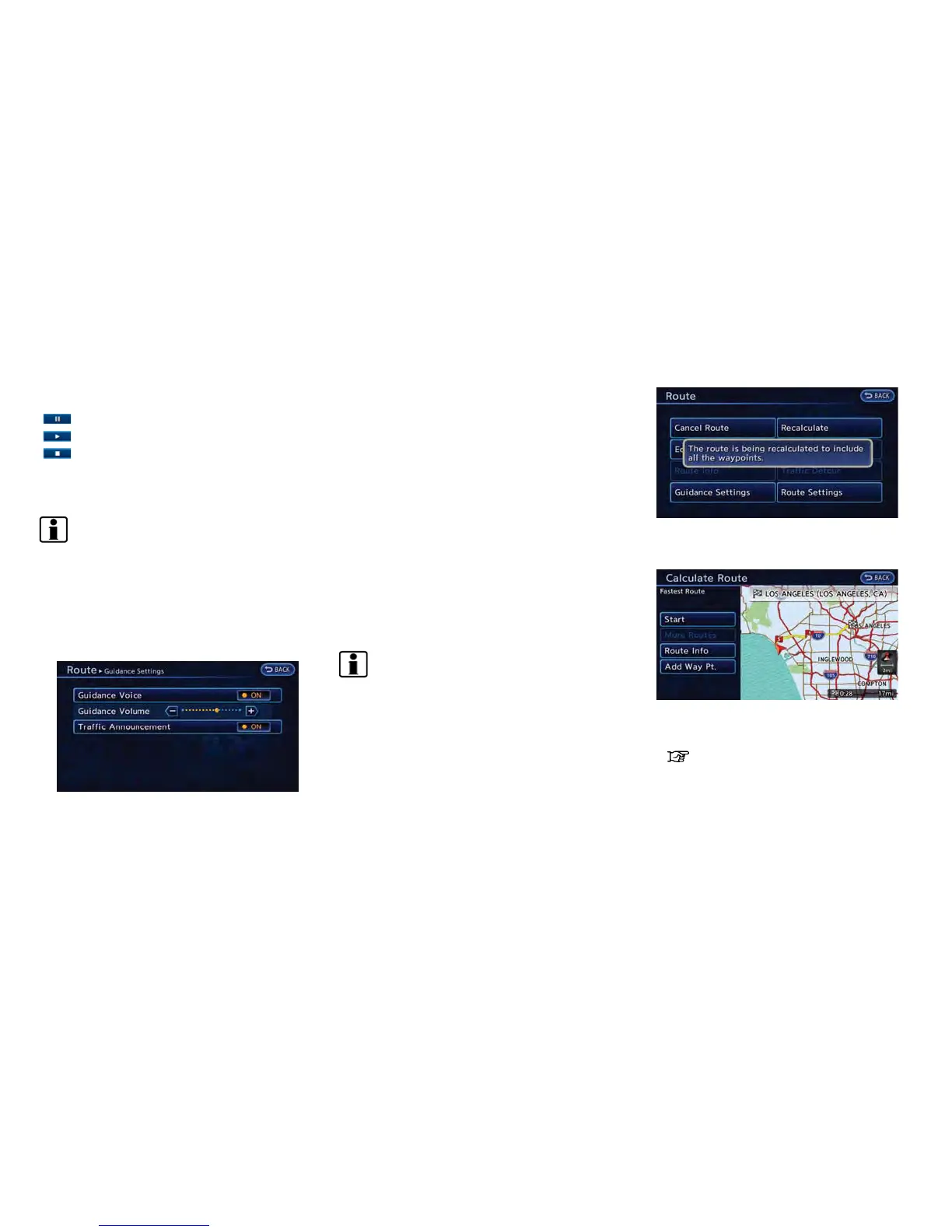
1. Push the MENU button and Touch [Route].
2. Touch [Guidance Settings].
3. Touch the item you would like to set.
Available settings
. [Guidance Voice]:
Activates or deactivates voice guidance. The
indicator illuminates if voice guidance is
activated.
. [Guidance Volume]:
Adjust the volume level of voice guidance by
touching [+] or [-].
. [Traffic Announcement]:
Provides an announcement of a traffic
information event on the route. The indicator
illuminates if traffic announcement is acti-
vated.
INFO:
The guidance volume can also be adjusted by
turning the audio system volume control button
or pushing <+>/<−> on the steering wheel
while voice guidance is being announced.
RECALCULATING ROUTE
A route can be manually searched again after
changing the search condition.
1. Push the MENU button and touch [Route].
2. Touch [Recalculate]. A message is dis-
played, and the route is recalculated.
3. Set the route conditions. After finishing the
setting, touch [Start].
“Procedures after setting route”
(page 3-36)



 To Next Page