1. Touch [Name]. A character input screen is
displayed.
2. Enter the preferred name for the stored
address.
“Character (letters and numbers) input
screen” (page 1-7)
3. After finishing the entry, Touch [OK]. The
name is stored.
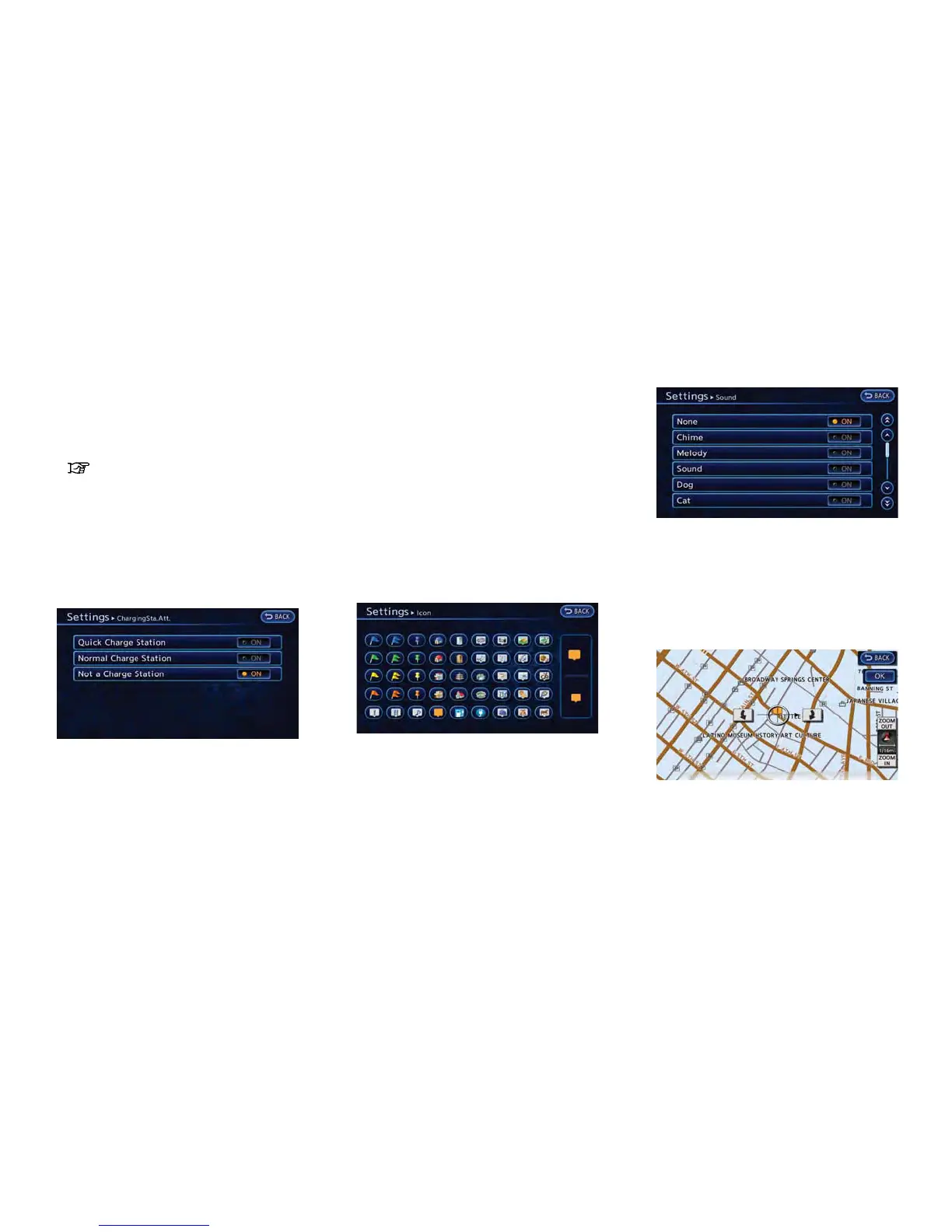
Charging Sta. Att. (only for stored ad-
dresses):
The attributes for the charging station located in
the area that is registered can be set.
1. Touch [ChargingSta.Att.].
2. Touch the item you would like to set. The
indicator illuminates when the item is set.
Available settings
.
[Quick Charge Station]:
The location is a charging station that is
equipped with quick charging equipment.
.
[Normal Charge Station]:
The location is a charging station that is
equipped with normal charging equip-
ment.
.
[Not a Charge Station]:
The location is not charging station.
Icon:
Changes the icon of the home or stored address
to the preferred one. By changing the icons, the
usage of the [Sorted By Icon] option of the sort
function can be optimized more effectively
([Sort] menu situation).
1. Touch [Icon]. A list of icons is displayed.
2. Touch the preferred icon from the list. The
icon is changed.
Sound:
Sets the tone of the alarm that sounds when the
vehicle approaches the home or a stored
address.
1. Touch [Sound]. A sound list is displayed.
2. Touch the preferred alarm tone. The indica-
tor of the selected alarm tone illuminates.
Direction:
Sets the alarm to sound when approaching from
a specific direction.
1. Touch [Direction]. A map screen with the
home or stored address located on the map
center is displayed.
Navigation 3-61



 To Next Page