3-8 Navigation
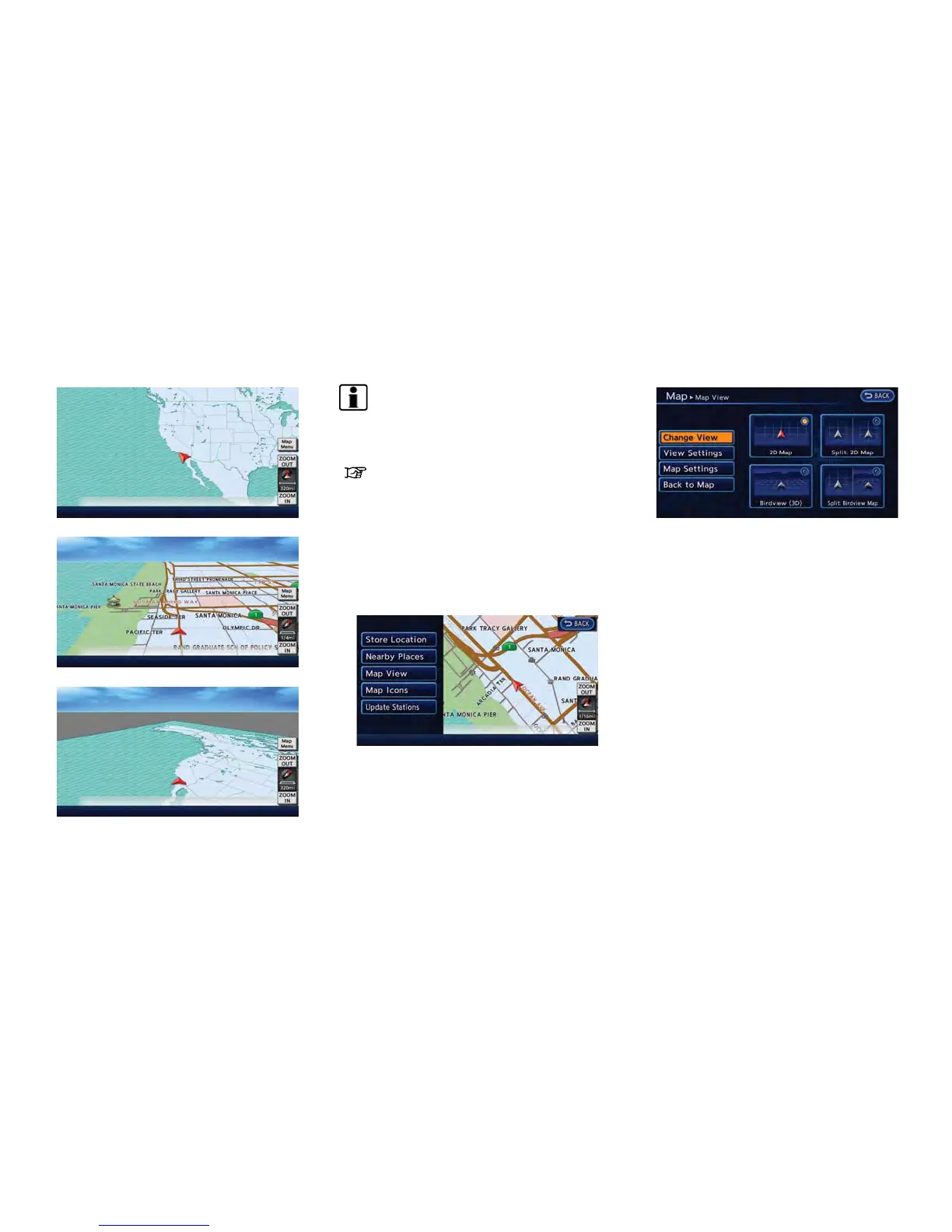
Example: The widest level (2D map)
Example: The most detailed level (Birdview
TM
map)
Example: The widest level (Birdview
TM
map)
INFO:
The traffic information icons are not displayed on
the map screen when the map scale is set to 8
miles (16 km) or higher.
“Traffic information display and scale le-
vels” (page 6-9)
CHANGING MAP VIEW
The map view can be changed between the 2D
and Birdview
TM
maps. The map can also be
displayed in the split screen mode.
1. Touch [Map Menu] while the current location
map screen is displayed.
2. Touch [Map View].
3. Touch the preferred map view. The indicator
of the selected map view illuminates.
4. The display automatically returns to the
current location map screen.
Available views
. [2D Map]:
Switches to the 2D map.
. [Birdview (3D)]:
Switches to the Birdview
TM
map.
. [Split: 2D Map]:
Changes to the split screen mode and both
halves display maps in 2D.
. [Split: Birdview Map]:
Changes to the split screen mode and the
left half displays the map in 2D and the right
half displays the map in Birdview
TM
.



 To Next Page