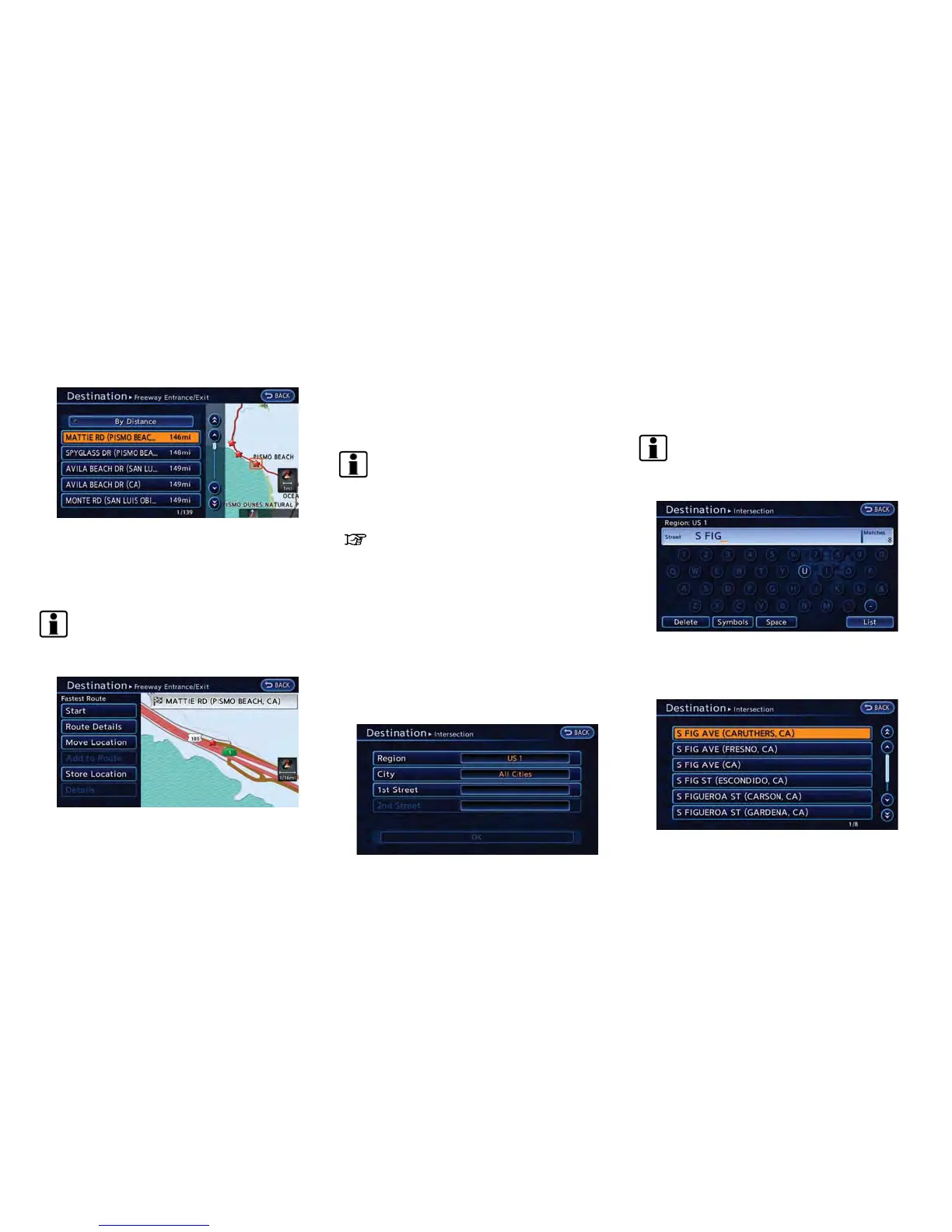
7. Select the preferred destination from the list.
The position of the selected location is
displayed in the preview on the right side
of the screen.
INFO:
Select [By Distance] to sort the list by the
nearest distance.
8. The selected destination is displayed at the
center of the map. Touch [Start] after
confirming the location of the displayed
destination. The system sets the destination
to the selected location and starts calculat-
ing a route.
INFO:
After setting a destination, the location of the
destination can be adjusted and the location can
be stored in the Address Book, etc.
“Operations after setting destination”
(page 3-34)
SETTING INTERSECTION
It is possible to set an intersection of any two
streets as the destination and have the system
calculate a route.
1. Push the MENU button and touch [Destina-
tion].
2. Touch [Next Page].
3. Touch [Intersection].
4. Touch [1st Street]. A character input screen
is displayed.
INFO:
Touch [Region] or [City] to narrow down the
specified region and city.
5. Enter the name of the 1st street. After
finishing the entry, touch [List]. A list screen
is displayed.
Navigation 3-31



 To Next Page