This document is a user guide for the Nokia 2 V Tella, a mobile phone offered by Verizon. It covers various aspects of the phone's functionality, from initial setup and basic operations to advanced features, connectivity, and maintenance.
Function Description
The Nokia 2 V Tella is a smartphone designed for communication, entertainment, and productivity. It allows users to make and receive calls, send and receive messages, browse the internet, capture photos and videos, and organize their daily activities. The phone runs on the Android™ operating system, offering access to a wide range of applications through Google Play services. It supports both Wi-Fi and mobile data connections for internet access and features Bluetooth® for connecting to other compatible devices. The device includes a front and main camera for photography and video recording, a loudspeaker for audio output, and a microphone for voice input. It also integrates Google Assistant for voice commands and information retrieval.
Usage Features
Getting Started and Basic Operations:
- Keep your phone up to date: The phone receives software updates to enhance features and performance. Users are encouraged to accept these updates.
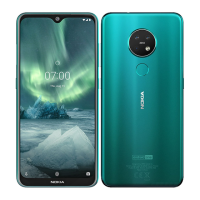
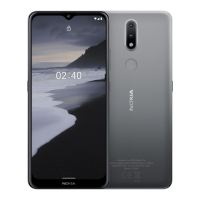
- Buttons and parts: The guide identifies key physical components, including the Power/Lock button, Volume buttons, Front camera, Earpiece, Headset connector, Google Assistant button, Microphone, USB/Charger port, Loudspeaker, Flash, and Main camera.
- SIM and memory card: The phone comes with a preinstalled SIM card, but users can swap it if needed. It also supports an optional microSD card for expandable storage. Instructions are provided for opening the back cover, inserting/removing the SIM and microSD cards, and replacing the battery and cover.
- Charging: The phone supports USB-C charging. Users can charge it via a wall charger or a computer. A warning is given to use only approved chargers to avoid damage and voiding the warranty.
- Turning on/off: The Power/Lock button is used to switch the phone on or off. First-time activation is required upon initial power-on.
- Locking and unlocking: The Power/Lock button locks the screen and buttons to prevent accidental calls. Swiping up on the screen after pressing the Power/Lock button unlocks the device.
- Screen lock: Users can set up various screen lock types (e.g., PIN, pattern, password) to protect their phone with authentication.
- Touch screen gestures: The guide explains common touch screen interactions:
- Tap and hold to drag: Pressing and holding an item for a few seconds and then sliding the finger across the screen.
- Swipe: Sliding a finger across the screen in a desired direction.
- Scroll: Quickly flicking a finger up or down the screen to navigate long lists or menus.
- Zoom in or out: Using two fingers to pinch in or spread out on an item.
- Screen orientation: The screen automatically rotates when the phone is turned 90 degrees. Users can lock the screen in portrait mode by swiping down from the top and tapping "Auto-rotate."
- Navigation keys: Instructions are provided for using the home key (to see all apps or go to the home screen), the recent apps key (to see open apps and switch between them), and the back key (to return to the previous screen).
- Personalization: Users can change the wallpaper (Settings > Display > Wallpaper), phone ringtone (Settings > Sound > Phone ringtone), and message notification sound (Settings > Sound > Default notification sound).
- Notifications: New notifications appear as icons on the status bar. Users can drag the status bar down to view more details and swipe up to close the view. Notification settings can be managed per app (Settings > Apps & notifications > Notifications). Notification dots can be enabled to indicate unread notifications on app icons.
- Quick setting icons: These icons on the notification panel allow quick activation of features. They can be rearranged by tapping and holding.
- Volume control: Volume buttons on the side of the phone adjust call and media volume. The volume status bar allows fine-tuning. The phone can be set to vibrate only or silent mode.
- Automatic text correction: The keyboard suggests words while typing to improve speed and accuracy. Users can select suggestions or tap and hold for more options. Text correction methods can be turned off in settings.
- Spell checker: The built-in spell checker can be enabled or disabled (Settings > System > Languages & input > Advanced > Spell checker).
- Google Assistant: The dedicated Google Assistant button provides quick access to search, translation, note-taking, and calendar appointments. It can be used even when the phone is locked, though unlocking is required for private data access.
- Accessibility: Font size and display size can be adjusted to improve readability (Settings > Accessibility).
Communication and Connectivity:
- Calls: Instructions for making and answering calls are provided. Users can tap the phone icon, dial a number, or select a contact. Calls can be rejected by swiping down.
- Contacts: Phone numbers can be saved and organized. Contacts can be added from call history or manually.
- Messages: Users can send and receive messages. To send a message, tap the Messages icon, add recipients, and type the message.
- Mail: The Gmail app is used for email. Users can add their Google account or other email addresses. Instructions for sending mail are also included.
- Wi-Fi: The phone uses Wi-Fi for faster and less expensive internet access when available. Instructions for turning on Wi-Fi and selecting a connection are provided. Encryption is recommended for security.
- Browse the web: The Chrome browser is used for internet browsing. Users can type web addresses or search the web.
- Tethering and Mobile Hotspot: The phone can be used as a Wi-Fi hotspot, USB tethering, or Bluetooth tethering device to share its mobile data connection with other devices.
- Bluetooth®: The phone can connect wirelessly to compatible devices like headsets and car kits. Instructions for pairing devices and sending content via Bluetooth are detailed.
- VPN: Users can set up a Virtual Private Network connection for secure access to company resources or personal privacy. Instructions for adding, editing, and deleting VPN profiles are included.
- Camera: The phone has a main camera and a front camera. Users can take photos by tapping the Camera icon and then the shutter button.
- Selfies: The front camera can be activated to take selfies.
- Google Lens: This feature uses the camera viewfinder to identify objects, copy text, scan codes, and search for similar products.
- Photo effects: Effects can be added to photos using the Portrait mode and various options.
- Video recording: The camera can record videos.
- Viewing photos and videos: The Photos app is used to view captured media.
- Copying photos and videos to computer: Users can connect their phone to a computer via USB to transfer media files.
- Sharing photos and videos: Media can be shared with others through various platforms.
Organization and Location:
- Date and time: The phone can automatically update date, time, and time zone based on network information.
- Alarm clock: Users can set and modify alarms, including repeat options. Alarms can be switched off by swiping.
- Calendar: The Calendar app helps organize events. Users can add new events, set details, repeat options, and notifications. Events can also be edited and deleted.
- Maps: Google Maps helps find locations and businesses. Users can search for spots, view their current location, and get directions. Location services can be enabled for improved accuracy.
Maintenance Features
- Software updates: Regular software updates are crucial for new features and improved performance. Users are advised to ensure sufficient battery and Wi-Fi connection before updating.
- Data backup: The phone offers a backup feature to secure user data, including Wi-Fi passwords, call history, and app data, by backing them up remotely to a Google account.
- Restore original settings/remove private content: In case of malfunction or when disposing of the phone, users can perform a factory reset (Settings > System > Advanced > Reset options > Erase all data) to restore original settings and remove all personal information.
- Locate or lock your phone: If the phone is lost, "Find My Device" can help locate, lock, or erase it remotely, provided the phone is turned on, signed into a Google Account, connected to data/Wi-Fi, visible on Google Play, and has location services enabled.
Important Notes:
- Some accessories may be sold separately.
- Connecting products that create an output signal or any voltage source to the audio connector can damage the device.
- Metallic materials may be attracted to magnetic parts of the device.
- Credit cards or magnetic stripe cards should not be placed near the device for extended periods.
- The microSD card is sold separately. Do not remove the memory card when an app is using it to prevent data corruption. Use only compatible memory cards.
- Always switch off the device and disconnect the charger before removing covers. Avoid touching electronic components.
- Be cautious with volume levels when using external devices or headsets.
- Avoid scratching the touch screen; do not use sharp objects on it.
- Data transfer costs may apply when using mobile data for tethering or location services.
- Bluetooth devices should be within 10 meters (33 feet) of each other. Avoid pairing with unknown devices.

 Need help?
 General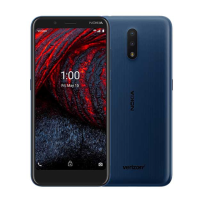

 To Next Page