Need help?
Do you have a question about the nomad 900 Series and is the answer not in the manual?
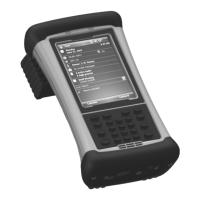
Describes the front panel and controls of the handheld computer.
Details the rear components including the battery door and hand strap.
Illustrates the USB and Serial I/O ports on the unit's base.
Explains expansion caps, WWAN, USB host, and top views of the unit's configurations.
Step-by-step guide for inserting the battery into the unit.
Instructions for connecting the power supply and charging the unit.
Procedure for securing the hand strap to the back case of the unit.
Guidance on applying a screen protector for display protection.
Steps for powering the unit on, off, and using suspend/resume features.
Process for choosing and setting the device's operating language.
Instructions for calibrating the touchscreen for accurate input.
Setting the device's time zone, date, and time.
How to set up optional password protection for the unit.
How to access and utilize the unit's expansion slots.
Details card insertion, ejection, and USB device size constraints for expansion ports.
Provides detailed information on USB and Serial I/O boot configurations and capabilities.
Strategies for extending battery life, including backlight and feature usage.
Instructions for connecting the power supply and charging the unit.
Step-by-step instructions for safely replacing the unit's battery.
Guide on calibrating the battery gauge for accurate power readings.
Details calibration steps, errors, duration, and explains the unit's notification LEDs.
Configuration options for setting up password protection for the unit.
How to customize and assign functions to the unit's keypad buttons.
Adjusting display/keypad backlight and configuring power management features.
Checking storage and program memory, and managing running applications.
Viewing firmware version, serial number, and hardware configurations.
Steps for establishing a connection between the unit and a PC for data transfer and synchronization.
Solutions for common issues encountered when connecting the unit to a PC.
Further troubleshooting steps for PC connectivity issues, including firewall and software checks.
Configuring Bluetooth on/off, visibility, and device pairing options.
Process for establishing a secure connection between the unit and other Bluetooth devices.
Procedures for PC/printer connections, headphone support, and resolving Bluetooth pairing issues.
Steps to enable Wi-Fi, scan for networks, and connect to secured or open networks.
Viewing connection status, using tools, and configuring advanced network parameters.
Methods for saving and loading Wi-Fi settings for multiple device configuration.
Setting up Exchange sync and resolving Wi-Fi network usage issues.
Steps to launch the camera, focus, capture images, and save them.
Features for viewing, zooming, editing, and sharing captured images.
Details on undoing edits, saving, viewing properties, and emailing pictures.
Adjusting camera modes, brightness, resolution, zoom, and white balance.
Configuring flash, focus, GPS tagging, and applying visual effects to images.
Instructions for using the ScanAgent application for barcode scanning.
Configuring scanner settings, symbologies, and custom parameters.
Understanding GPS port, NMEA compatibility, and Assisted GPS benefits.
Adjusting GPS access, hardware ports, program assignments, and A-GPS settings.
Guide to launching and using SatViewer to connect and view GPS data.
Steps for quick GPS connection and information on expected accuracy levels.
How the GPS receiver updates position, the role of A-GPS, and factors affecting readings.
Using SatViewer for configuration, understanding speed/direction, and altitude calculations.
Interpreting the graphical representation of satellite positions in the sky.
Understanding messages like SBAS status and NMEA/SiRF Binary modes.
Defining elevation masks and PDOP/HDOP masks for GPS accuracy.
Identifying used, unused, and SBAS satellites and using SNR trails.
Understanding Dilution of Precision (DOP) values and their color coding for signal quality.
Analyzing satellite signal strength (SNR) and determining if satellites are used.
Managing the GPS connection and configuring COM ports for SatViewer.
Setting up the Microsoft GPS driver to allow multiple applications to use GPS simultaneously.
Resetting GPS settings to factory defaults for connected and disconnected states.
Details on baud rate, data bits, flow, parity, and stop bits for GPS communication.
Steps for a full system shutdown and reboot to resolve connectivity issues.
Selecting output formats for GPS data based on application requirements.
Understanding features that modify GPS readings for stability and smoothness.
Defining limits (elevation, PDOP, HDOP) for satellite selection to improve accuracy.
Enabling voice notifications for GPS quality changes and accessing advanced settings.
Managing NMEA message strings and COM settings via the Advanced GPS page.
Configuring communication ports, baud rates, and specific NMEA message outputs.
Configuring DGPS usage modes (Auto, Required, Ignored) and SBAS type.
Step-by-step guide for inserting and securing the SIM card for WWAN functionality.
Configuring network carrier settings for cellular data access.
Adjusting ring tones, PIN security, and other phone-related settings.
Procedures for turning on the phone and establishing a cellular data connection.
Information on WWAN data communication, limitations, and battery saving tips.
Maintaining the vent hole and cleaning the unit's exterior and screen.
Proper care of the touchscreen and protecting the unit from mechanical shock.
Guidelines for operating the unit in wet conditions and specified temperature ranges.
How temperature affects battery capacity and performance, with tips for cold conditions.
Detailed environmental resistance ratings including temperature, shock, humidity, and drop tests.
Technical details of the unit's OS, CPU, memory, display, and connectivity options.
Compliance statements and interference guidelines for operation in the USA.
Regulations regarding radio noise emissions for digital apparatus in Canada.
Information on RF exposure limits and safe usage guidelines for the device.
Warnings and instructions regarding unit repair, battery handling, disposal, and safety.
Safety guidelines for power adapters and information on hearing aid interference.
Recommendations for maintaining safe distance from pacemakers and other medical devices.
 General
| Operating System | Windows Mobile 6.1 |
|---|---|
| Processor Speed | 806 MHz |
| Display Size | 3.7 inches |
| GPS | Yes |
| Waterproof | IP67 |
| Dustproof | IP67 |
| Display Resolution | 480 x 640 pixels |
| Wireless Connectivity | Bluetooth 2.0 |
| Dimensions | 3.3 x 6.3 x 1.5 inches |

 To Next Page