The Welcome Back Screen
After you set up your NOOK, whenever it goes to sleep or powers off, whenever you
wake it up or power it back on, you must unlock it. This occurs on the Welcome Back
screen. If the NOOK is asleep, pressing the Home button starts the Welcome Back
screen. If you power the NOOK on, after it completes the start sequence, you go to
the Welcome Screen.
From the Welcome Back screen, you can select the profile you want to start using
(profiles are covered in Chapter 11, “Creating and Using Profiles and Your NOOK
Today”). Click the icon of the profile and drag it toward the unlock icon in the mid-
dle. (The arrow from the profile icon points you in the correct direction.) If you set up
a lock sequence, enter the PIN and tap OK. The screen that appears is the Home
Screen.
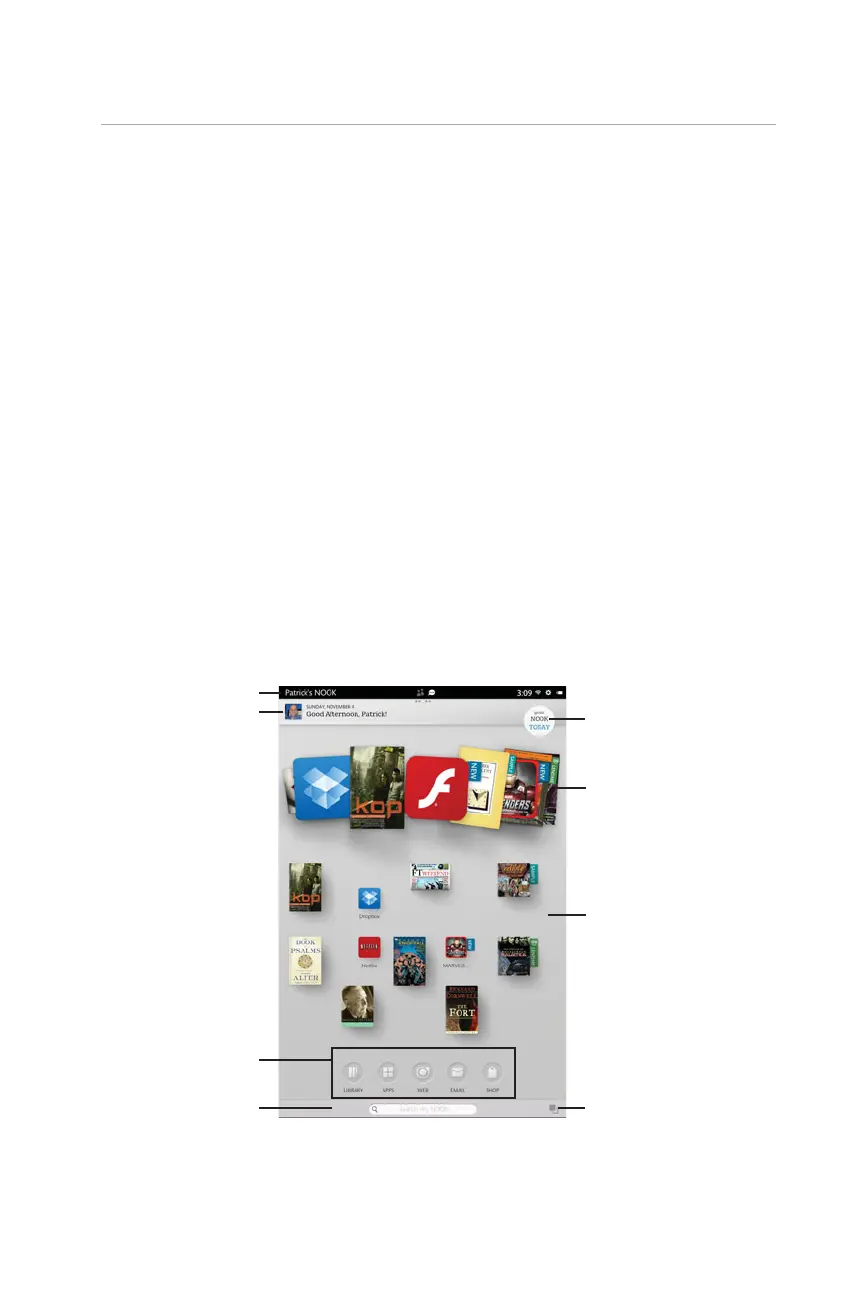
Home Screen
This is the screen that appears after you unlock the NOOK. The Home screen is a
central location, and you interact with it a lot. The screen is divided into several sec-
tions (see Figure 1.4):
5
Orienting Yourself to Your NOOK



 To Next Page